
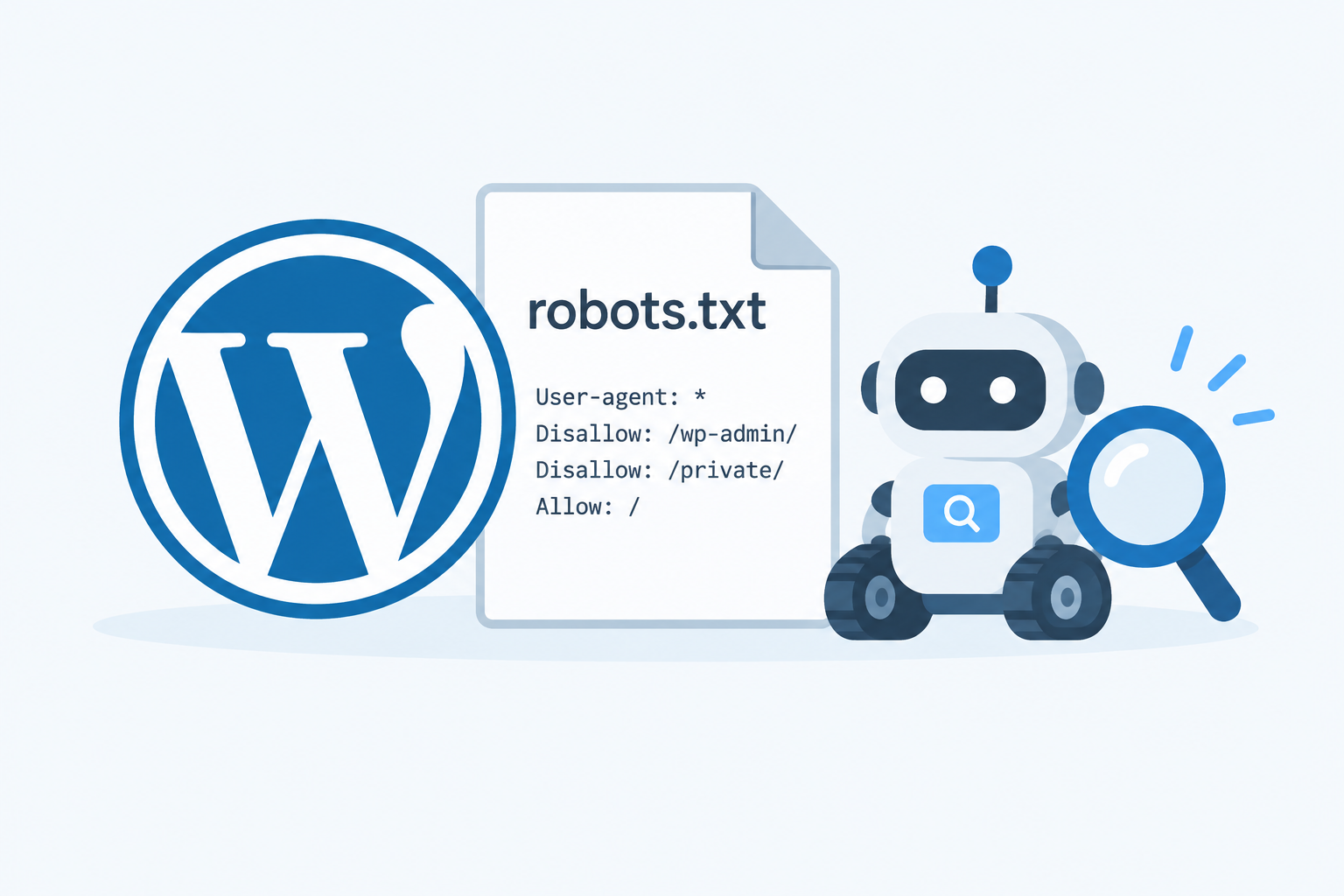
WordPress creates a virtual robots.txt file automatically, so a fresh site already has one at yourdomain.com/robots.txt even though no file exists on the server. You can change it with an SEO plugin, by uploading a physical file to your web root, or with the robots_txt filter in code. This guide covers all three methods, explains what the default rules do, and lists what is worth blocking and what is not.
Does WordPress create a robots.txt file by default?
Yes. When a crawler requests /robots.txt, WordPress runs a core function called do_robots() and prints the rules on the fly. Nothing is written to disk, which is why you won’t find the file over SFTP on a new install.
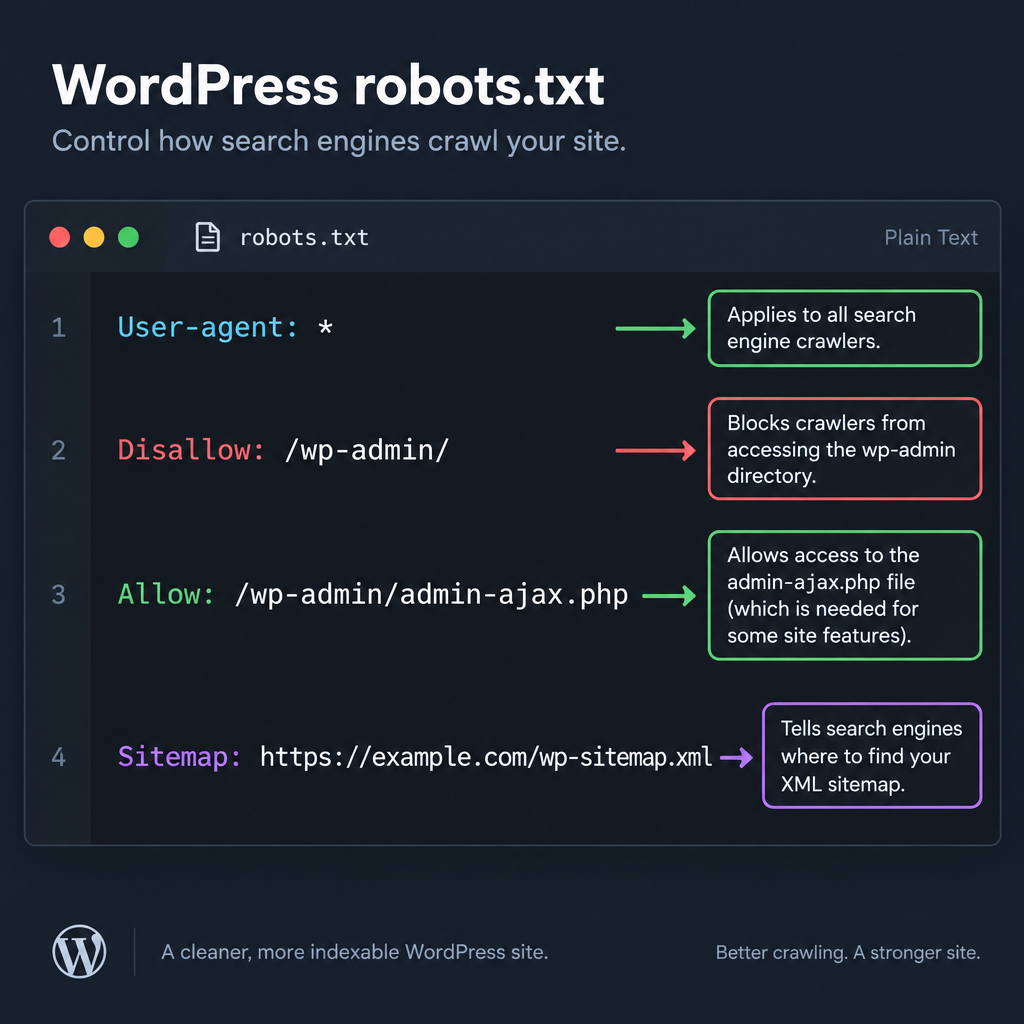
On a current WordPress site with search engines allowed and core sitemaps enabled, the default output looks like this:
User-agent: *
Disallow: /wp-admin/
Allow: /wp-admin/admin-ajax.php

Sitemap: https://example.com/wp-sitemap.xml
Here is what each line does and when it arrived in core:
| Line | What it does | Notes |
|---|---|---|
User-agent: * |
Applies the rules below to every crawler | Specific bot groups can override it |
Disallow: /wp-admin/ |
Asks crawlers to skip the admin area | The login screen and dashboard have no search value |
Allow: /wp-admin/admin-ajax.php |
Re-opens the AJAX endpoint | Added in WordPress 4.4, because front-end features call this file |
Sitemap: .../wp-sitemap.xml |
Points crawlers to the core XML sitemap | Added in WordPress 5.5 with native sitemaps |
The admin-ajax.php exception matters more than it looks. Themes and plugins use that file to load content such as filters, infinite scroll and cart fragments. If Google can’t fetch it, it may render some pages incompletely.
If WordPress is installed in a subfolder (for example example.com/blog/), the virtual file doesn’t help. Crawlers only look for robots.txt at the root of the host, so in that case you need a physical file at the domain root.
What “Discourage search engines” does now
Under Settings > Reading, the checkbox labelled “Discourage search engines from indexing this site” used to add Disallow: / to robots.txt. Since WordPress 5.3, it works differently. Core outputs a noindex robots meta tag on every page instead, and the core sitemap line drops out of robots.txt.
That change was deliberate. A Disallow: / rule stops Google from crawling pages, which means it never sees a noindex tag and can still list blocked URLs from external links. A noindex tag gets pages removed properly. Use the checkbox for staging sites and builds that aren’t live yet. Clear it on launch day, because forgetting it is one of the most common reasons a new WordPress site never shows up in Google.
How robots.txt rules work
The file follows the Robots Exclusion Protocol, which was published as RFC 9309, a Proposed Standard, in September 2022. Rules are grouped by user agent, and each group lists the paths that crawler should or shouldn’t fetch.
| Directive | Purpose | Support |
|---|---|---|
User-agent |
Names the crawler a group applies to | Universal |
Disallow |
Blocks crawling of a path prefix | Universal |
Allow |
Re-opens a path inside a disallowed folder | Google, Bing and other major crawlers |
Sitemap |
Gives the full URL of an XML sitemap | Google, Bing and other major crawlers |
Crawl-delay |
Asks for a pause between requests | Ignored by Google, honoured by Bing |
Noindex |
Once used to deindex pages | Google stopped supporting it on September 1, 2019 |
A few matching rules trip people up:
- Paths are prefixes.
Disallow: /shopblocks/shop/,/shop-sale/and/shopping-guide/. Add a trailing slash if you only mean the folder. - Wildcards work for Google and Bing.
*matches any sequence of characters and$marks the end of a URL.Disallow: /*.pdf$blocks PDF files. - The most specific rule wins. Google picks the matching rule with the longest path. When an Allow and a Disallow rule are equally long, Google applies the less restrictive Allow.
- A crawler obeys only one group. If you add a
User-agent: Googlebotgroup, Googlebot ignores theUser-agent: *group entirely. Repeat any shared rules inside the specific group. - Paths are case sensitive.
/Private/and/private/are different paths.
Google also caps the file at 500 KiB and ignores anything past that limit. A normal WordPress robots.txt is a few hundred bytes, so you will only hit this with an auto-generated file that has gone badly wrong.
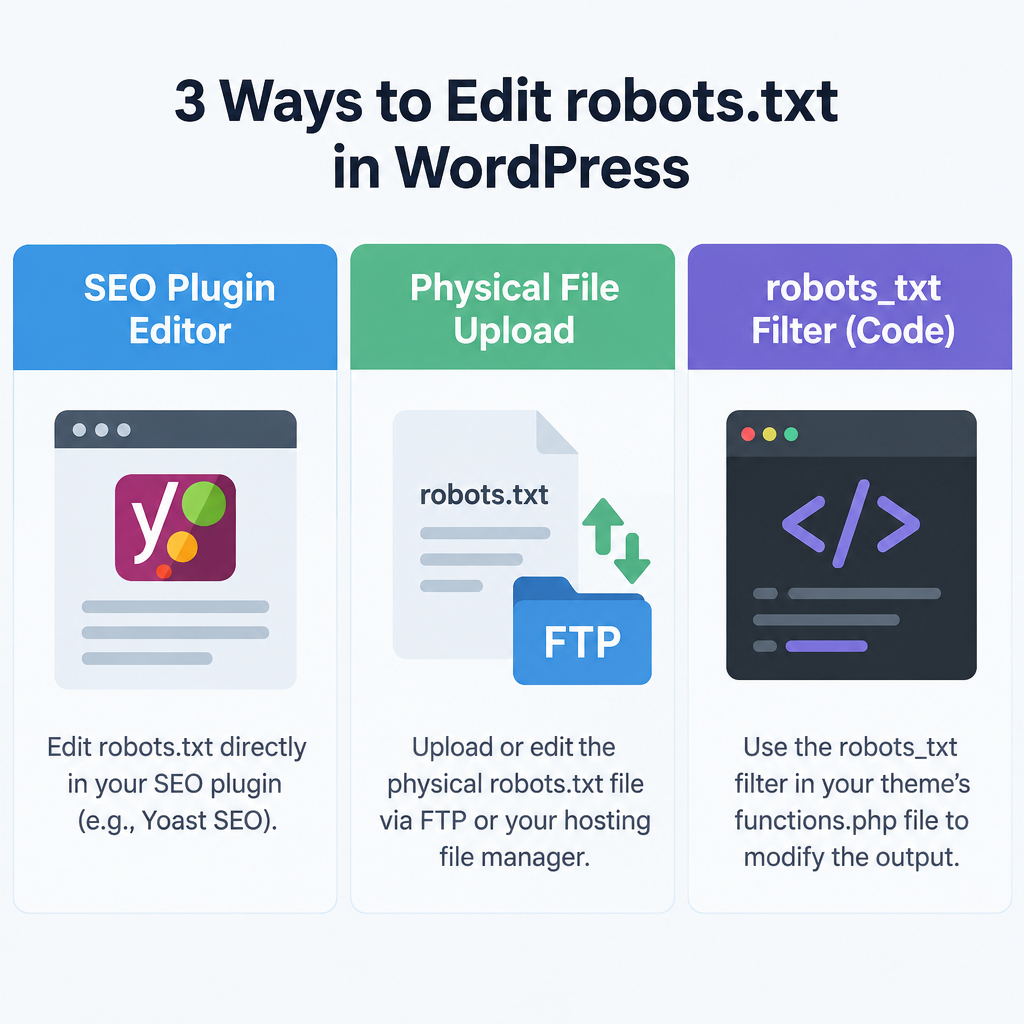
Three ways to edit robots.txt in WordPress
Pick the method that matches how you manage the site. They don’t combine well, so choose one and stick with it.
| Method | Best for | Survives theme changes | Main catch |
|---|---|---|---|
| SEO plugin editor | Most sites and non-developers | Yes | Rules live in the database, tied to that plugin |
| Physical robots.txt file | Hosts with file access, subfolder installs | Yes | Overrides everything WordPress and plugins generate |
robots_txt filter |
Developers, agencies, version-controlled sites | Yes, if placed in a must-use plugin | Ignored if a physical file exists |
The interaction between them is the part to understand. Your web server checks for a real robots.txt file before it ever hands the request to WordPress. If a physical file exists, the server sends it and WordPress never runs, so plugin settings and filters have no effect.
Back up first
Download your current robots.txt and take a full site backup before changing anything. One stray Disallow: / can stop Google crawling your whole site.
Method 1: Edit robots.txt with an SEO plugin
The big SEO plugins all include a robots.txt editor. Most of them edit the virtual file, though some will offer to create a physical one.
Yoast SEO
- Go to Yoast SEO > Tools in the dashboard.
- Click File editor.
- Click Create robots.txt file if prompted.
- Edit the rules in the text box.
- Click Save changes to robots.txt.
In Rank Math, switch the plugin to Advanced mode first, then go to Rank Math SEO > General Settings > Edit robots.txt. In All in One SEO, the editor sits under All in One SEO > Tools > Robots.txt Editor, where you can add rules row by row.
If the editor is greyed out, a physical file already exists on the server and the plugin can’t override it. Delete or rename that file, or edit it directly.
Yoast and Rank Math replace the core sitemap with their own index at /sitemap_index.xml. After switching plugins, open your robots.txt and check that the Sitemap line points to the sitemap that actually loads.
Method 2: Upload a physical robots.txt file
This is the old-school route, and it is still the right one when WordPress lives in a subfolder or when you want the file to stay put regardless of plugins.
Physical file
- Create a plain text file named robots.txt on your computer.
- Add your rules using UTF-8 encoding.
- Connect to your server with SFTP or your host’s file manager.
- Upload the file to the web root, usually public_html.
- Set permissions to 644.
- Load yourdomain.com/robots.txt in a browser to confirm.
Once that file is in place, everything WordPress used to generate is gone, including the sitemap line. Add the Sitemap line yourself and remember that plugin settings for robots.txt no longer do anything.
Method 3: Modify the output with the robots_txt filter
For developers, the cleanest option is the robots_txt filter. It receives the generated output and a second value saying whether the site is public, and it returns whatever you want served.
Put it in a must-use plugin so it survives theme switches. Create wp-content/mu-plugins/robots-rules.php:
<?php
/**
 * Plugin Name: Custom robots.txt rules
 */

add_filter( 'robots_txt', function ( $output, $public ) {
    // Leave staging and non-public sites alone.
    if ( ! $public ) {
        return $output;
    }

    $output .= "nUser-agent: *n";
    $output .= "Disallow: /?s=n";
    $output .= "Disallow: /search/n";

    return $output;
}, 10, 2 );
That example appends rules, but notice it adds a second User-agent: * group. Most crawlers merge duplicate groups, yet the result is harder to read. To control the whole file, return a complete string instead:
<?php
/**
 * Plugin Name: Full robots.txt override
 */

add_filter( 'robots_txt', function ( $output, $public ) {
    if ( ! $public ) {
        return $output;
    }

    $sitemap = home_url( '/wp-sitemap.xml' );

    return "User-agent: *n"
        . "Disallow: /wp-admin/n"
        . "Allow: /wp-admin/admin-ajax.phpn"
        . "Disallow: /?s=n"
        . "Disallow: /search/n"
        . "n"
        . "Sitemap: {$sitemap}n";
}, 99, 2 );
The priority of 99 makes sure your version runs after core and most plugins. If you’d rather keep the code in your theme, use a child theme’s functions.php. That way an update to the parent theme for WordPress won’t wipe your rules.
What a good WordPress robots.txt looks like
A strong robots.txt for a typical WordPress blog or business site is short. The defaults are already sensible, and most additions should target URLs that waste crawl time without adding search value.
User-agent: *
Disallow: /wp-admin/
Allow: /wp-admin/admin-ajax.php
Disallow: /?s=
Disallow: /search/

Sitemap: https://example.com/sitemap_index.xml
The two search lines stop crawlers from following endless internal search result URLs, which can multiply quickly if spammers link to search pages with junk queries.
WooCommerce stores
Stores generate far more low-value URLs, mostly from parameters. Sorting, filtering and add-to-cart links can create thousands of near-identical URLs. Here is a reasonable starting point:
User-agent: *
Disallow: /wp-admin/
Allow: /wp-admin/admin-ajax.php
Disallow: /cart/
Disallow: /checkout/
Disallow: /my-account/
Disallow: /*?add-to-cart=
Disallow: /*?orderby=
Disallow: /?s=

Sitemap: https://example.com/sitemap_index.xml
Adjust the cart, checkout and account paths if you renamed those pages under WooCommerce > Settings > Advanced. Be careful with layered navigation filters. If your filtered category pages are ones you want ranking (for example “red running shoes”), don’t block the filter parameters that create them.
If you run a store on the Shopify ecommerce platform instead, the process is different. Shopify generates robots.txt from a robots.txt.liquid theme template rather than a WordPress-style filter.
Builder tip
Before blocking any URL pattern, check Search Console’s Pages report for that pattern. If those URLs bring in organic clicks, leave them crawlable.
What you should not block
A lot of old WordPress robots.txt advice now does more harm than good. Skip these:
/wp-content/themes/and/wp-content/plugins/. Google renders pages much like a browser does and needs your CSS and JavaScript to do that. Blocking these folders can make your pages look broken to Google./wp-includes/. Core loads front-end scripts from here, including jQuery on many themes. Same rendering problem./wp-content/uploads/. That’s where your images live. Block it and you drop out of image search. Optimizing those images helps more, starting with choosing PNG or JPEG correctly for each file.- Pages you want deindexed. Robots.txt controls crawling, not indexing. If you want a page out of Google, let it be crawled and add a noindex tag. A blocked page can still appear in results as a bare URL if other sites link to it.
- Anything private. The file is public. Listing
/secret-client-area/in it advertises that folder to anyone curious. Protect private content with passwords or login, not robots.txt. - Feeds, tag and category archives by default. Blocking these is rarely worth it. If thin archives are a problem, noindex them in your SEO plugin instead.
How to block AI crawlers in WordPress robots.txt
Many site owners now want to keep their content out of AI training datasets. Robots.txt is the standard way to ask, and the major AI companies publish user-agent names that respect it.
| User-agent | Operator | What blocking it does |
|---|---|---|
GPTBot |
OpenAI | Opts content out of model training |
OAI-SearchBot |
OpenAI | Removes pages from ChatGPT search results |
ChatGPT-User |
OpenAI | Covers fetches triggered by user requests |
Google-Extended |
Opts out of Gemini training; has no effect on Google Search | |
ClaudeBot |
Anthropic | Opts content out of model training |
CCBot |
Common Crawl | Keeps pages out of the open dataset many AI models use |
PerplexityBot |
Perplexity | Keeps pages out of Perplexity’s search index |
Applebot-Extended |
Apple | Opts out of Apple’s AI training; Applebot search crawling continues |
Add groups like these below your main rules:
User-agent: GPTBot
Disallow: /

User-agent: Google-Extended
Disallow: /

User-agent: ClaudeBot
Disallow: /

User-agent: CCBot
Disallow: /
Think about the trade-off before you paste in every bot. Blocking training crawlers like GPTBot, Google-Extended and CCBot has no effect on traditional search traffic. Blocking search-style bots such as OAI-SearchBot or PerplexityBot removes you from those answer engines, which now send referral traffic to many sites.
Robots.txt is a request, not a lock. Reputable operators honour it, while some scrapers ignore it completely. If bandwidth abuse is the real problem, a firewall rule at your host or CDN does more than any robots.txt line.
Testing your robots.txt and purging the cache
Google retired its old robots.txt Tester in late 2023. Its replacement is the robots.txt report in Search Console, found under Settings > robots.txt. It shows the version Google last fetched, when it fetched it, and any parsing errors or warnings. You can also request a recrawl from that report after making changes.
To test whether a specific URL is blocked, run it through the URL Inspection tool. The result tells you if crawling is allowed. Bing has its own robots.txt tester, so it’s worth setting up Bing Webmaster Tools too, especially if you plan to use Crawl-delay, which Bing respects and Google ignores.
For a quick check from the command line, fetch the file and its headers:
curl -i https://example.com/robots.txt
You want a 200 status and a Content-Type of text/plain. The status code matters because Google treats errors in very different ways:
| Response | How Google handles it |
|---|---|
| 200 OK | Follows the rules in the file |
| 3xx redirect | Follows up to five redirect hops, then treats it as a 404 |
| 4xx (except 429) | Acts as if no robots.txt exists and crawls everything |
| 429 or 5xx | Temporarily treats the whole site as disallowed and slows or stops crawling |
That last row is the dangerous one. A robots.txt that throws server errors for days can drag your crawling to a halt, so fix 5xx responses on this URL as a priority.
Purge caches after changes
If you edit robots.txt and the old version keeps appearing, something is caching it. Check these in order:
- Your page caching plugin, such as WP Rocket, W3 Total Cache or LiteSpeed Cache. Clear all caches.
- Server-level caching at your host. Managed WordPress hosts usually have a purge button in their dashboard. On WordPress VIP, for example, robots.txt is cached at the edge and needs purging after changes.
- Your CDN. In Cloudflare, purge the single URL
https://yourdomain.com/robots.txt.
Google itself generally caches robots.txt for up to 24 hours, so a short delay after a correct change is normal.
Troubleshooting common robots.txt problems
robots.txt returns a 404. The usual cause is permalinks set to Plain, which means the server may never pass the request to WordPress. Switch to any other structure under Settings > Permalinks and save. On Nginx, check the server config. Some configs include a location = /robots.txt block that serves only static files. It needs to fall back to index.php for the virtual file to work:
location = /robots.txt {
    try_files $uri $uri/ /index.php?$args;
    access_log off;
    log_not_found off;
}
Plugin changes don’t show up. A physical file is overriding the virtual one. Look for robots.txt in your web root and remove or edit it.
Search Console says pages are “Blocked by robots.txt” unexpectedly. Look for a prefix rule that’s broader than intended, such as Disallow: /p blocking every URL starting with that letter. Run the affected URL through URL Inspection to find the matching rule.
“Indexed, though blocked by robots.txt” warnings. Google found links to a blocked URL and indexed it without crawling. If you want it gone, remove the Disallow rule, add noindex, and let Google recrawl.
The sitemap line is wrong or missing. Core drops the line when “Discourage search engines” is ticked, and SEO plugins swap in their own sitemap URLs. A physical file has no sitemap line unless you write one.
Multisite confusion. Subdomain networks get a separate virtual robots.txt per site. Subdirectory networks share one file at the main domain root, so rules for every site must live there.
FAQ
Where is the robots.txt file in WordPress?
On most sites it doesn’t exist as a file. WordPress generates it virtually whenever someone visits /robots.txt. A physical file only exists if you, your host or a plugin created one in the web root, usually public_html.
Is the default WP robots.txt good enough?
For most small sites, yes. It blocks the admin area, keeps admin-ajax.php open and lists your sitemap. Add rules only to cut genuine crawl waste, such as internal search or WooCommerce cart parameters.
Should I block wp-admin in robots.txt?
The default already does, and you should keep it. Make sure the Allow: /wp-admin/admin-ajax.php line stays, because front-end features depend on that file.
Can robots.txt remove a page from Google?
No. It only stops crawling. To remove a page, allow crawling and add a noindex meta tag, or delete the page so it returns a 404 or 410. For urgent cases, use the Removals tool in Search Console as a temporary measure.
Does blocking AI bots hurt my Google rankings?
Blocking Google-Extended, GPTBot, ClaudeBot or CCBot doesn’t affect Google Search rankings. Never block Googlebot itself unless you want to disappear from Google.
How long does Google take to see robots.txt changes?
Google usually refreshes its cached copy within 24 hours. You can speed this up by requesting a recrawl from the robots.txt report in Search Console after purging your own caches.