
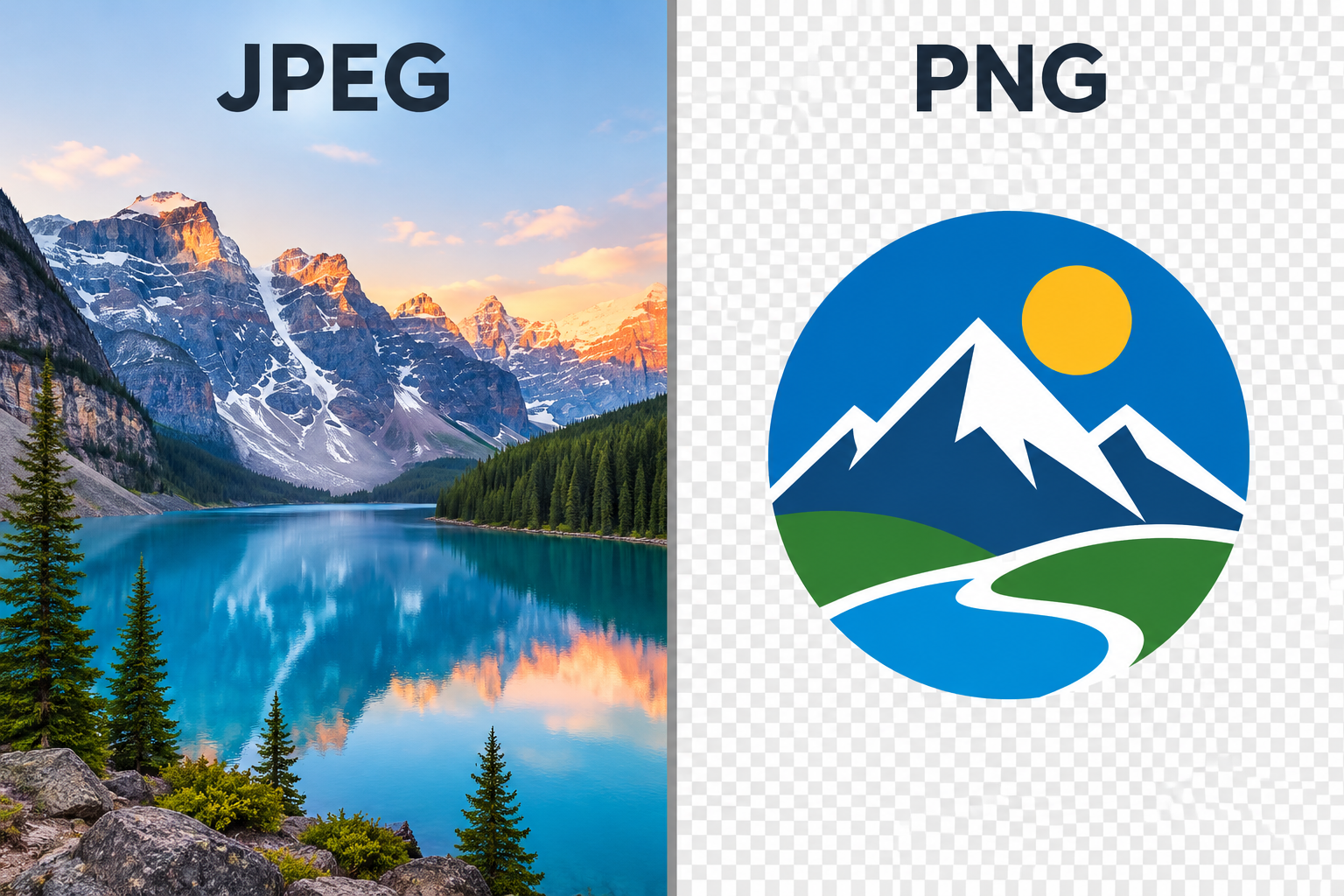
The PNG or JPEG question has a simple answer for most sites. Use JPEG for photos and PNG for graphics that need sharp edges or transparency. Then let WebP or AVIF do the heavy lifting wherever your platform supports them. This guide covers why that rule works, where it breaks, and how to set it up in WordPress, Shopify and Photoshop.
Last checked: October 29, 2026
The Short Answer
If you only remember one thing, make it this: JPEG throws away detail to shrink files, and PNG keeps every pixel.
That single difference decides almost everything. A photo of a product, a landscape or a person has millions of subtly varied colors. Your eye can’t tell when a few of them are approximated, so JPEG’s lossy compression saves a lot of space at almost no visible cost.
A logo, an icon, a chart or a screenshot of software is different. These images have flat areas of color and hard edges. JPEG smears those edges into fuzzy halos, while PNG reproduces them perfectly and often in a smaller file than JPEG would manage.
PNG Versus JPEG: How Each Format Works
How JPEG Compression Works
JPEG dates back to 1992, when the Joint Photographic Experts Group published the standard. It was designed for one job: storing photographs efficiently.
When you save a JPEG, the encoder does three things:
- It separates brightness from color and usually stores color at a lower resolution (called chroma subsampling, typically 4:2:0). Human vision is far more sensitive to brightness than to color, so this is hard to spot in photos.
- It splits the image into 8×8 pixel blocks and converts each block into frequency data using a discrete cosine transform.
- It rounds off the fine high-frequency detail according to the quality setting you chose. That rounding is where data is permanently lost.
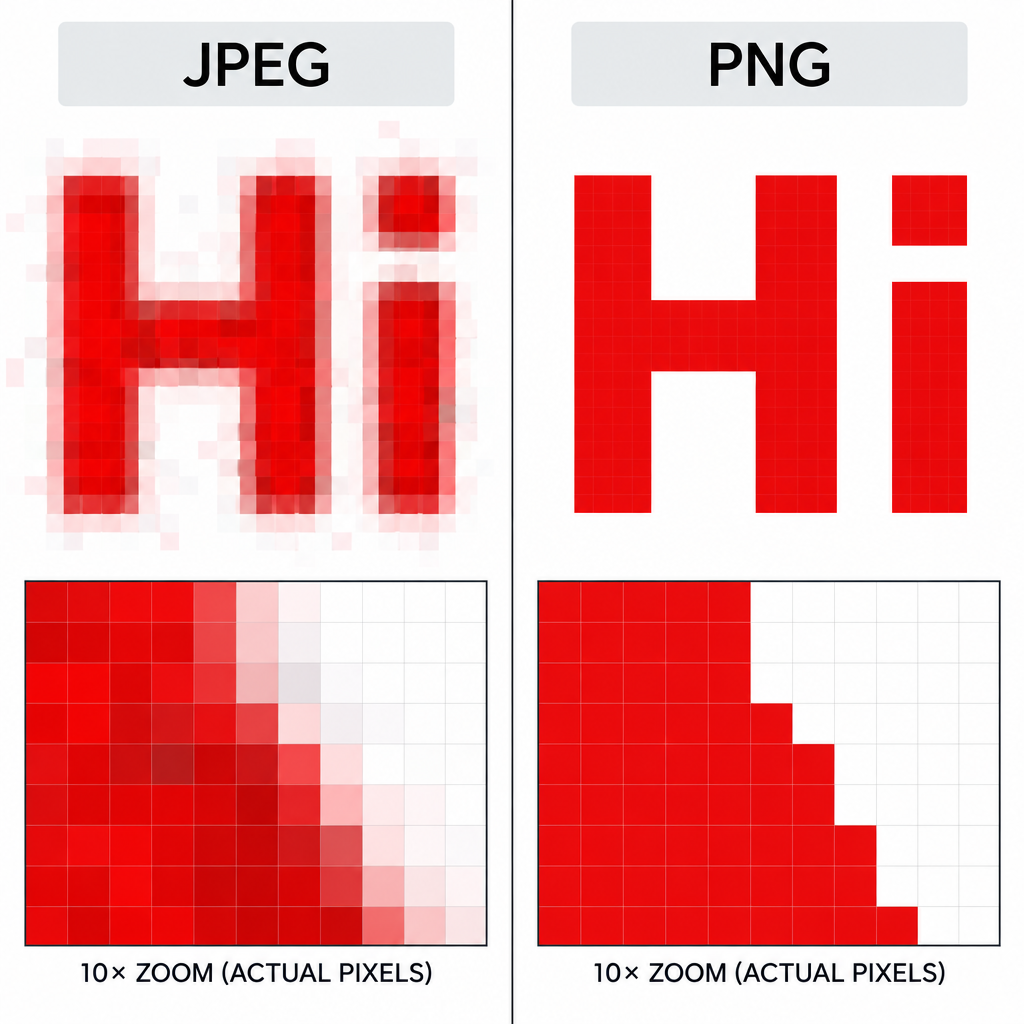
This is why heavily compressed JPEGs show blocky squares and “mosquito noise” around edges. It is also why red text on a JPEG often looks fringed: the color information was stored at a quarter of the resolution.
Every time you open, edit and re-save a JPEG, the encoder rounds things off again. Quality degrades with each generation, so always keep an original master file and export fresh copies from it.
How PNG Compression Works
PNG (Portable Network Graphics) appeared in the mid-1990s as a patent-free replacement for GIF, and the W3C published it as a Recommendation in 1996. A third edition of the spec, published by the W3C in 2025, formally added animated PNG and HDR color support.
PNG uses lossless compression based on DEFLATE, the same algorithm behind ZIP files. Before compressing, it applies filters that predict each pixel from its neighbours, which works brilliantly on flat colors and repeated patterns. It works poorly on photographic noise, because there are no patterns to exploit.
PNG comes in two practical flavours:
- PNG-8 (indexed): up to 256 colors from a palette. Tiny files for simple logos and icons.
- PNG-24/32 (truecolor): 8 bits per channel for 16.7 million colors, plus an optional 8-bit alpha channel for smooth transparency. PNG also supports 16 bits per channel when you need it.
That alpha channel is PNG’s killer feature. It lets a logo sit cleanly on any background with soft, anti-aliased edges, something JPEG cannot do at all.
PNG vs JPEG Side-by-Side
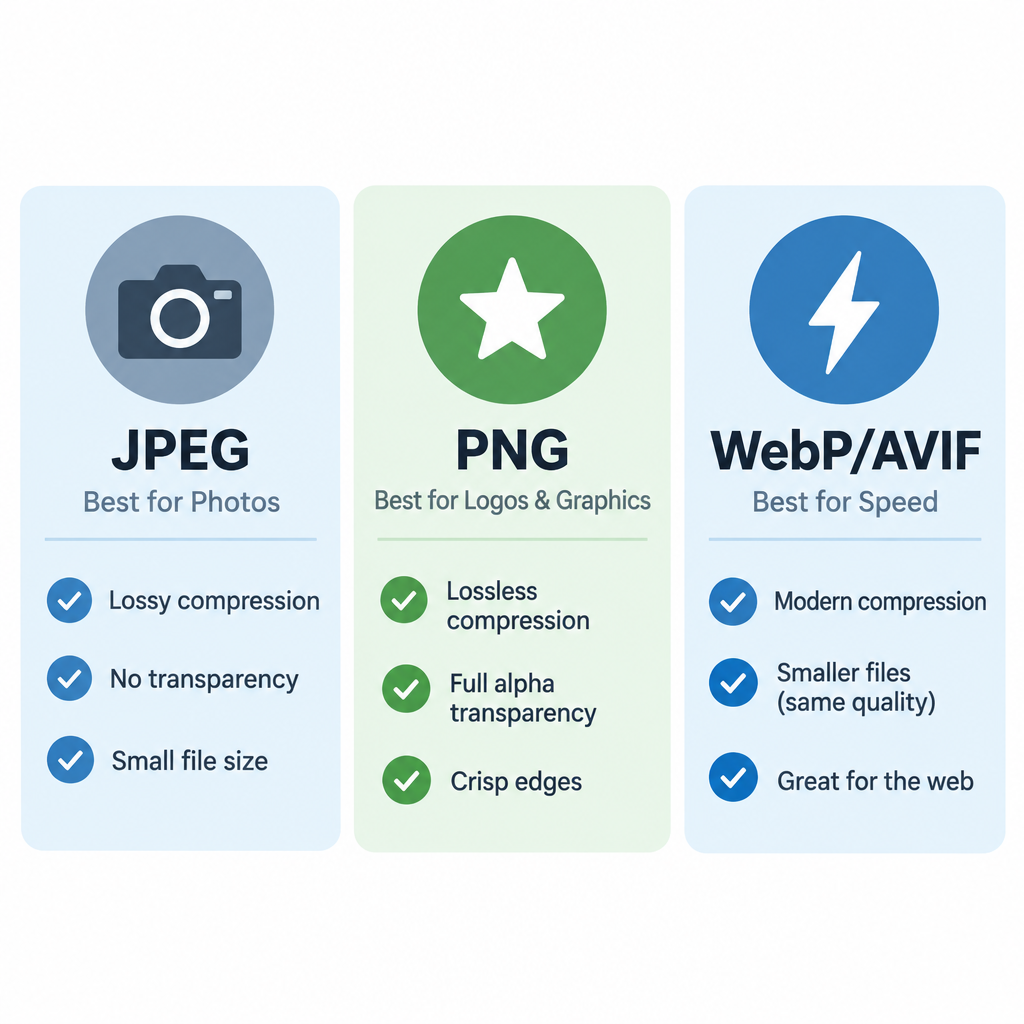
| Feature | JPEG | PNG |
|---|---|---|
| Compression | Lossy (adjustable quality) | Lossless |
| File extensions | .jpg, .jpeg | .png |
| Color depth | 8 bits per channel in practice | 1 to 16 bits per channel |
| Max colors | 16.7 million | 16.7 million (truecolor), 256 (PNG-8) |
| Transparency | No | Yes, full alpha channel |
| Animation | No | Yes (APNG) |
| Best at | Photos, gradients, textures | Logos, text, screenshots, UI, line art |
| Quality loss on re-save | Yes, cumulative | None |
| Max dimensions | 65,535 × 65,535 px | Far beyond any practical need |
| Browser support | Universal | Universal |
| Licensing cost | Free | Free (designed to be patent-free) |
There’s no price tag on either format. The real cost shows up in bandwidth, storage and page speed, which is where a bad choice hurts.
JPEG Pros and Cons
Pros
- Small files for photographs, often several times smaller than an equivalent PNG.
- Adjustable quality lets you trade size for detail.
- Opens everywhere: every browser, email client, phone, printer service and social network.
- Progressive JPEGs load as a blurry preview that sharpens, which feels faster on slow connections.
- Carries EXIF metadata such as camera model, exposure and date.
Cons
- Lossy compression degrades with every re-save.
- No transparency, so cut-out product shots need a solid background.
- Text, sharp lines and flat colors pick up visible artifacts.
- Chroma subsampling blurs saturated colors, especially reds.
PNG Pros and Cons
Pros
- Pixel-perfect, lossless quality that never degrades.
- Full alpha transparency for logos, icons and overlays.
- Crisp text and edges, which matters for screenshots and tutorials.
- PNG-8 produces tiny files for simple graphics.
Cons
- Photos saved as PNG are often 5 to 10 times larger than a good JPEG.
- No native CMYK, so print shops usually want TIFF or PDF instead.
- Truecolor PNGs with transparency can still be heavy without optimization.
- Many people export everything as PNG “for quality” and end up with slow pages.
Which Format to Use for 7 Common Web Images
This is the table to keep handy when you upload. The “modern option” column assumes your CMS or CDN can serve WebP or AVIF.
| Image type | Use | Why | Modern option |
|---|---|---|---|
| Hero photo or banner | JPEG | Rich color, gradients, big dimensions | AVIF or WebP |
| Product photo on solid background | JPEG | Photographic detail, small file | AVIF or WebP |
| Product cut-out on transparent background | PNG | Needs alpha transparency | WebP or AVIF (both support alpha) |
| Logo | SVG first, then PNG | Sharp edges, transparency, scales cleanly | SVG |
| Screenshot of software or a website | PNG | Text and UI edges stay crisp | Lossless WebP |
| Chart, diagram or infographic | PNG (or SVG) | Flat colors, text labels | SVG or lossless WebP |
| Blog featured image with text overlay | JPEG at high quality, or PNG if text looks fuzzy | Mostly photo with some text | WebP |
Notice the logo row. A vector SVG usually beats both PNG and JPEG for logos and icons because it stays sharp at any size and is often just a few kilobytes. Keep PNG as the fallback for places that don’t accept SVG, like some email clients and social profiles.
Where WebP and AVIF Fit In
The honest answer to “PNG or JPEG?” in 2026 is that the original file is often JPEG or PNG, but what the visitor actually downloads should be something newer.
WebP, released by Google in 2010, handles both lossy and lossless compression, transparency and animation. It typically produces noticeably smaller files than JPEG at similar visual quality and smaller files than PNG for graphics. Its maximum canvas is 16,383 × 16,383 pixels, which is plenty for web use.
AVIF, built on the royalty-free AV1 video codec from the Alliance for Open Media, compresses even harder than WebP, especially on photos. It supports transparency, HDR and wide color. The trade-off is slower encoding, which matters if your server converts thousands of images on upload.
| Format | Year introduced | Compression | Transparency | Chrome | Firefox | Safari | Edge |
|---|---|---|---|---|---|---|---|
| JPEG | 1992 | Lossy | No | All | All | All | All |
| PNG | 1996 | Lossless | Yes | All | All | All | All |
| WebP | 2010 | Lossy and lossless | Yes | 32+ | 65+ | 14+ | 18+ |
| AVIF | 2019 | Lossy and lossless | Yes | 85+ | 93+ | 16+ | 121+ |
Every current major browser supports both WebP and AVIF, so the fallback only matters for very old devices. JPEG XL is technically impressive and Safari supports it, but browser support across the board is still incomplete, so it isn’t a safe default for a public site yet.
If you hand-code pages, the <picture> element lets the browser pick the best format it understands:
<picture>
  <source srcset="hero.avif" type="image/avif">
  <source srcset="hero.webp" type="image/webp">
  <img src="hero.jpg" alt="Handmade ceramic mugs on a wooden shelf"
       width="1600" height="900" fetchpriority="high">
</picture>
The JPEG at the bottom is your safety net. Browsers that understand AVIF stop at the first line.
Why Format Choice Affects Speed, SEO and Sales
Images are usually the heaviest part of a web page, and the biggest image on screen is very often your Largest Contentful Paint (LCP) element. Google’s Core Web Vitals treat an LCP of 2.5 seconds or less as good, 2.5 to 4 seconds as needing improvement, and anything slower as poor.
Here’s a common failure we see on client sites. A designer exports a 2,400-pixel-wide hero photo as PNG because it “looks better.” The file comes out at several megabytes. On a mobile connection, that one image can push LCP well past 4 seconds before any other optimization is even considered. Re-exporting the same photo as a quality-80 JPEG, or better, serving it as AVIF, is often the single biggest speed win on the page.
Format also affects layout stability. Always include width and height attributes (WordPress adds them automatically) so the browser reserves space and the page doesn’t jump, which protects your Cumulative Layout Shift score.
For online stores the stakes are higher. Product grids load dozens of images at once, and slow category pages lose shoppers before they reach a product. Anyone running a store should understand how this ties into the way ecommerce works: faster product images mean more product views, and more views mean more chances to sell.
Security note
JPEGs from phones often carry GPS coordinates in their EXIF data. Strip metadata before publishing photos taken at your home or a client’s private location; most optimization plugins have a “remove EXIF” option.
How to Handle Image Formats on Your Platform
WordPress
WordPress has quietly become good at this. It has supported WebP uploads since version 5.8 (2021), AVIF since 6.5 (2024), and since 6.7 it can convert iPhone HEIC uploads to JPEG automatically when the server’s image library supports it.
When you upload an image, WordPress creates several resized copies and serves the right one through srcset. These are the defaults worth knowing:
| WordPress default | Value |
|---|---|
| Thumbnail size | 150 × 150 px (cropped) |
| Medium size | 300 px max |
| Medium large | 768 px wide |
| Large size | 1024 px max |
| Extra sizes added in 5.3 | 1536 px and 2048 px |
| Big image threshold | 2560 px (larger uploads get a “-scaled” copy) |
| Default JPEG/WebP quality | 82 |
You can change the size defaults under Settings > Media. Quality and output format need a filter, which you can add with a code snippets plugin or in a child theme’s functions.php. Back up your site before adding code or bulk-converting images.
To serve WebP versions of new JPEG uploads (WordPress 5.8+):
add_filter( 'image_editor_output_format', function( $formats ) {
    $formats['image/jpeg'] = 'image/webp';
    return $formats;
} );
To lower the default compression quality from 82 to 75:
add_filter( 'wp_editor_set_quality', function() {
    return 75;
} );
These filters only affect images uploaded after you add them. For your existing media library, an optimization plugin such as EWWW Image Optimizer, ShortPixel, Imagify or Converter for Media can bulk-convert and handle the browser fallback for you. The WordPress Performance team’s Modern Image Formats plugin is a lightweight, free option if you’d rather stay close to core.
Set up image formats in WordPress
- Take a full backup of files and database.
- Check your server has Imagick or GD with WebP/AVIF support (Tools > Site Health > Info > Media Handling).
- Install one image optimization plugin, not several.
- Enable WebP or AVIF output and keep originals.
- Run a bulk optimization on the media library.
- Test your key pages in PageSpeed Insights.
Builder tip
Install exactly one image optimization plugin. Two plugins rewriting the same images and <picture> tags is a classic cause of broken thumbnails and missing images.
Shopify and Hosted Builders
On the Shopify ecommerce platform, you mostly don’t need to think about WebP or AVIF. Shopify’s CDN automatically serves modern formats to browsers that support them and resizes images on the fly through theme code. Your job is to upload clean, reasonably sized JPEGs for photos and PNGs only where you truly need transparency.
Most hosted platforms work similarly, and any modern website builder handles resizing for you to some degree. Still, upload sensibly: a 6,000-pixel PNG photo straight from a camera export wastes storage and can slow down the editor even if the CDN shrinks it for visitors.
Developers building static sites have even more control. If you build with the Astro framework, its built-in <Image /> component converts and resizes local images at build time and outputs WebP by default.
Exporting from Photoshop
In Photoshop, use File > Export > Export As for quick web exports in PNG, JPG or WebP (native WebP support arrived in Photoshop in 2022). The older File > Export > Save for Web (Legacy) dialog, shortcut Ctrl+Alt+Shift+S on Windows or Cmd+Option+Shift+S on Mac, still offers the most control, including side-by-side previews of quality settings.
Two settings matter most:
- JPEG quality: for web photos, a setting around 70 to 85 on the 0 to 100 scale is the sweet spot. Above 90, files balloon with almost no visible gain.
- Image size: export at the largest size it will actually display, roughly twice that for high-density screens. A 1,000-pixel content column rarely needs an image wider than 2,000 pixels.
Free alternatives work well too. Google’s Squoosh runs in the browser and lets you compare formats side by side, and ImageOptim is a popular free Mac app for squeezing extra bytes out of finished files.
The Mistakes That Make Images Worse
A few misconceptions cause more damage than picking the “wrong” format.
Converting a JPEG to PNG doesn’t restore quality. The detail JPEG discarded is gone. You’ll get a much larger file containing the exact same artifacts.
Saving a screenshot as JPEG ruins small text. Tutorials, software documentation and dashboard screenshots should be PNG or lossless WebP. Readers notice fuzzy menu labels immediately.
A PNG isn’t automatically “high quality.” A PNG made from a low-resolution, previously compressed image is still low quality. Lossless only means nothing new is lost.
Transparency forces format choice, not the subject. A product photo is photographic, but if it sits on a transparent background over a colored page section, it needs PNG, WebP or AVIF.
Optimizing a full-size PNG doesn’t fix it. Running pngquant or TinyPNG on a truecolor PNG photo can shrink it dramatically by reducing colors to a palette. That’s useful for graphics, but a photo still belongs in JPEG or AVIF.
A Practical Image Optimization Checklist
Format is one decision among several. Run through this list for every important page:
- [ ] Photos are JPEG originals served as AVIF or WebP.
- [ ] Logos and icons are SVG, with PNG fallbacks only where needed.
- [ ] Screenshots and diagrams are PNG or lossless WebP.
- [ ] No image is uploaded far larger than its display size.
- [ ] Every
<img>haswidth,heightand descriptivealttext. - [ ] Below-the-fold images use
loading="lazy". - [ ] The hero or LCP image is not lazy-loaded and uses
fetchpriority="high". - [ ] EXIF location data is stripped from personal or client photos.
- [ ] File names describe the image (
blue-linen-sofa.jpg, notIMG_4821.jpg).
Measure the Difference on Your Own Site
Don’t take format claims on faith. Measure them.
Start with PageSpeed Insights or Lighthouse in Chrome DevTools. Look at the LCP element and the “Improve image delivery” or next-gen format suggestions. Note your LCP, then convert your heaviest images and test again.
For stores and landing pages, go one step further. Run a simple A/B test where one variant serves your current images and the other serves optimized AVIF or WebP versions at the same visual quality. Track conversion rate and bounce rate alongside load time over at least a couple of weeks, so you capture weekday and weekend traffic. If a heavier, higher-quality image version converts better despite loading slower, you’ll have the data to justify it. In our experience, matching visual quality at a smaller size almost always wins.
Search Console’s Core Web Vitals report shows how real visitors experience your pages over time, so check it a month after any big image change.
Verdict: Which Should You Choose?
Here’s the decision in plain terms:
- Choose JPEG for any photograph: product shots on solid backgrounds, people, places, food, hero banners. Export at quality 70 to 85 and the right dimensions.
- Choose PNG for logos (when SVG isn’t an option), screenshots, charts, illustrations with flat colors, and anything that needs a transparent background.
- Serve WebP or AVIF to visitors whenever your platform makes it easy. On WordPress that’s a plugin or a filter. On Shopify it happens automatically.
- Keep lossless masters (PSD, TIFF or high-quality originals) so you never re-compress an already compressed file.
PNG versus JPEG isn’t a contest with one winner. They solve different problems, and the best-performing sites use both, then hand delivery to a modern format.
FAQ
Which is better quality, JPEG or PNG?
PNG preserves every pixel exactly, so it is technically higher quality. For photographs, a JPEG saved at quality 80 or above looks the same to most people at a fraction of the file size. For text, line art and screenshots, PNG is clearly better because JPEG blurs sharp edges.
What are the disadvantages of a PNG?
The main one is file size: photos saved as PNG are often 5 to 10 times larger than a well-compressed JPEG, which slows pages down. PNG also lacks native CMYK support for professional print work, and large transparent PNGs can be heavy unless you optimize them.
Is an iPhone photo a PNG?
No. iPhones save camera photos as HEIC by default, or as JPEG if you choose Settings > Camera > Formats > Most Compatible. Screenshots, on the other hand, are saved as PNG. When you share or transfer photos, iOS often converts HEIC to JPEG automatically for compatibility.
Can I convert a PNG to a JPEG?
Yes. On a Mac, open the file in Preview and choose File > Export, then pick JPEG. On Windows, open it in Paint and use File > Save as > JPEG picture. In Photoshop, use File > Export > Export As. Any transparent areas will become a solid color, usually white, so convert only images that don’t need transparency.
Should I use PNG or JPEG for my website logo?
Use SVG if your platform allows it, because it stays sharp at every size and is usually tiny. If you need a raster file, use PNG so the logo keeps a transparent background and crisp edges. Avoid JPEG for logos.
Does image format affect SEO?
Indirectly, yes. Format affects file size, file size affects load speed, and speed feeds into Core Web Vitals, which Google uses as a ranking signal. Descriptive file names and alt text matter as much as the format itself.