
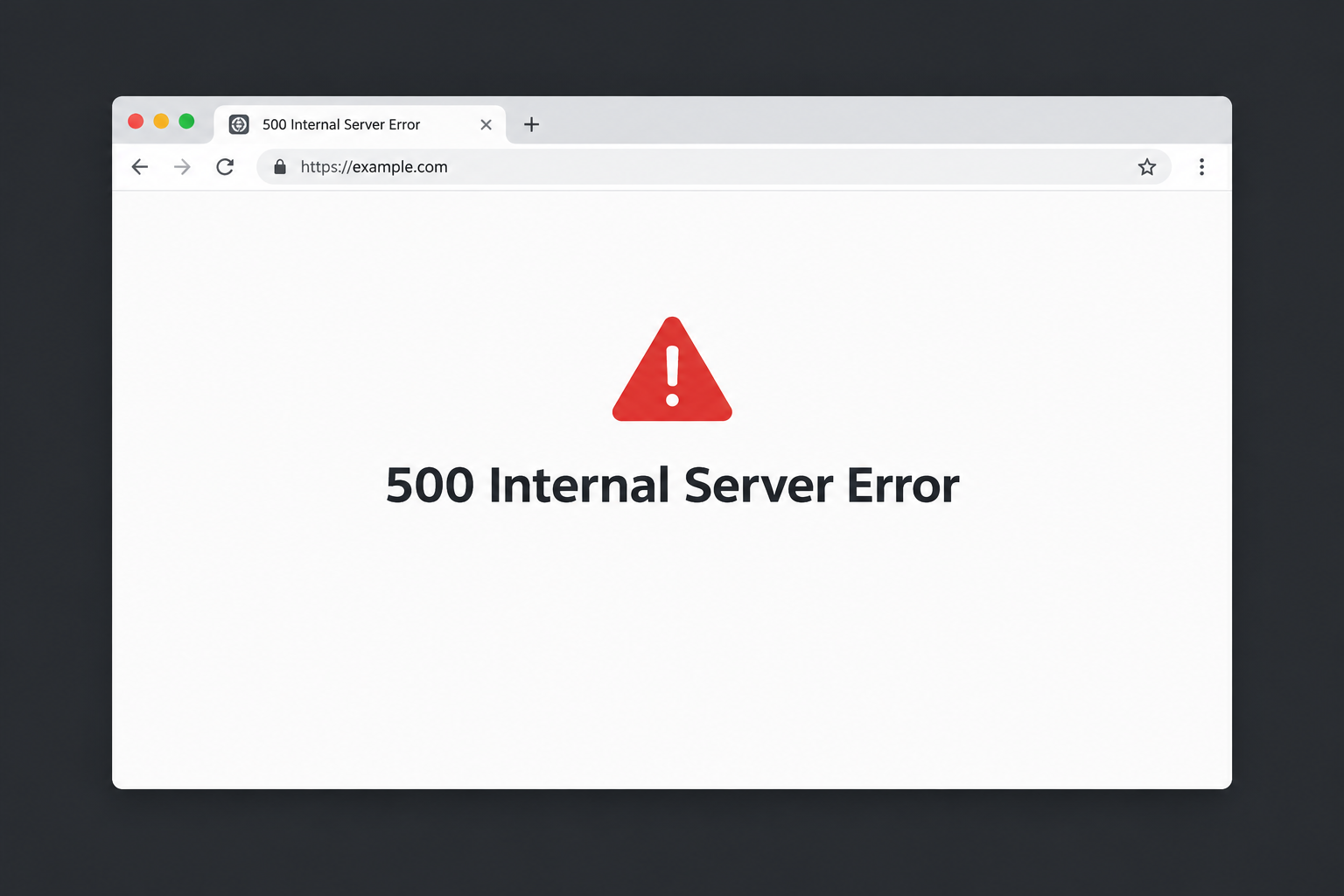
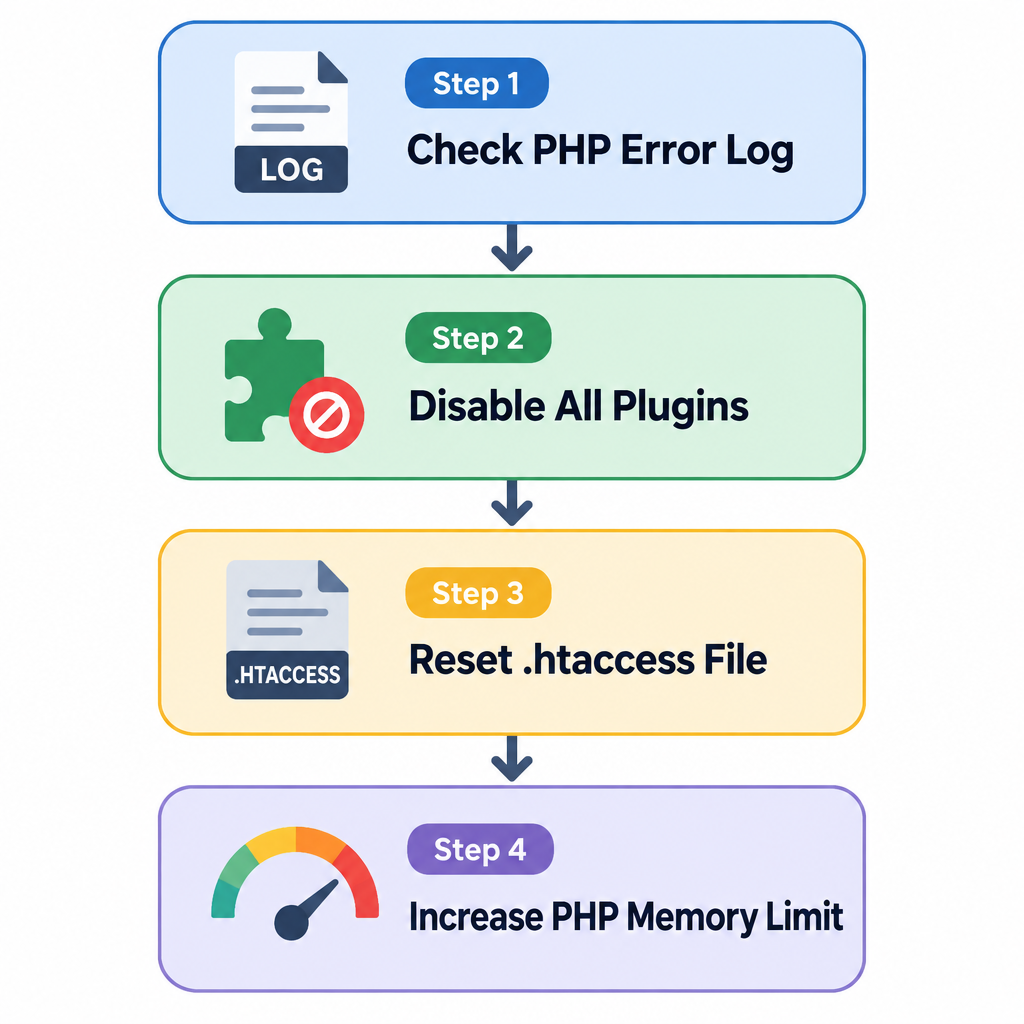
A 500 Internal Server Error means the server hit an unexpected problem and could not finish the request. On WordPress, the cause is usually a broken plugin or theme, a corrupt .htaccess file, or PHP running out of memory. We can usually find it in minutes by reading the error log, then disabling plugins, then resetting .htaccess.
Last updated: October 29, 2026
What a 500 Internal Server Error actually means
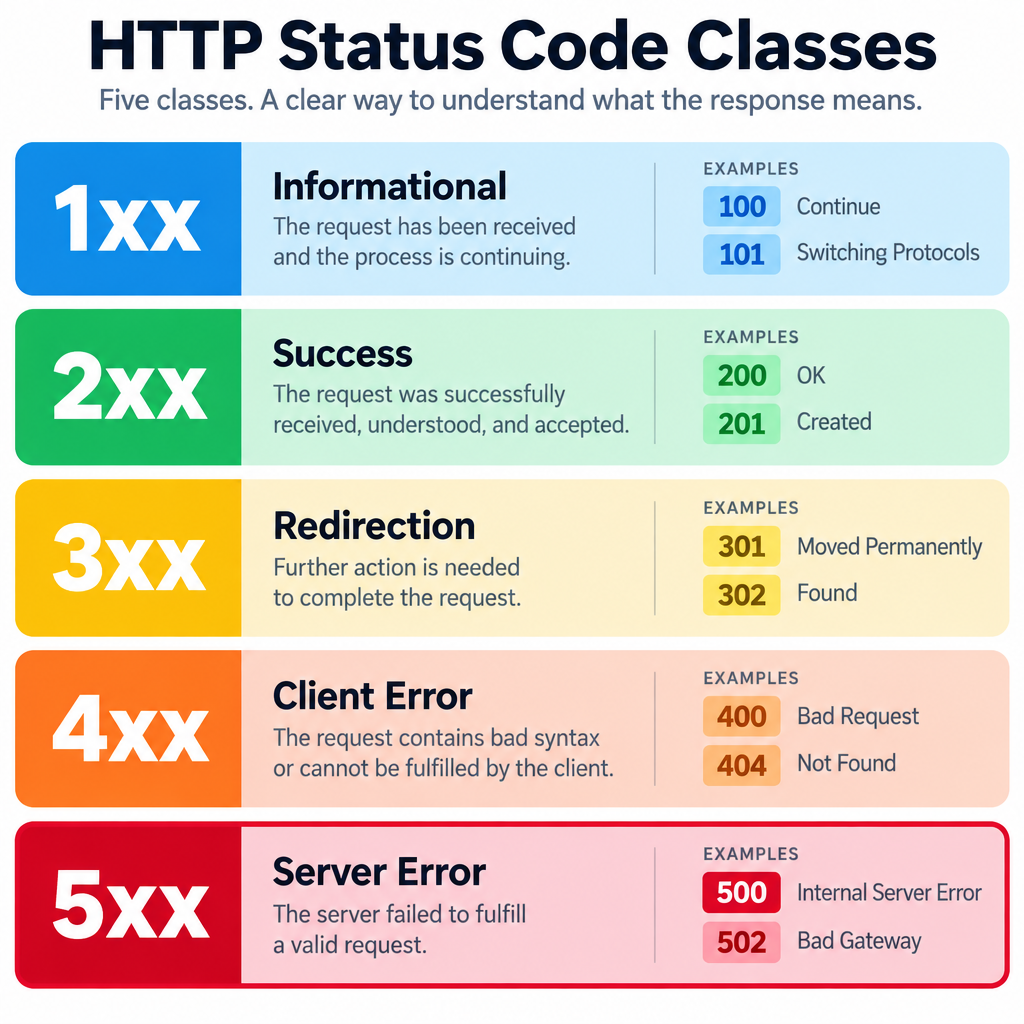
HTTP status codes are three-digit numbers a server sends back with every response. The first digit sets the class. A 5 means the server failed, not the visitor’s browser.
The 500 code is the generic one. RFC 9110, the current HTTP specification, defines it as a condition the server did not expect and that stopped it from fulfilling the request. The server knows something went wrong. It just has no more specific code to describe it.
That vagueness is what makes 500 errors frustrating. The browser shows a bare “500 Internal Server Error” page, a white screen, or a host-branded error page. None of them tell us what broke. The real reason is almost always written in a log file on the server.
On WordPress sites, PHP is usually the culprit. A fatal PHP error stops page generation, and the web server returns a 500. Since WordPress 5.2, core catches many of these fatals. It then shows “There has been a critical error on this website” instead of a blank page. That message is still a 500 response under the hood.
The 5 classes of HTTP status codes
It helps to see where 500 sits among all the codes. Every status code belongs to one of five classes.
| Class | Range | Meaning | Common examples |
|---|---|---|---|
| Informational | 1xx | Request received, processing continues | 100 Continue, 103 Early Hints |
| Success | 2xx | Request worked | 200 OK, 201 Created, 204 No Content |
| Redirection | 3xx | Client must go somewhere else | 301 Moved Permanently, 302 Found, 304 Not Modified |
| Client error | 4xx | Problem with the request itself | 400 Bad Request, 401 Unauthorized, 403 Forbidden, 404 Not Found |
| Server error | 5xx | Server failed a valid request | 500 Internal Server Error, 502 Bad Gateway, 503 Service Unavailable |
The split between 4xx and 5xx matters for troubleshooting. A 4xx says the client asked for something wrong or forbidden. A 5xx says the request was fine and the server dropped it.
Error 500 vs. other 5xx server errors
Not every server error is a 500. The other 5xx codes point to more specific failures, and they need different fixes. Reading the exact code saves a lot of guessing.
| Code | Name | What it usually means on a WordPress site | Where to look first |
|---|---|---|---|
| 500 | Internal Server Error | PHP fatal error, bad .htaccess, memory limit | PHP error log, debug.log |
| 501 | Not Implemented | Server does not support the request method | Server or firewall config |
| 502 | Bad Gateway | A proxy or load balancer got an invalid response from the upstream server, often PHP-FPM | Nginx error log, PHP-FPM status |
| 503 | Service Unavailable | Server overloaded, down for maintenance, or a stuck maintenance mode | Host status page, .maintenance file |
| 504 | Gateway Timeout | Upstream server took too long to answer the proxy | Slow queries, long-running PHP, CDN timeout |
| 505 | HTTP Version Not Supported | Server rejects the HTTP version used | Rare; server config |
| 507 | Insufficient Storage | Server cannot store what the request needs (WebDAV origin) | Disk quota on hosting account |
| 508 | Loop Detected | Infinite loop while processing (WebDAV origin); some hosts use it for resource limit hits | Hosting resource limits |
| 511 | Network Authentication Required | Client must log in to a network first, like hotel Wi-Fi | Not a site issue |
CDNs add their own codes on top. Cloudflare, for example, uses unofficial 520 to 526 codes when it cannot get a clean response from the origin server. A 520 to 526 page means Cloudflare is working and your server is not.
The pair we see confused most often is 500 and 503. A 503 is meant to be temporary and expected, like planned maintenance. A 500 is unexpected by definition.
404 vs 500: client vs server errors explained
People often lump these two together as “the page is broken.” They are opposites in one important way. A 404 means the server worked fine and the content is not there. A 500 means the content may exist, but the server crashed trying to build it.
| 404 Not Found | 500 Internal Server Error | |
|---|---|---|
| Class | 4xx client error | 5xx server error |
| Server state | Healthy | Failing |
| Typical cause | Deleted page, typo in URL, broken permalink | Code error, config error, resource limit |
| Scope | Usually one URL | Often the whole site or a whole section |
| Who fixes it | Site owner adds a redirect or restores content | Site owner or host fixes the server-side fault |
| SEO effect if it lasts | URL eventually drops from the index | Google slows crawling, then drops URLs if errors persist |
| Right long-term fix | 301 redirect or a helpful 404 page | Find and remove the root cause |
Other common pairs work the same way. A 401 Unauthorized means the request lacks valid credentials. A 403 Forbidden means the server understood who you are and refused anyway. Both are client-side answers from a server that is otherwise working. A 502 Bad Gateway sits on the server side but between two machines, a proxy and the application behind it.
What causes 500 errors in WordPress
A WordPress page goes through the web server (Apache, Nginx or LiteSpeed), then PHP, then the database. A failure at any layer can surface as a 500. In rough order of how often they show up, the usual causes are:
- A plugin with a fatal PHP error. Often right after an update, or after a PHP version change on the server.
- A theme error. Usually in functions.php, a child theme, or a page builder add-on.
- A corrupt or invalid .htaccess file. One bad directive on Apache or LiteSpeed takes down every page.
- PHP memory exhaustion. A heavy plugin or a large import hits the memory_limit.
- PHP version mismatch. Old code calls functions that newer PHP versions removed.
- Wrong file permissions or ownership. Common after a migration or a manual upload.
- Corrupt core files. A failed auto-update or an interrupted upload.
- Hosting resource limits. CPU, process or I/O caps on shared plans.
- Malware. Injected code in core files, plugins or .htaccess.
Database connection failures usually show their own message, “Error establishing a database connection.” Some server setups still return them as a 500, so we keep the database on the list.
Before you touch anything: back up
Take a backup before changing files or settings. Even a broken site can be backed up. Most hosts offer one-click snapshots in their control panel. Over SFTP, a copy of wp-content, wp-config.php and .htaccess, plus a database export, covers the parts we are about to edit.
Security note
Never fix a 500 error by installing a “nulled” premium plugin or theme as a replacement. Nulled files are a leading source of injected malware, which causes more 500 errors later.
How to fix a 500 Internal Server Error: the 9 fixes
We work through these in order. The first two find the cause directly. The rest test the usual suspects one at a time.
Quick triage order
- Back up files and database.
- Read the PHP error log or enable WP_DEBUG_LOG.
- Check for a recovery mode email from WordPress.
- Deactivate all plugins.
- Switch to a default theme.
- Regenerate .htaccess.
- Raise the PHP memory limit.
- Check PHP version and file permissions.
- Reinstall core files, then contact the host.
1. Read the error log first
This step finds the cause most of the time. Guessing wastes hours.
Most hosts expose PHP error logs in the control panel. In cPanel it often sits under Metrics > Errors, and there may also be an error_log file in the site root. On a VPS, check the web server logs. Typical Nginx and Apache paths are:
tail -n 50 /var/log/nginx/error.log
tail -n 50 /var/log/apache2/error.log
If no useful log exists, turn on WordPress debug logging. Edit wp-config.php and add these lines above the line that says “That’s all, stop editing!”:
define( 'WP_DEBUG', true );
define( 'WP_DEBUG_LOG', true );
define( 'WP_DEBUG_DISPLAY', false );
@ini_set( 'display_errors', 0 );
Reload the broken page. WordPress now writes errors to wp-content/debug.log. Look for a line starting with PHP Fatal error. It names the file and line number, and the path usually reveals the plugin or theme folder.
PHP Fatal error: Uncaught Error: Call to undefined function some_function()
in /home/site/public_html/wp-content/plugins/example-plugin/includes/core.php:142
That line tells us to deal with example-plugin. Turn debugging off again when finished, because debug.log can expose server paths if left public.
2. Check for the recovery mode email
When WordPress catches a fatal error, it emails the site’s admin address. The subject mentions a technical issue. The email names the plugin or theme that failed and includes a recovery mode link.
That link logs us into wp-admin with the faulty extension paused. From there we can deactivate it, roll it back or replace it. Check spam folders. If the admin email address is out of date, this email will never arrive.
3. Deactivate all plugins
If the log is unclear, disable every plugin at once. Without wp-admin access, use SFTP or the host’s file manager:
- Go to
wp-content/. - Rename the
pluginsfolder toplugins-off. - Reload the site.
If the 500 disappears, a plugin caused it. Rename the folder back to plugins. WordPress will show them all deactivated. Reactivate them one at a time and reload after each until the error returns.
With WP-CLI on the server, it is faster:
wp plugin deactivate --all
wp plugin activate woocommerce
When we find the culprit, we check its changelog and support forum. Then we roll back to the previous version, wait for a patch, or replace it.
Builder tip
On sites with dozens of plugins, reactivate in halves instead of one by one. Turn on half, test, then split the failing half again. It finds the bad plugin in a handful of reloads.
4. Switch to a default theme
If plugins are cleared, test the theme. Over SFTP, rename the active theme’s folder inside wp-content/themes/. WordPress falls back to a default theme if one is installed, such as Twenty Twenty-Five.
Using WP-CLI:
wp theme activate twentytwentyfive
If that fixes it, look at recent edits to functions.php, the child theme, or theme updates. A single missing semicolon in functions.php can take the whole site down. It is one more reason to choose a well-maintained theme for WordPress rather than a cheap, abandoned one.
5. Regenerate the .htaccess file
This applies to Apache and LiteSpeed servers. Nginx ignores .htaccess entirely.
Rename .htaccess in the site root to .htaccess-old. Then reload. If the site comes back, the file had a bad rule. Security plugins, caching plugins and redirect plugins all write to it, and a conflict between them is common.
Create a fresh file with the standard WordPress block:
# BEGIN WordPress
<IfModule mod_rewrite.c>
RewriteEngine On
RewriteRule .* - [E=HTTP_AUTHORIZATION:%{HTTP:Authorization}]
RewriteBase /
RewriteRule ^index.php$ - [L]
RewriteCond %{REQUEST_FILENAME} !-f
RewriteCond %{REQUEST_FILENAME} !-d
RewriteRule . /index.php [L]
</IfModule>
# END WordPress
Alternatively, log into wp-admin and go to Settings > Permalinks, then click Save Changes. WordPress rewrites the file for us. Copy any custom rules back from the old file one block at a time, testing after each.
6. Raise the PHP memory limit
Memory errors look like this in the log:
PHP Fatal error: Allowed memory size of 134217728 bytes exhausted
That number is 128 MB, the default PHP memory_limit. WordPress has its own limits on top of PHP’s. These are the defaults that matter:
| Setting | Where it is set | Default | Common raised value |
|---|---|---|---|
| memory_limit | php.ini / host panel | 128M (PHP default) | 256M to 512M |
| WP_MEMORY_LIMIT | wp-config.php | 40M single site, 64M multisite | 256M |
| WP_MAX_MEMORY_LIMIT | wp-config.php | 256M (admin tasks) | 512M |
| max_execution_time | php.ini | 30 seconds (PHP default) | 60 to 300 |
Add this to wp-config.php:
define( 'WP_MEMORY_LIMIT', '256M' );
WordPress cannot raise memory above the server’s PHP limit. If the host caps memory_limit at 128M, change it in the control panel’s PHP settings or ask support. If a site keeps hitting 512M, raising it again only hides a problem. Something is leaking memory, and that plugin needs replacing.
7. Check the PHP version
PHP version changes are a quiet cause of 500 errors. Hosts retire old PHP versions on a schedule. When a site gets moved to a newer one, old plugins can call functions that no longer exist.
Check the version in Tools > Site Health > Info > Server if wp-admin works. Otherwise, check the host panel. If a PHP change lines up with the start of the errors, switch back temporarily to restore the site. Then update or replace the incompatible code and move forward again. Running old PHP for long is a security risk, so treat the rollback as a stopgap only.
WordPress publishes its recommended PHP version on the requirements page at WordPress.org. We match that, and we confirm our main plugins support it before switching.
8. Fix file permissions
After a migration or a manual upload, files can end up with permissions the server refuses to run. The standard WordPress setup is:
- Directories: 755
- Files: 644
- wp-config.php: 440 or 400 where the host allows it
On a server with shell access, from the WordPress root:
find . -type d -exec chmod 755 {} ;
find . -type f -exec chmod 644 {} ;
chmod 440 wp-config.php
Never set anything to 777. Some servers running suPHP or similar setups throw a 500 on purpose when a file is world-writable. Ownership matters too. Files should belong to the account user that PHP runs as, and the host can confirm which one that is.
9. Reinstall WordPress core, then call the host
Corrupt core files are less common, but they do happen after a failed update. WP-CLI can check them against the official checksums:
wp core verify-checksums
wp plugin verify-checksums --all
Any file reported as modified or extra deserves a look. This also catches some malware. To reinstall core without touching content, download a fresh copy of WordPress. Replace the wp-admin and wp-includes folders, then the loose files in the root. Do not overwrite wp-content or wp-config.php.
wp core download --force --skip-content
If none of this works, the problem is probably on the server side. Contact the host and include:
- The exact time the error started
- The URLs affected and the exact status code
- What we already tried
- Any log lines we found
A clear ticket gets escalated faster than “my site is down.”
Diagnose by when the 500 appears
The timing of the error narrows the cause quickly. This is the shortcut we use before opening a single file.
| When it happens | Most likely cause | First fix to try |
|---|---|---|
| Right after a plugin update | That plugin | Roll it back via SFTP rename |
| Right after a theme or child theme edit | Code error in functions.php | Undo the edit or switch theme |
| After a host migration | Permissions, .htaccess, PHP version | Reset permissions, regenerate .htaccess |
| Only in wp-admin, front end fine | Admin-only plugin, memory limit | Raise WP_MAX_MEMORY_LIMIT, test plugins |
| Only on one page or post | Shortcode, block or page builder widget | Edit the page in safe mode or revert revision |
| Only at WooCommerce checkout | Payment gateway or shipping plugin | Check WooCommerce > Status > Logs |
| Randomly, under traffic | Hosting resource limits | Check usage graphs, add caching, upgrade plan |
| After the host changed PHP | Incompatible plugin or theme | Temporarily revert PHP, update code |
| Files changed that nobody edited | Malware | Verify checksums, scan, restore clean backup |
Intermittent 500 errors deserve special attention. When a site works on reload, the cause is often a resource ceiling. A shared plan caps CPU or simultaneous PHP processes. Bots, a traffic spike or a heavy cron job push it over. Page caching and blocking abusive bots often fix it without a plan upgrade.
WooCommerce and AJAX 500 errors
Some 500 errors never show as a full error page. They happen inside background requests. On WooCommerce stores, a failed admin-ajax.php or REST API call can leave the checkout spinner turning forever. Add-to-cart buttons can also stop responding with no visible error.
To find these, open the browser’s developer tools and go to the Network tab. Repeat the failing action and look for a red row with status 500. Note the URL it called. Then check WooCommerce > Status > Logs, where many gateways and extensions write fatal errors with timestamps.
On stores, we make payment and shipping plugins the first suspects. They talk to outside services, update often and break checkout quietly. Store owners who want to avoid server maintenance entirely sometimes move to a hosted option like the Shopify ecommerce platform. There, the provider handles server-side errors.
The impact of 500 errors on SEO and revenue
A 500 that lasts a few minutes does little harm. A 500 that lasts days can cost rankings.
Google’s documentation says that 5xx responses make Googlebot slow down its crawling of the site. If URLs keep returning server errors, Google eventually drops them from the index. Fixing the error lets them recover, but it takes time to get crawled again.
One file needs extra care. If your WordPress robots.txt file returns a server error, Google treats that as a reason to pause crawling the site. A plugin that generates robots.txt dynamically can trigger this when PHP fails. That is one more reason to fix the root cause quickly.
For planned downtime, use a 503 status with a Retry-After header instead of letting the site throw 500s. It tells search engines the outage is temporary and expected. WordPress does this automatically during core updates through its .maintenance file. If an update crashes midway, that file can get stuck in the root and keep the site on a maintenance screen. Deleting it brings the site back.
Monitoring tools that catch 500 errors early
We would rather hear about a 500 from an alert than from a client. A basic monitoring setup costs little and covers most sites.
- Uptime monitors such as UptimeRobot, Better Stack and Jetpack Monitor check the site every few minutes. They alert by email or chat when it returns a 5xx.
- Google Search Console reports server errors under Indexing > Pages as “Server error (5xx).” Settings > Crawl stats shows how often Googlebot hits them.
- Query Monitor, a free developer plugin, shows PHP errors, slow database queries and failing HTTP calls on each page load in wp-admin.
- Host dashboards show CPU, memory and process usage. That is where resource-limit 500s show up.
- Error tracking services like Sentry collect PHP errors with full stack traces on larger sites.
We set the uptime check to request a real page, not only the home page. Checkout or a logged-in page is a better test, because those break first.
How to prevent 500 errors
Most 500 errors we see trace back to an update applied straight to a live site. A few habits cut them down sharply:
- Use a staging site. Most managed WordPress hosts include one. Test plugin, theme and PHP updates there first.
- Back up automatically and daily. Keep copies off the server, and test a restore once in a while.
- Update in small batches. Five plugins at once makes the culprit hard to find. One or two at a time keeps it obvious.
- Remove unused plugins. Deactivated plugins are still files on disk and can still carry vulnerabilities.
- Keep the admin email current. Recovery mode emails are useless if they go to a dead inbox.
- Avoid editing functions.php in the dashboard editor. One typo locks us out. Use SFTP or a code snippets plugin with error protection.
- Watch hosting resource usage. If the plan runs near its limits every day, intermittent 500s are coming.
These habits apply to any self-hosted CMS. Knowing how the WordPress platform splits work between PHP, the database and the web server makes each of them easier to follow.
FAQ
Can a visitor fix a 500 Internal Server Error?
Not really. The fault is on the server. A visitor can reload the page, clear the browser cache or try again later. If the error persists, only the site owner or host can fix it.
Is a 500 error my host’s fault?
Usually not. On WordPress, most 500 errors come from plugins, themes or configuration under our control. Hosts are responsible when the cause is a server outage, a misconfigured PHP handler, or resource limits on their side.
Why do I see “There has been a critical error on this website” instead of a 500 page?
That is WordPress’s fatal error handler, added in version 5.2. It still sends a 500 status code. It shows a friendlier message and emails the admin a recovery mode link that names the broken plugin or theme.
What is the difference between a 500 and a 502 Bad Gateway error?
A 500 comes from the server that runs the application, usually PHP crashing. A 502 comes from a proxy or load balancer, such as Nginx in front of PHP-FPM. It means the proxy got an invalid response from the server behind it.
Will a 500 error hurt my Google rankings?
A short outage will not. Errors that last more than a day or two make Google crawl less. If the errors persist, affected URLs can drop from the index. Fix the cause fast, and use a 503 with Retry-After for planned maintenance.
Why does my 500 error only happen sometimes?
Intermittent 500 errors usually mean the site is hitting a resource limit. That can be CPU, memory or the number of PHP processes on the hosting plan. Traffic spikes, bots and heavy cron jobs are common triggers. Check the host’s usage graphs and add page caching.
Should I leave WP_DEBUG on after fixing the error?
No. Turn WP_DEBUG and WP_DEBUG_LOG off once the site works. A public debug.log file can reveal server paths and plugin details to attackers. Delete the file after reading it.