
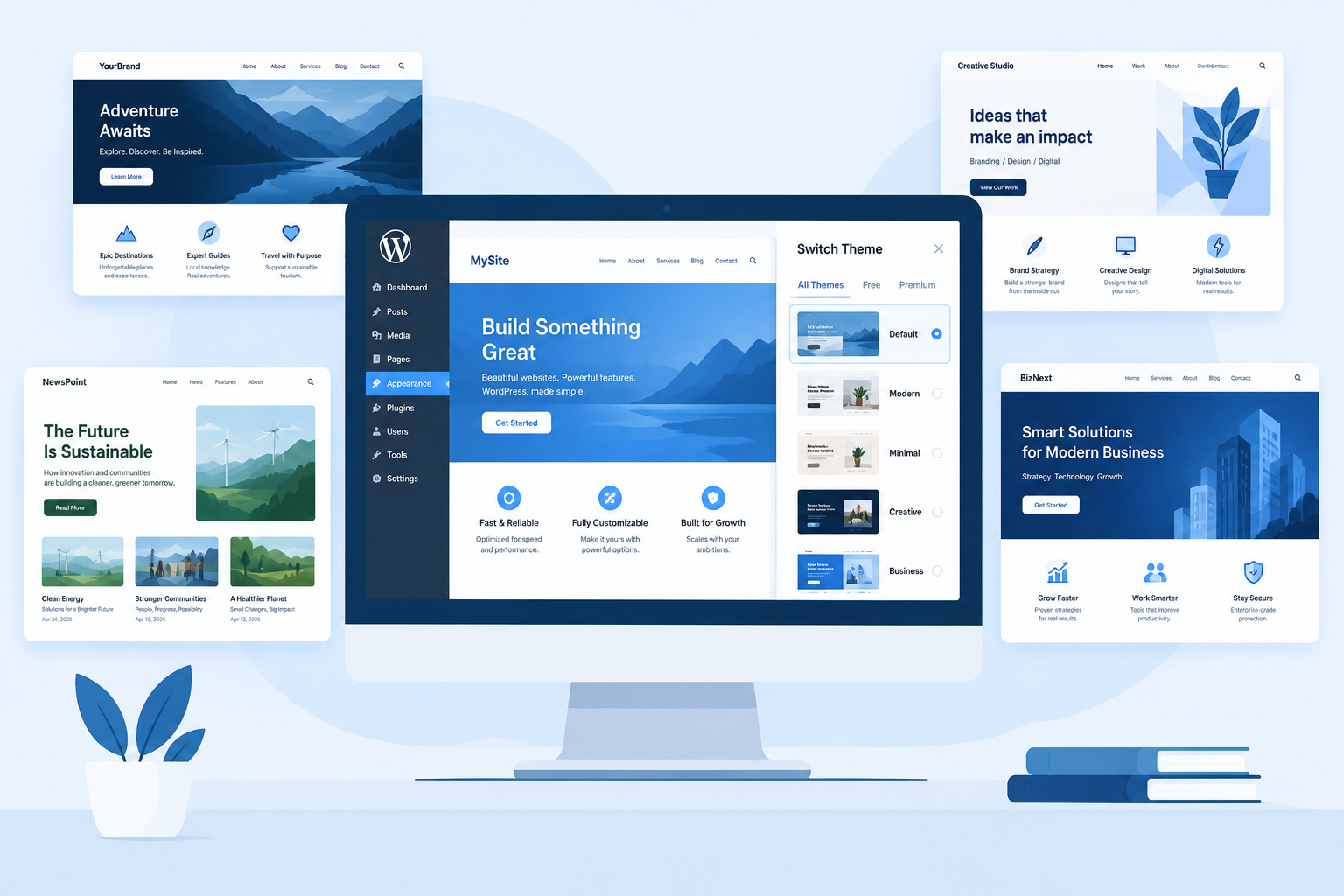
A theme for WordPress is the set of templates, styles and settings that controls how your site looks and how its pages are laid out. Your content is separate. Posts, pages and media stay in the database when you switch themes. The right choice comes down to seven checks: theme type, speed, update history, design fit, builder lock-in, support and cost.
Last updated: October 29, 2026
What a theme in WordPress actually does
A theme handles presentation. It decides your header, footer, fonts, colours, spacing and how a blog post or product page is laid out. It does not decide what your site can do. That is the job of plugins.
This split matters. If your contact form, SEO settings or shop live inside the theme, you lose them when you change design. Good themes stay in their lane. If you are new to the WordPress platform, this is the first rule worth learning.
Themes vs templates
People search for “templates for WordPress” and “theme for WordPress” as if they were the same thing. They overlap, but they are different:
- Theme: the whole design package you install and activate.
- Template: one layout inside a theme, such as the single post template, the 404 page or a full-width page.
- Template kit or starter site: a pre-built set of pages and styles you import on top of a theme. Elementor, Astra and OceanWP all offer these.
So a template for WP is usually a part of a theme or an add-on to it, not a replacement.
Block themes vs classic themes
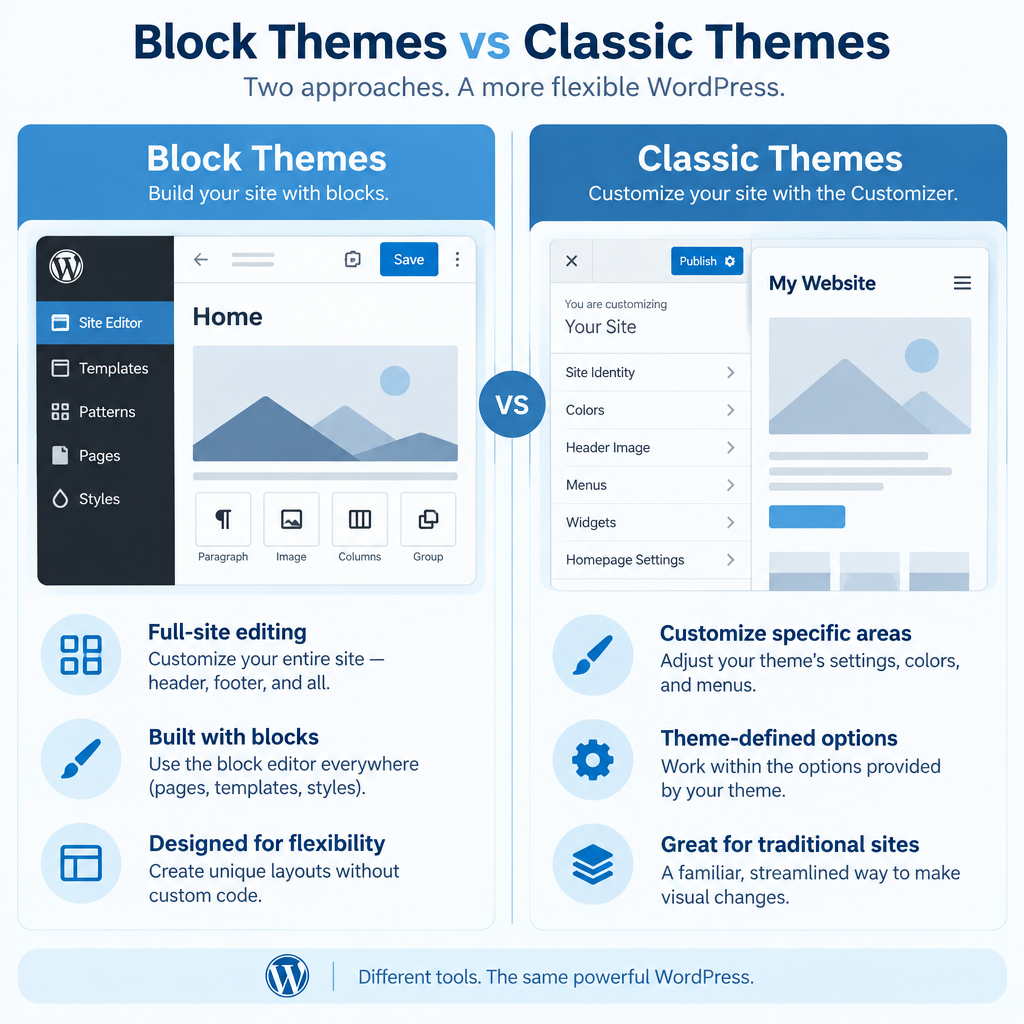
Since WordPress 5.9, there are two kinds of theme. Knowing which one you are using changes how you edit your site.
| Block themes | Classic themes | |
|---|---|---|
| How you edit | Site Editor (Appearance > Editor) | Customizer (Appearance > Customize) and widgets |
| Header and footer | Edited with blocks, visually | Set by theme options and PHP files |
| Core files | style.css, theme.json, HTML templates | style.css, index.php, PHP templates |
| Code needed for layout changes | Rarely | Often, or a page builder |
| Works with page builders | Yes, but less needed | Yes, the traditional pairing |
| Examples | Twenty Twenty-Five, Twenty Twenty-Four | Twenty Twenty-One, OceanWP, Hello Elementor |
Block themes are where core WordPress development is heading. Every new default theme since Twenty Twenty-Two has been a block theme. Classic themes are still fully supported and power a large share of existing sites.
For a new brochure site or blog, start with a block theme. If your team already builds in Elementor or another page builder, a lightweight classic theme is still a sound choice.
Where to get themes
You have three realistic sources.
The WordPress.org Theme Directory. Thousands of free themes, all reviewed by volunteers on the Themes Team before listing. Each listing shows the last update date, active installations, the WordPress version it was tested up to and the minimum PHP version. You can browse it directly from your dashboard.
The theme maker’s own site. Most popular free themes have a paid “pro” version sold by the developer. You get extra layouts, more settings and direct support.
Marketplaces. These sell premium themes from many authors. Quality varies a lot between sellers, so the checks below matter even more here.
Security note
Nulled (pirated) premium themes regularly ship with hidden backdoors and spam links. Never install one. Use the free version or pay for a licence.
WordPress themes worth knowing
You don’t need to test hundreds. These names come up constantly in client work, and between them they cover most use cases.
The default “Twenty” themes
WordPress ships a new default theme with most major releases. They are built by the core team, free, well coded and kept up to date.
- Twenty Twenty-Five shipped with WordPress 6.7 in November 2024. It is a block theme with a large set of patterns and style variations, built to suit simple blogs as well as more complex sites.
- Twenty Twenty-Four came with WordPress 6.4. It focuses on business sites, portfolios and writers, with many ready-made page patterns.
- Twenty Twenty-Three arrived with WordPress 6.1. It is minimal, and its main feature is a collection of style variations made by community contributors.
- Twenty Twenty-One is the last classic default theme. It is still a tidy, accessible option if you prefer the Customizer.
A newer default may be available in your dashboard depending on your WordPress version. Check Appearance > Themes after each major update.
Hello Elementor and Hello Biz
Hello Elementor is a deliberately bare theme from the team behind the Elementor page builder. It adds almost no styling of its own, because Elementor handles the design. If you build with Elementor, this is the default pairing.
Hello Biz is a newer Elementor theme aimed at small businesses. It adds a guided setup and starter layouts on top of the same lightweight idea.
OceanWP
OceanWP is a free multi-purpose classic theme. The developer says it runs on over a million websites. Its strengths are starter site demos, WooCommerce styling and a long list of optional extensions. It works well with Elementor and other builders.
Astra, GeneratePress, Kadence and Blocksy
These four are the usual shortlist for fast, flexible themes. Each has a solid free version and a paid add-on.
| Theme | Type | Best for | Paid version |
|---|---|---|---|
| Astra | Classic, block-friendly | Builder-based client sites, starter templates | Astra Pro |
| GeneratePress | Classic | Lean, fast sites with a minimal footprint | GP Premium |
| Kadence | Classic, strong block support | Block editor users who want more design control | Kadence Pro |
| Blocksy | Classic, block-friendly | Modern designs, WooCommerce stores | Blocksy Pro |
How to pick a theme for WordPress: 7 checks
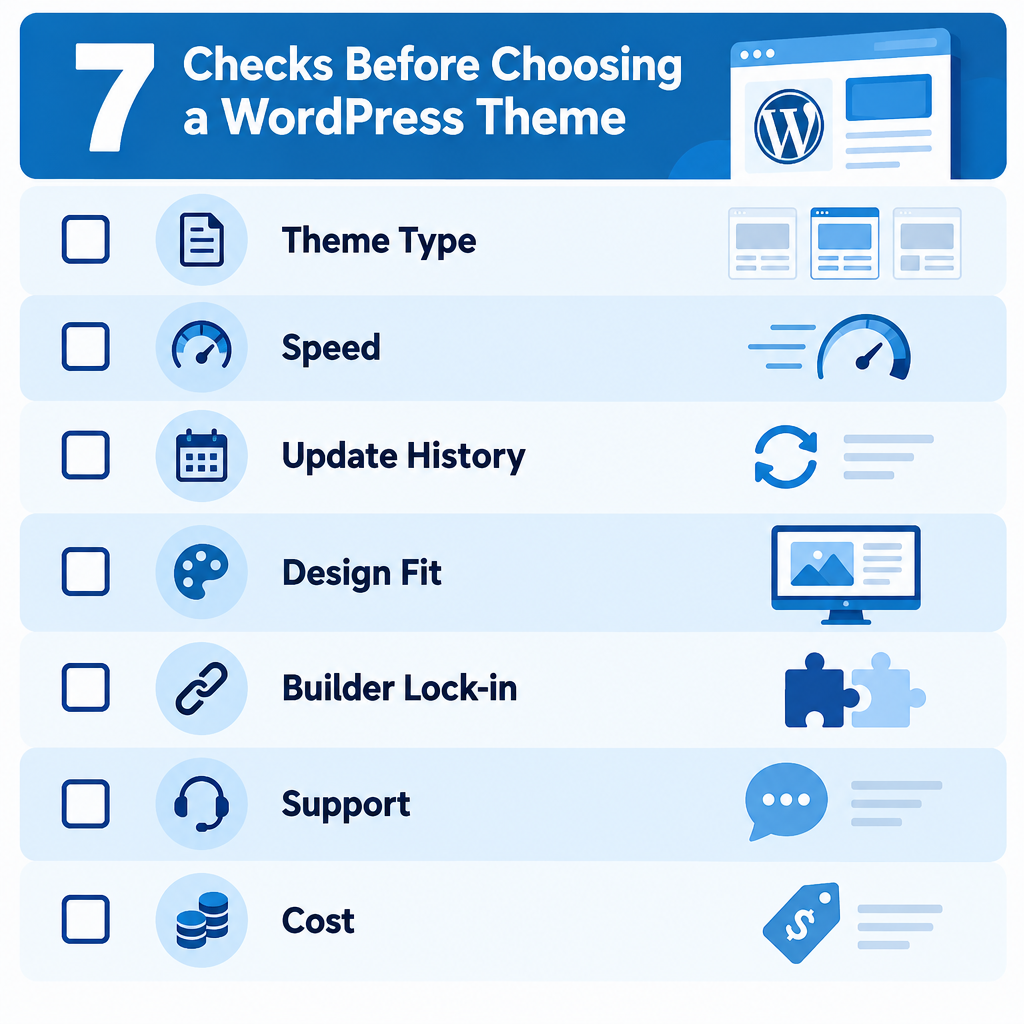
Run every candidate through these. A theme that fails two or more is not worth your time.
1. Match the theme type to how you will build
Decide your editing method first. Building with blocks? Pick a block theme or a block-friendly classic one. Building with Elementor, Divi or Beaver Builder? Pick a minimal theme designed for that builder. Mixing a heavy theme with a heavy builder gives you two systems fighting over the same page.
2. Test the speed of a demo
Run the theme’s demo through Google PageSpeed Insights. Look at mobile scores, not desktop. Then check the page weight on a plain demo page, not the flashiest one. A lean theme leaves you room for images, fonts and plugins later.
3. Check the update history
On the directory listing, look at “Last updated” and “Tested up to”. A theme that hasn’t been updated in a year or more is a risk. WordPress changes often, and abandoned themes break or develop security holes.
4. Look past the demo content
Demos use professional photos and perfect copy. Picture the layout with your own logo, your real photos and three lines of text instead of one. Strip the demo back in your head before you fall for it.
5. Count the lock-in
Ask what you lose if you leave. Warning signs include:
- Custom post types such as portfolios or testimonials built into the theme
- Theme-only shortcodes scattered through your content
- A bundled page builder you can’t use with another theme
Each of these turns a future redesign into a content migration.
6. Confirm accessibility and compatibility
Filter the directory by the “Accessibility Ready” tag if your site serves the public sector or a broad audience. Check that the theme supports the plugins you need. For a store, that means WooCommerce templates. If selling is your main goal and you don’t need WordPress, the Shopify ecommerce platform is worth comparing.
7. Know what support and updates cost
Free themes get forum support. Paid themes usually sell a yearly licence that covers updates and help. Before you buy, check whether the theme keeps working when the licence lapses, and whether updates stop.
Builder tip
Before committing, install your top two themes on a staging copy and build the same three pages in each. One afternoon of testing saves weeks of regret.
How to install a theme on WordPress
On a self-hosted site, the process takes a couple of minutes. You will need hosting set up first, and you’ll want to register for a domain name before launch.
Install a theme
- Back up your site files and database.
- Go to Appearance > Themes in your dashboard.
- Click Add New Theme.
- Search the directory, or click Upload Theme and choose a .zip from the developer.
- Click Install, then Preview with your content.
- Click Activate when you are happy.
On WordPress.com, you can pick from its own theme library on any plan. Uploading third-party themes needs one of the higher-tier plans.
After activating, open Appearance > Editor on a block theme or Appearance > Customize on a classic theme to set your logo, colours and menus.
Customising safely with a child theme
If you edit a theme’s files directly, the next update wipes your changes. A child theme fixes that. It inherits everything from the parent and only holds your changes.
Create a folder in wp-content/themes/, for example oceanwp-child, and add a style.css:
/*
Theme Name: OceanWP Child
Template: oceanwp
Version: 1.0
*/
The Template value must match the parent theme’s folder name exactly. For a classic parent, add a functions.php that loads the parent styles:
<?php
add_action( 'wp_enqueue_scripts', function () {
    wp_enqueue_style(
        'parent-style',
        get_template_directory_uri() . '/style.css'
    );
} );
Some parent themes already load their own stylesheet, so check the result before adding this. Many premium themes also offer a ready-made child theme download.
For block themes, most visual changes made in the Site Editor are saved to the database, not the theme files. A child theme is only needed if you want to change template files or theme.json in code.
Switching themes without breaking your site
Your posts and pages survive a theme change. Several other things often don’t.
- Widgets: classic widget areas differ between themes. Some widgets end up in “Inactive widgets”.
- Menus: menu locations need reassigning.
- Shortcodes: theme-specific shortcodes show up as raw text like
[button]. - Custom post types: portfolio items or testimonials from the old theme vanish from view.
- Page builder layouts: pages built with a theme’s bundled builder may lose their design.
Always back up first, then test the new theme on a staging site. Use Live Preview to spot problems before you activate. List every shortcode and custom post type in use, and move them into plugins where possible.
Keeping your theme up to date
Outdated themes are a common way into WordPress sites. Keep them current.
- Turn on auto-updates for themes you trust under Appearance > Themes. Click the theme, then Enable auto-updates.
- Delete themes you don’t use. Inactive themes can still be exploited if they have a vulnerability.
- Keep one default theme installed as a fallback for troubleshooting.
- Back up before major updates, especially for paid themes with large version jumps.
Security note
Unused themes still sit on your server. Delete every inactive theme except one default fallback.
Create a theme of your own
You don’t need to write PHP from scratch to make a custom block theme. The free Create Block Theme plugin, maintained by the WordPress.org team, lets you design in the Site Editor and export the result as a theme. You can also save your changes as a child theme.
A minimal block theme needs only three things:
my-theme/
├── style.css
├── theme.json
└── templates/
    └── index.html
If you want to share it, you can submit it to the WordPress.org directory. The Themes Team reviews each submission against published requirements for code quality, security and licensing before it goes live. The review can take time, so ensure your theme passes the requirements before you submit.
If coding any of this sounds like too much, an AI website builder can generate a starting design for you, though you trade away some of WordPress’s flexibility.
FAQ
What is the best theme for WordPress?
There isn’t one best theme. For block editing, start with the latest default Twenty theme or Kadence. For Elementor sites, use Hello Elementor. For a multi-purpose classic theme with demos, look at Astra, OceanWP or Blocksy. Pick by your build method first.
Are free WordPress themes safe?
Themes from the WordPress.org directory are reviewed before listing, which makes them a safe source. Free themes from random sites are not. Avoid “free” copies of premium themes completely.
Will changing my theme delete my content?
No. Posts, pages, media and comments stay in your database. You may lose widgets, menu placements, shortcodes and theme-specific features, so back up and test on staging first.
Can I use more than one theme at once?
Only one theme can be active at a time. A child theme runs on top of a parent theme, so technically two are involved, but you activate only the child.
What’s the difference between a theme and a plugin?
A theme controls how your site looks. A plugin adds features, such as forms, SEO tools or a shop. Keep functionality in plugins so you can change themes freely later.
Do I need a premium theme?
Usually not. The free versions of the popular themes cover most small business sites and blogs. Pay when you need specific layouts, WooCommerce extras or direct support.