
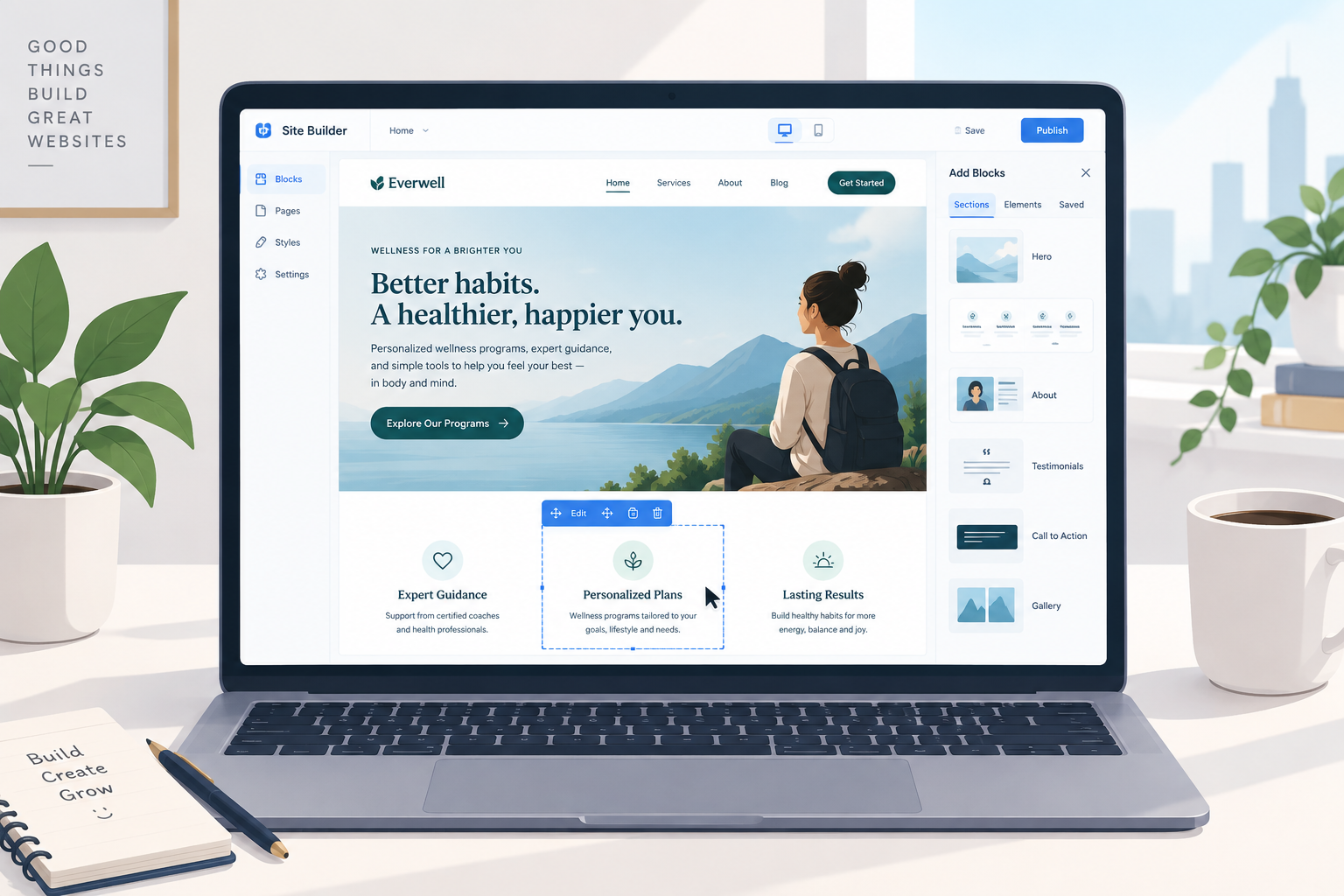
Squarespace lets you build a professional website with no code, hosting setup or plugin updates. This tutorial covers the full process in order: signing up, choosing a template, styling, adding pages and a domain, and publishing. It also covers the mistakes that slow most first-time builders down.
Last updated: October 29, 2026.
Is Squarespace the right builder for your site?
Before you open an account, check that Squarespace fits what you’re building. It’s a hosted, all-in-one website builder. You pay one subscription, and Squarespace handles hosting, security patches, SSL certificates and software updates. You never install anything.
That convenience has trade-offs. You can’t install plugins the way you can on the WordPress platform. You also work inside Squarespace’s design system rather than having full control of the code.
Squarespace suits these people well:
- Creatives and portfolio owners who want polished image layouts without hiring a designer.
- Service businesses such as consultants, coaches, salons and studios that need a site, booking and email marketing in one place.
- Small online stores selling a manageable catalogue of physical goods, digital downloads or services.
- Restaurants and venues that need menus, opening hours and a clean mobile experience.
It’s a weaker fit in three cases. One is a large store with thousands of products and complex inventory rules. Another is a content site that depends on niche plugins. The third is a developer who wants a hand-coded, ultra-fast static site, where something like the Astro framework makes more sense.
For everyone else, Squarespace is one of the fastest routes from blank page to finished site.
What you need before you start
The building itself is simple. Most delays come from missing content, so gather these first:
- A clear site goal. Decide on the one action you want visitors to take, such as booking a call, buying a product, or reading and subscribing.
- A page list. Most small sites need a Home, About, Services or Shop, Contact and maybe a Blog. Write the list down.
- Your text. Draft your headline, a short About section and service or product descriptions in a document. Editing text in a doc is faster than writing inside a builder.
- Images. Gather your logo, a few strong photos and product shots. Aim for images around 2,500 pixels wide. Squarespace caps individual image uploads at 20 MB, but you should compress files well below that so pages load quickly.
- Brand basics. Pick one or two fonts and two or three colours. Squarespace’s style panel works best when you arrive with decisions already made.
- A domain plan. Either register for a domain name now or decide to claim the one Squarespace offers when you subscribe.
- An email address and a payment card. You don’t pay during the trial, but you’ll need a card to publish.
Builder tip
Write your homepage headline before you pick a template. A template that looks great with placeholder text can look cramped once your real eight-word headline goes in.
Choose how to build: template or Blueprint
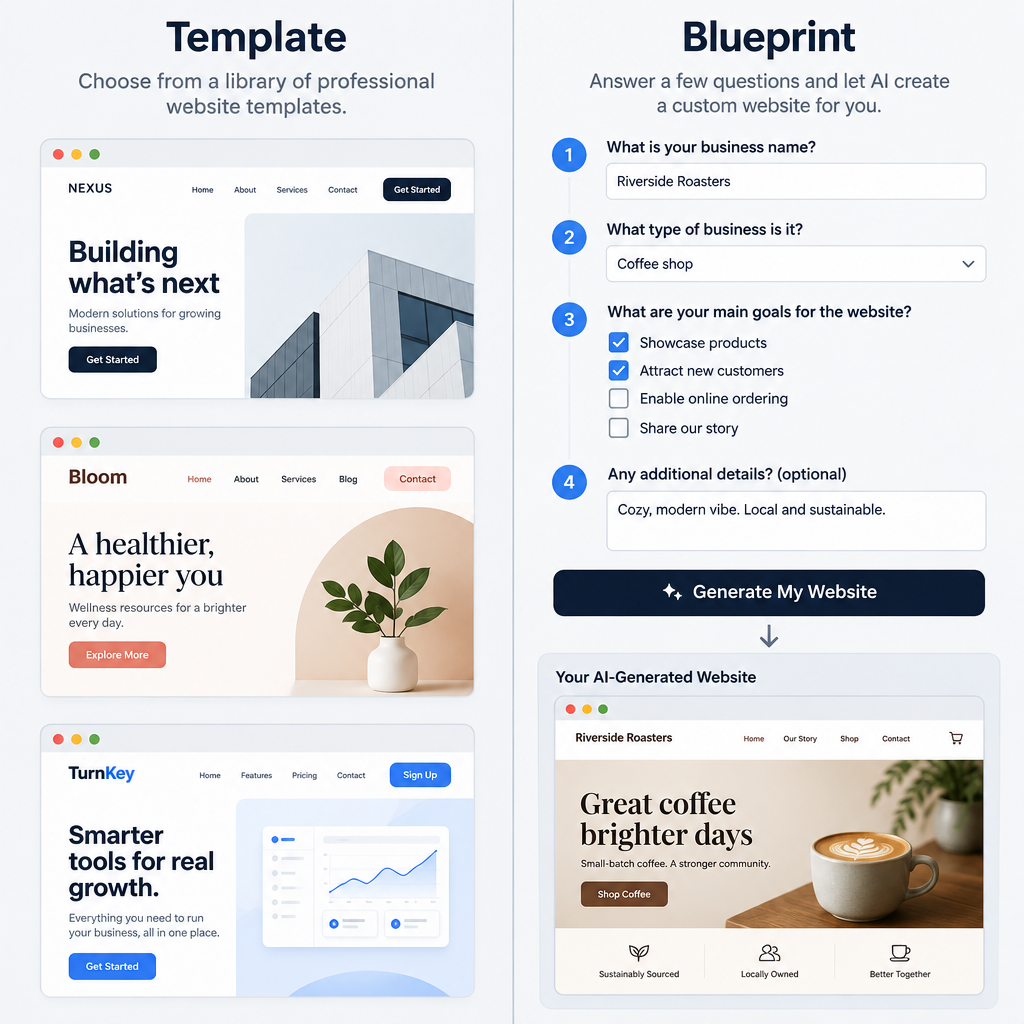
Squarespace gives you two starting routes, and the choice affects how much design work you’ll do yourself.
Start with a designer-made template. You browse the template library, filter by category (online store, portfolio, local business, blog and so on), and pick a layout you like. You then replace the demo content with yours. This route gives you the most control from minute one.
Use Squarespace Blueprint. Blueprint is Squarespace’s guided design tool. It asks what your site is for, which pages you need, and what look you want. Then it generates a starting site, and you can let it draft text with Squarespace’s AI writing assistant. If you’re curious how this approach works in general, it’s the same idea behind any AI website builder: answer questions, get a first draft, then edit.
Which should you choose? Pick a template if you have a clear visual style in mind or saw a demo site you love. Pick Blueprint if you have content ready but no design opinion, and you want a personalized website in minutes that you can refine later.
One thing matters more than the route. All current templates run on Squarespace 7.1, and in 7.1 every template shares the same underlying features. The template is really a starting design, not a locked-in feature set. You can restyle anything later, but you can’t “switch templates” with one click the way older 7.0 sites could. To change the look later, you either restyle your existing site or start a fresh site.
How to build a website on Squarespace: the 10 steps
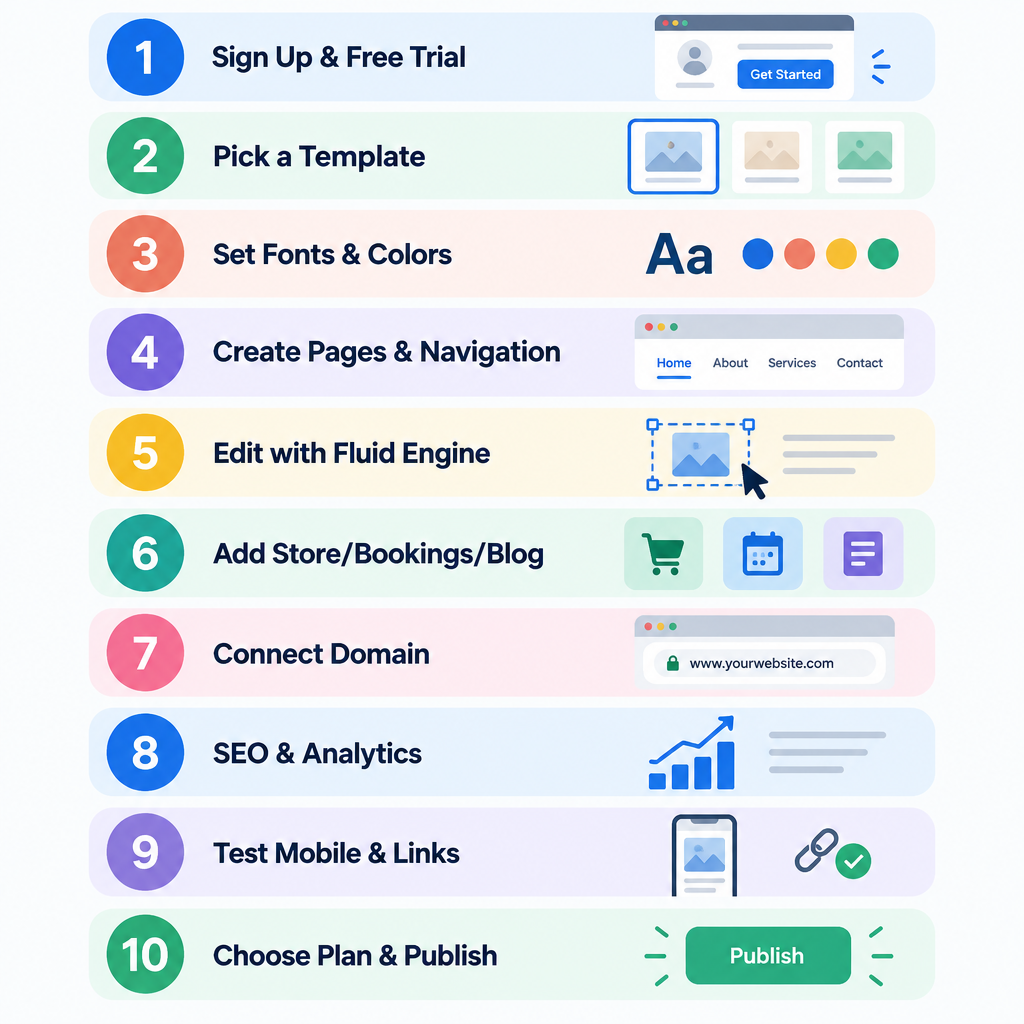
Here is the full sequence in one place. Each step is explained in detail below.
Setup steps
- Sign up and start your free trial.
- Pick a template or run Blueprint.
- Set your site styles: fonts, colours, buttons.
- Create your pages and navigation.
- Edit sections and blocks with Fluid Engine.
- Add a store, bookings or a blog if you need them.
- Connect or register your domain.
- Set up SEO basics and analytics.
- Test on mobile and check every link and form.
- Choose a plan and publish.
Step 1: Sign up on Squarespace
Go to the Squarespace homepage and click the button to get started. You’ll create an account with your email address, or with a Google or Apple login. Squarespace then asks a few quick questions about your site’s purpose. These answers shape the template suggestions you see next, so answer them honestly.
Your free trial starts as soon as the site is created. Squarespace’s trial has traditionally run for 14 days, with no card required to begin. During the trial, your site isn’t visible to the public. You can build and preview everything, but nobody else sees it until you subscribe. Plan your build so you finish within the trial window. If you need more time, contact support before it expires.
Step 2: Pick a template
Browse the library and preview two or three candidates before you commit. Clicking a template opens a live demo you can scroll through on desktop and mobile.
Judge templates on layout, not decoration. Ask these questions:
- Does the homepage structure match your goal? A booking business wants a clear call-to-action near the top. A photographer wants a big image grid.
- Does the demo use roughly as much text as you plan to write?
- Is the navigation style (top bar, centred logo, minimal menu) right for your page count?
Ignore the demo photos and colours. You’ll replace them in the next step anyway. When you’ve chosen, click to start with that template. Squarespace copies it into your account with its demo pages, which you’ll edit or delete.
Step 3: Set your site styles
Before touching individual pages, set your global styles. This is the step most beginners skip, and it’s why their sites end up with five fonts and inconsistent buttons.
Open the site editor and find the Site Styles panel (the paintbrush or styles icon when editing). Work through it in this order:
- Fonts. Choose a font pack or set your heading and paragraph fonts manually. Two fonts is plenty.
- Colours. Pick a palette. Squarespace builds colour “themes” from it, which you then apply to page sections. Choosing a palette now means every section stays on-brand.
- Buttons. Set shape, fill and size for primary, secondary and tertiary buttons.
- Spacing and animations. Keep animations subtle. Heavy scroll effects get tiring fast and can feel slow on phones.
Because these settings are global, a change here updates the whole site at once. That makes later tweaks painless.
Builder tip
Set your logo and site title early, in the header editing options. The header height changes once a real logo is in place, and that shifts how every page’s first section looks.
Step 4: Create your pages and navigation
Open the Pages panel from the main dashboard. You’ll see the template’s demo pages split into navigation (pages that show in your menu) and “not linked” pages (live but hidden from the menu).
Now apply the page list you wrote earlier:
- Delete demo pages you don’t need. Leftover demo pages are a common giveaway of a rushed site.
- Rename pages to match your list. Keep menu labels short: “Work”, “Services”, “Contact”.
- Add new pages with the plus icon. Squarespace offers blank pages, pre-designed page layouts, and special page types such as Blog, Store, Portfolio and Events.
- Reorder by dragging pages in the panel. The order in the navigation section is the order of your menu.
For each page, open its settings (the gear icon) and check the URL slug. Keep slugs short and descriptive, such as /services rather than /services-page-1. Changing a slug after launch breaks old links unless you add a redirect, so settle slugs now.
Step 5: Edit sections and blocks with Fluid Engine
This is where the site takes shape. Squarespace pages are built from sections (full-width horizontal bands) that contain blocks (text, images, buttons, forms, video and so on).
Adding sections. Click “Add Section” between existing sections. You can pick a blank section or a pre-designed one for heroes, testimonials, contact layouts, FAQs and more. Pre-designed sections save a lot of time, and you can still edit everything inside them.
Editing blocks. Squarespace’s editor, Fluid Engine, uses a grid. You drag blocks anywhere on that grid, resize them by pulling their edges, and layer them over each other. Click a block to edit its content. Double-click text to type directly on the page.
Keep these habits as you build:
- Paste your prepared text in, then format it with the heading styles (Heading 1 to 4 and Paragraph). Don’t fake headings with large bold text. Proper heading tags help accessibility and search engines.
- One H1 per page. Your main page headline should be the only Heading 1.
- Add alt text to every meaningful image through the image block’s settings. Describe what’s in the picture in plain words.
- Apply section colour themes from your palette rather than recolouring individual blocks.
- Use the same button style for the same type of action across the site.
Fluid Engine also lets you edit the mobile layout separately. Toggle to mobile view and you can rearrange blocks for phones without changing desktop. More on that in Step 9.
Light custom code. If you need a small styling change the panels can’t make, Squarespace has a Custom CSS editor. Depending on your dashboard version, it lives under Design or the website tools area. For example, this widens the letter spacing on every button:
/* Wider letter spacing on all site buttons */
.sqs-block-button-element {
  letter-spacing: 0.08em;
}
Use custom CSS sparingly. Squarespace updates its class names from time to time, and heavy overrides can break without warning. Code injection, which adds scripts to your site’s header or footer, is limited to the Core plan and above.
Step 6: Add a store, bookings or a blog
This is where the “one website, endless capabilities” idea comes in. Add only the features you need now.
Selling products. Add a Store page, then add products from the commerce panel. Squarespace supports physical products, digital downloads, services and gift cards. For each product, set the title, description, price, images, variants (size, colour) and stock. Then connect a payment processor. Squarespace Payments, Stripe and PayPal are the main options, and you set them up in the commerce payments settings. Next, configure shipping rates and tax before you take a real order. If you’re new to selling online, it helps to understand how ecommerce works first: payments, fulfilment, taxes and returns all need a plan beyond the product page.
Bookings. Acuity Scheduling, Squarespace’s scheduling tool, lets clients book appointments and pay online. It works well for consultants, therapists, trainers and salons. Acuity is a separate subscription, so factor it into your costs.
Blogging. Add a Blog page and write posts in the same editor. Each post gets its own SEO settings, tags, categories and featured image. Blogs are one of the simplest ways to grow search traffic over time.
Other tools. Squarespace also offers email campaigns, member areas and gated content, and a mobile app for editing and checking orders on the go. These are all optional. Skip them on day one unless they are central to your business.
Security note
Turn on two-factor authentication for your Squarespace account before you connect payments. A hijacked builder account means a hijacked store, so the extra login step is worth it.
Step 7: Find and connect your domain
Your site needs a domain, such as yourbusiness.com. You have three choices.
Get a domain through Squarespace. Search for a name in the domains panel and buy it there. Annual website plans have long included a free custom domain for the first year. Check that offer at checkout, since promotions change. Squarespace Domains became much larger after taking over Google Domains customers in 2023, and it handles DNS and privacy for you.
Connect a domain you already own. If your domain is registered elsewhere, choose the option to use a domain you own. Squarespace then gives you DNS records to add at your registrar. You can also point the domain’s nameservers to Squarespace. Changes usually take effect within a few hours. Squarespace notes that full propagation can take up to 72 hours, so don’t panic if it isn’t instant.
Transfer a domain to Squarespace. This moves registration and billing to Squarespace so everything sits in one account. Transfers need an authorization code from your current registrar, and the domain must not be locked.
Whatever you choose, set your preferred version (with or without www) as the primary domain. Every Squarespace site gets a free SSL certificate, so your address shows as https:// automatically.
If you use email on that domain, don’t break it while connecting. Copy your existing MX records before you change nameservers. Losing business email for a day is the most painful domain mistake there is.
Step 8: Set up SEO basics and analytics
Squarespace handles much of the technical SEO for you. It generates an XML sitemap at /sitemap.xml, serves pages over HTTPS, and produces clean URLs. You still need to do the parts only you can do.
- Site-wide SEO. In the SEO settings under Marketing, write a site title and a short site description. Describe what you do and where, in plain language.
- Page-level SEO. For each page, open page settings and go to the SEO tab. Write a unique SEO title of under about 60 characters and a description of about 150 characters.
- Social sharing image. Upload a default image so links shared on social media and messaging apps look good.
- Connect Google Search Console. Squarespace can link your site to Search Console from its analytics or connected accounts area. Once linked, Google gets your sitemap and you can see which searches bring visitors.
- Add Bing. Bing Webmaster Tools can import your verified site directly from Google Search Console, which saves you a separate verification step.
- Check analytics. Squarespace’s built-in analytics show traffic, sources and sales. Many owners also add Google Analytics, but it isn’t required for a small site.
Step 9: Test on mobile and check everything
Most of your visitors will arrive on a phone. Use the device toggle in the editor to switch to mobile view and go through every page.
On mobile, look for:
- Text blocks that stack in an odd order. In Fluid Engine, you can rearrange the mobile layout without touching desktop.
- Headlines that wrap awkwardly or run off the screen.
- Images that crop out important details. Set the image focal point in the image editor to fix this.
- Buttons that sit too close together to tap easily.
Then run a functional check:
- Click every menu link and button. Watch for anything still pointing at demo pages.
- Submit every form and confirm the email arrives at the right address. Form settings include a storage option, so set where submissions go.
- Place a test order if you sell products. Use a real low-priced product and refund it afterwards. This tests payments, emails and shipping rules end to end.
- Check your footer for leftover demo text, placeholder addresses and old copyright lines.
- Open the site in a private browser window once it’s live, to see what a stranger sees.
Step 10: Choose a plan and publish
When the site is ready, pick a plan and subscribe. Then open your site settings and set Site Availability to Public. Until you do, your site stays private or password-protected even after you pay, which catches out a surprising number of people.
Annual billing costs less per month than monthly billing. It also usually unlocks the first-year domain offer. If you’re unsure which plan you need, start on the lowest plan that covers your features. Upgrading later is simple.
Once the site is public, request indexing for your homepage in Google Search Console. Then share the URL.
Squarespace plans and what they cost
Squarespace currently sells four website plans: Basic, Core, Plus and Advanced. We’re not quoting dollar figures here. Squarespace adjusts prices by region and billing term, and it has changed them several times. Check the live pricing page before you commit.
| Plan | Best for | Key differences |
|---|---|---|
| Basic | Simple sites and small first stores | Core website features, hosting, SSL; adds a Squarespace transaction fee on sales |
| Core | Growing businesses and serious stores | Removes the transaction fee; unlocks code injection and advanced analytics |
| Plus | Established stores | More advanced commerce tools and lower payment processing rates |
| Advanced | High-volume sellers | The full commerce toolkit, including subscriptions and the lowest processing rates |
A few cost points to plan for:
- Payment processing fees apply on every plan, charged by Squarespace Payments, Stripe or PayPal.
- Add-ons are billed separately. Acuity Scheduling, Email Campaigns, Google Workspace email and member-area extras all add to the monthly cost.
- Domains renew at the standard rate after any free first year.
If you plan to sell more than occasionally, compare the transaction fee on Basic against the price gap to Core. For many stores, Core pays for itself quickly.
Squarespace features at a glance
| Feature | What it does | Notes |
|---|---|---|
| Templates | Designer-made starting layouts | All 7.1 templates share the same features |
| Blueprint | Guided, AI-assisted site setup | Good when you have content but no design |
| Fluid Engine | Grid-based drag-and-drop editor | Separate mobile layout editing |
| Site Styles | Global fonts, colours, buttons | Change once, update everywhere |
| Commerce | Products, services, digital goods | Features expand on higher plans |
| Acuity Scheduling | Appointments and bookings | Separate subscription |
| Email Campaigns | Newsletters built from site styles | Separate subscription |
| Squarespace Domains | Domain registration and DNS | Free first year on annual plans has been standard |
| Built-in SEO tools | Sitemaps, meta fields, clean URLs | Search Console connection available |
| 24/7 support | Help via chat and email | Plus an extensive help centre |
Common mistakes and how to fix them
These are the problems we see most often on first Squarespace builds, with the quick fix for each.
The site is “live” but nobody can see it. You subscribed but didn’t change Site Availability to Public. Check your site settings.
Domain shows an error or the old site. DNS hasn’t propagated yet, or a record is wrong. Wait up to 72 hours, then use the DNS check in Squarespace’s domain panel. It flags missing or conflicting records.
Business email stopped working. You switched nameservers without copying your MX records. Re-add your email provider’s MX records in Squarespace’s DNS settings.
The page looks great on desktop and broken on phones. Fluid Engine’s mobile layout needs its own pass. Toggle to mobile view and rearrange or resize the blocks.
Pages load slowly. The usual cause is oversized images or too many videos and animations on one page. Resize images to about 2,500 pixels wide, compress them, and cut decorative effects.
Forms don’t arrive. The form’s storage setting is pointing at the wrong email, or messages are landing in spam. Update the storage settings and send a test.
Too many fonts and colours. Someone styled blocks one by one instead of using Site Styles. Reset block-level styling and apply section colour themes from your palette.
Demo content left behind. Search every page, footer and the blog for template text, demo products and placeholder images before launch.
Broken links after renaming pages. Changing a URL slug creates a 404 for the old address. Squarespace’s URL mappings feature lets you add 301 redirects from old URLs to new ones. The format looks like this:
/old-services -> /services 301
/blog/old-post-name -> /blog/new-post-name 301
Moving an existing site to Squarespace
If you already have a site, migration takes planning. Back up everything first. That means a full export from your current platform, a copy of your media files and a spreadsheet of every URL.
Squarespace’s importer can bring in content from WordPress (via its XML export), plus several blogging platforms. It mostly moves blog posts, pages and some images. Layouts, plugins, custom fields and complex page builders don’t come across, so expect to rebuild page designs by hand. Products can be imported by CSV.
After importing, map every old URL to its new address with URL mappings, so search rankings and bookmarks survive the move. Then connect the domain last, once the new site is fully tested.
Know your exit plan, too. Squarespace’s own export is limited. It produces a WordPress-compatible file covering some content, mainly basic pages and blog posts, but not your design, store setup or most page layouts. Keep master copies of your text and images outside Squarespace so you’re never locked in.
What you should have at the end
If you followed every step, you now have these things:
- A public site on your own domain, served securely over HTTPS.
- A consistent design driven by global fonts, colours and button styles.
- A short, clear navigation with no leftover demo pages.
- Pages that read well on phones as well as desktop.
- Working forms, and a tested checkout if you sell.
- Unique SEO titles and descriptions, with Google and Bing aware of your sitemap.
A focused small site with prepared content can be built in a weekend. A store with dozens of products takes longer, mostly because of product photos and descriptions rather than the builder itself.
FAQ
How do I make a website on Squarespace for free?
You can build and preview a full site during the free trial without paying. To make the site public, you need a paid plan. Squarespace doesn’t offer a permanently free plan.
How long does it take to build a Squarespace website?
A simple five-page site with ready content usually takes a day or two of focused work. Most of the time goes into writing and image preparation, not the editor.
Do I need coding skills to create a website with Squarespace?
No. Everything in this tutorial uses the visual editor. Custom CSS and code injection are optional extras for specific tweaks, and code injection requires the Core plan or higher.
Can I change my template later?
On Squarespace 7.1, you can’t swap templates with one click, because every template shares the same structure. Instead, you restyle the site through Site Styles and section designs, which can change the look completely. For a total rebuild, start a new site and move your content across.
Can I use a domain I already own?
Yes. Connect it by adding the DNS records Squarespace provides at your current registrar, or transfer the domain to Squarespace. Copy your email MX records first so your inbox keeps working.
Is Squarespace good for SEO?
Squarespace covers the technical basics well: sitemaps, SSL, clean URLs, mobile-friendly templates and editable meta tags. Your rankings will depend far more on your content, page titles and how useful your pages are than on the platform.
Can I get help if I get stuck?
Squarespace offers round-the-clock customer support by chat and email, plus a large help centre with written guides and videos. For domain and DNS problems, the built-in DNS check in the domain panel often finds the issue faster than support can.