
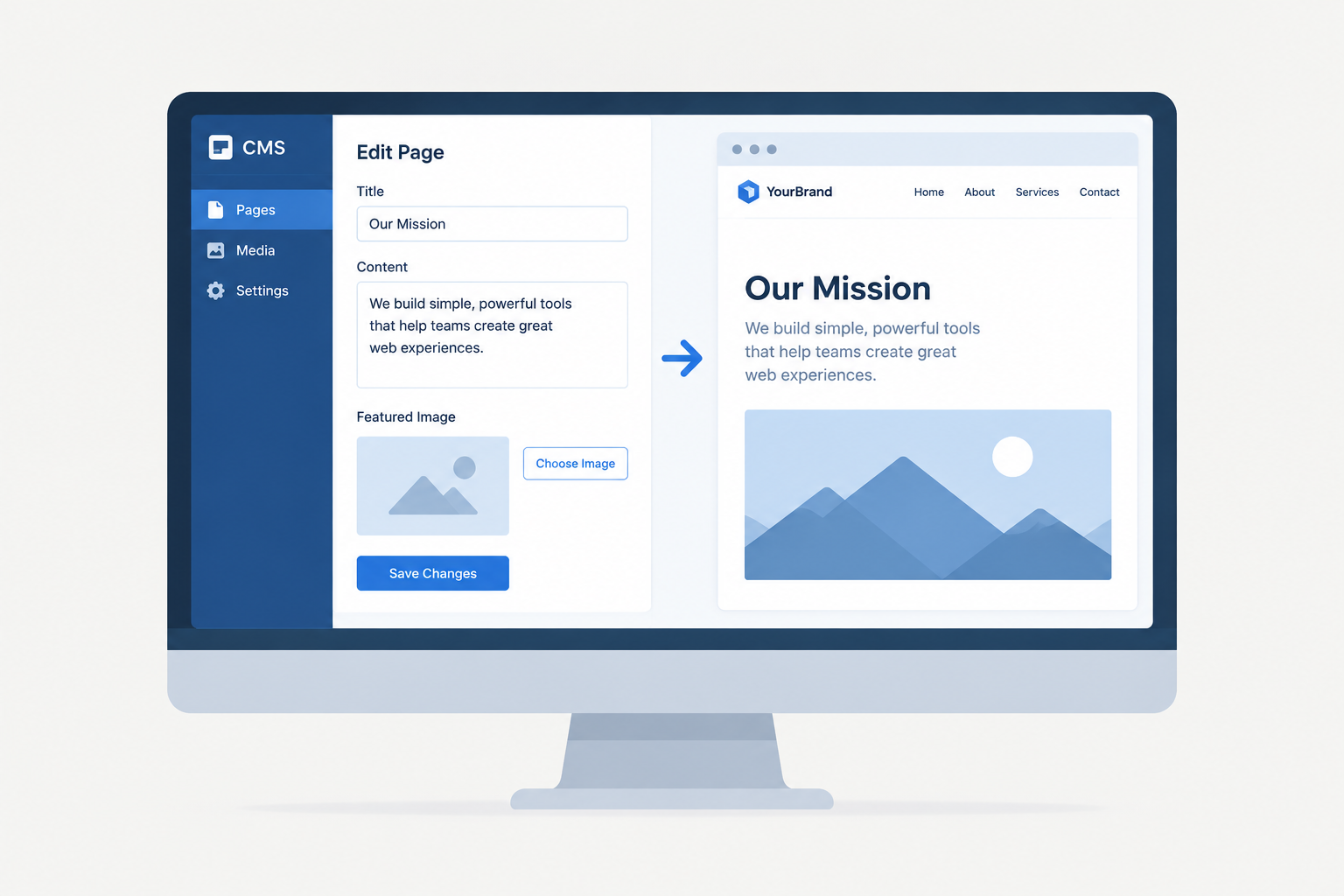
A content management system (CMS) is software that lets you create, edit, organise and publish website content through an admin dashboard, without writing code for every page. It stores your text, images and settings in a database, then uses templates to turn that content into the pages visitors see. WordPress, Shopify, Drupal and Contentful are all content management systems. Each one works a little differently under the hood.
What a CMS is, in plain terms
Without a CMS, adding a page means writing HTML, CSS and maybe JavaScript, then uploading those files to a server. If you change your menu, you edit every file that contains it.
A CMS removes that work. You log into a dashboard, type into an editor that looks like a word processor, add an image, and click Publish. The software handles the code, the file structure and the menu updates.
That is the CMS website meaning most people are searching for: a website where the content lives in a management system, separate from the design. You can change the words without touching the layout, and change the layout without rewriting the words.
One note on terms: “CMS” has other meanings outside web publishing. In US healthcare it usually refers to the Centers for Medicare & Medicaid Services. On this site, and in any conversation about websites, CMS always means content management system.
What defines a CMS
Not every tool with an editor counts. A true CMS has four things:
- A content store, usually a database, that holds your pages, posts, products and media.
- An editing interface where non-developers can create and update that content.
- A way to separate content from presentation, through templates, themes or an API.
- User management, so different people get different permissions.
A Google Doc has an editor but no publishing layer. A static HTML site has a publishing layer but no editor. A CMS has both.
How a content management system works
Every CMS, from a free WordPress install to a six-figure enterprise platform, does the same basic job. It accepts content from editors, stores it in a structured way, and delivers it to visitors.
The two halves: CMA and CDA
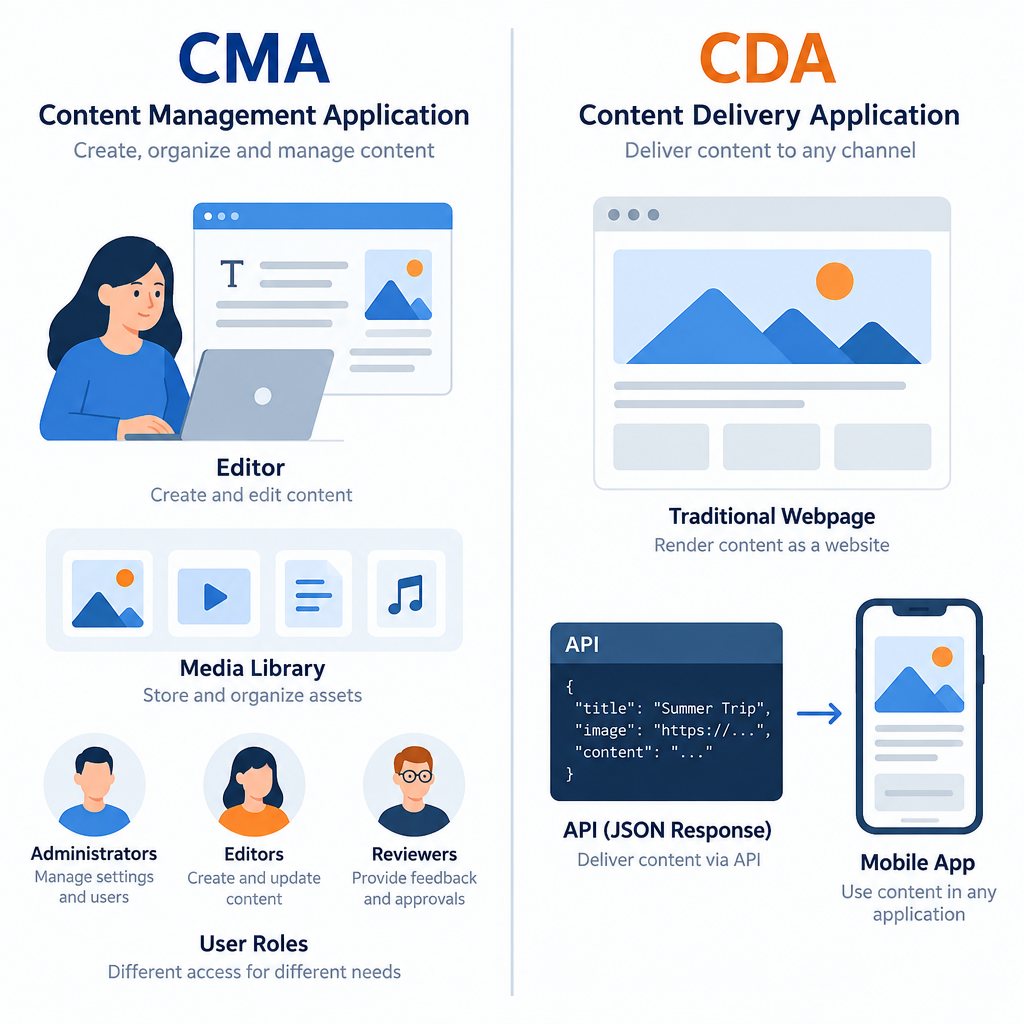
Most technical definitions split a CMS into two parts.
The content management application (CMA) is the back end you work in. It covers the editor, the media library, user roles, scheduling and revision history. This is where content creation happens.
The content delivery application (CDA) is the part that takes stored content and serves it. In a traditional CMS, it assembles HTML pages. In a headless CMS, it returns raw data through an API for another system to display.
Keeping those halves in mind makes every other CMS concept easier. The “headless versus traditional” debate, for example, is really an argument about what the CDA should do.
What happens when you hit Publish
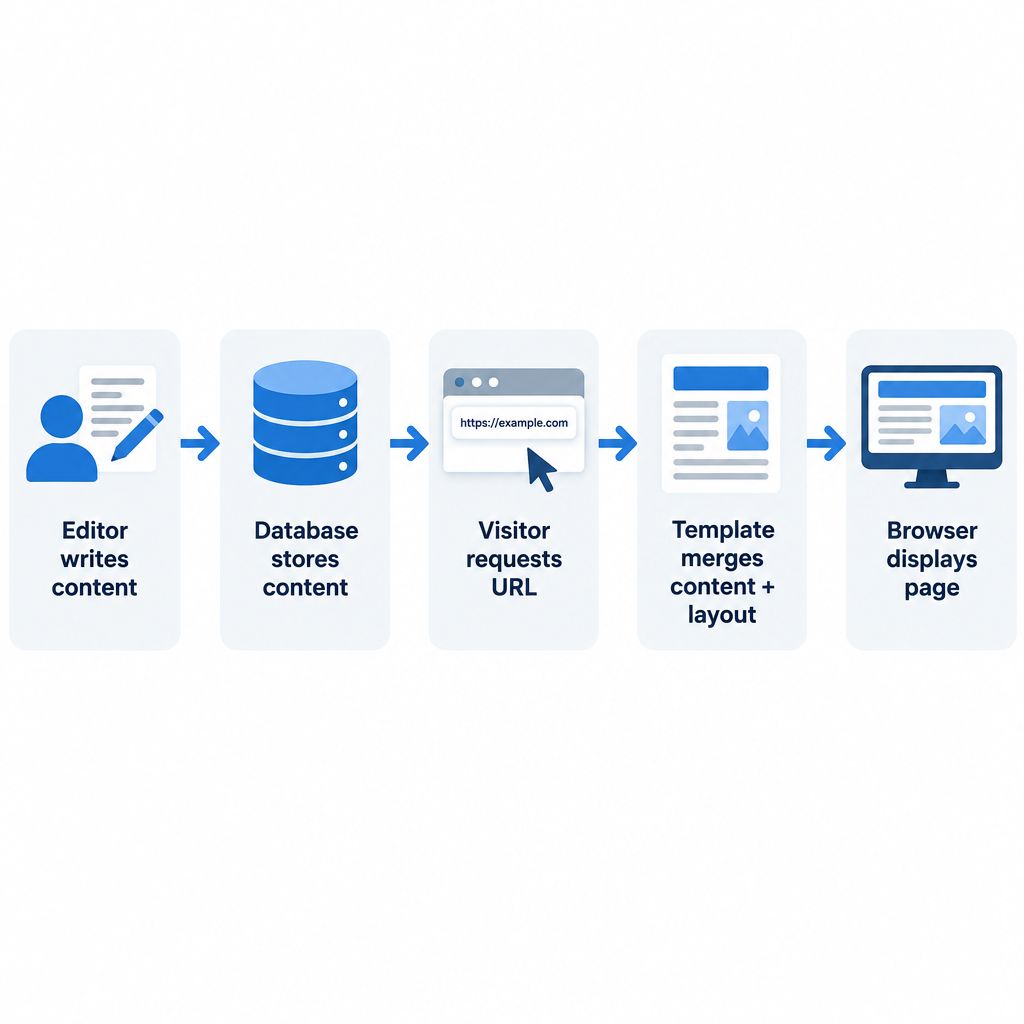
How a page goes from editor to browser
- You write and format content in the admin editor.
- The CMS saves it to the database with metadata.
- A visitor requests the page’s URL.
- The CMS looks up the matching content record.
- A template merges that content with layout code.
- The server sends finished HTML to the browser.
On a busy site, step 4 and step 5 would run thousands of times an hour. That is why caching matters so much. A caching layer stores the finished HTML so the CMS doesn’t rebuild the same page for every visitor. Without it, performance drops fast under traffic.
Templates: where content meets design
Templates are the reason you can redesign a site without retyping it. A template is a page layout with placeholders, and the CMS fills those placeholders with content.
Here is the core of a WordPress template, known as “the Loop.” It pulls posts from the database and prints each title and body:
<?php if ( have_posts() ) : while ( have_posts() ) : the_post(); ?>
  <article>
    <h2><?php the_title(); ?></h2>
    <?php the_content(); ?>
  </article>
<?php endwhile; endif; ?>
Swap the theme, and that same content appears in a completely different design. The words in the database never change.
Delivery through an API
A headless CMS skips templates. It hands the content over as structured data, usually JSON, and a separate front end decides how to display it.
WordPress can work this way too, through its built-in REST API. A front-end app could request the three latest posts like this:
const res = await fetch('https://example.com/wp-json/wp/v2/posts?per_page=3');
const posts = await res.json();
posts.forEach(post => console.log(post.title.rendered));
The same data could feed a website, a mobile app and a digital display in a shop window. This is the main selling point of headless: you write once and publish to multiple channels.
Key features of a CMS
Feature lists on vendor sites run to dozens of items. These are the capabilities that matter on almost every project we build.
| Feature | What it does | Why you’d care |
|---|---|---|
| Visual editor | Format text, add media and build layouts without code | Editors publish without waiting for a developer |
| Media library | Stores and organises images, video and documents | Reuse files across pages and keep sizes under control |
| User roles and permissions | Limits who can draft, edit, publish or change settings | Stops an intern from deleting the homepage |
| Revisions and versioning | Keeps a history of every change | Roll back a bad edit in seconds |
| Scheduling | Publishes or unpublishes content at a set time | Launch campaigns at midnight without staying up |
| SEO controls | Edit titles, meta descriptions, URLs and sitemaps | Helps search engines find and understand pages |
| Templates and themes | Separates design from content | Redesign without rewriting |
| Extensions (plugins, apps, modules) | Adds features like forms, ecommerce or memberships | Grow the site without a rebuild |
| Multilingual support | Manages translations of the same content | Serve visitors in their own language |
| Workflows | Routes content through review and approval stages | Regulated or large teams need sign-off before publishing |
| APIs | Exposes content as data to other systems | Feed apps, other sites and marketing tools |
Smaller platforms cover the first six well. Workflows, granular permissions and multilingual support are where enterprise systems earn their price.
Builder tip
Set up user roles on day one. Give each editor the lowest role that lets them do their job, and keep only one or two administrator accounts.
CMS delivery models: traditional, headless and hybrid
This is the biggest architectural choice you’ll make, and it shapes cost, speed and who can maintain the site.
Traditional (coupled) CMS
The back end and front end live in one system. The CMS stores content and renders the pages. Classic WordPress, Drupal and Joomla installs work this way.
You get a WYSIWYG experience, a huge choice of themes, and one system to host. The trade-off is that your content is tied to that one website’s templates.
Headless CMS
The CMS only stores and manages content. It has no front end at all. Developers build the display layer separately, often with a JavaScript framework like Next.js, or with the Astro framework for content-heavy sites that need to load fast.
Contentful, Sanity, Strapi and Storyblok are well-known headless platforms. They suit teams that publish to several channels or want full control over front-end performance. They also need developers, both to build and to change the site.
Hybrid CMS
A hybrid system offers both: traditional page rendering plus an API for other channels. WordPress with its REST API, and Drupal with its JSON:API module in core, both fit here. Many enterprise suites market themselves as hybrid.
SaaS website builders
Wix, Squarespace, Webflow and Shopify are content management systems too. They bundle the CMS, hosting, security and updates into one subscription. You trade flexibility for convenience. Some now include AI tools that draft a site for you, which we cover in our guide to what an AI website builder is.
CMS model comparison
| Traditional | Headless | Hybrid | SaaS builder | |
|---|---|---|---|---|
| Front end included | Yes | No | Yes | Yes |
| Content via API | Limited or add-on | Yes, core feature | Yes | Varies by platform |
| Developer needed to launch | Optional | Yes | Optional | No |
| Editor preview | Built in | Needs setup | Built in | Built in |
| Hosting | You manage | Vendor (content) plus you (front end) | You manage | Included |
| Multichannel publishing | Weak | Strong | Good | Weak to moderate |
| Typical examples | WordPress, Joomla | Contentful, Sanity, Strapi | Drupal, WordPress with REST API | Wix, Squarespace, Shopify |
| Best for | Blogs, business sites, small stores | Apps, multi-site brands, custom front ends | Teams that need both | Owners who want zero maintenance |
Our rule with clients is simple. If nobody on your team writes code, pick traditional or SaaS. Headless is the right call only when you have a developer budget and a real need to publish beyond one website.
Examples of content management systems
There are hundreds of CMS systems. These are the ones you’ll run into most often.
| CMS | Type | Licence | Built with | Typical use |
|---|---|---|---|---|
| WordPress (self-hosted) | Traditional / hybrid | Open source (GPLv2 or later) | PHP, MySQL or MariaDB | Blogs, business sites, stores via WooCommerce |
| Drupal | Hybrid | Open source (GPLv2 or later) | PHP | Government, universities, complex content models |
| Joomla | Traditional | Open source (GPLv2 or later) | PHP | Community and membership sites |
| Ghost | Traditional / headless | Open source (MIT) | Node.js | Newsletters, paid publications |
| Strapi | Headless | Open source community edition plus paid plans | Node.js | Custom apps and front ends |
| Contentful | Headless | Proprietary SaaS | Hosted | Enterprise multichannel content |
| Sanity | Headless | Proprietary SaaS (open source editor) | Hosted | Structured content for custom builds |
| Shopify | SaaS (ecommerce) | Proprietary | Hosted, Liquid templates | Online stores |
| Wix | SaaS builder | Proprietary | Hosted | Small business sites |
| Squarespace | SaaS builder | Proprietary | Hosted | Portfolios, service businesses |
| Webflow | SaaS builder | Proprietary | Hosted | Design-led marketing sites |
| Adobe Experience Manager | Enterprise hybrid | Proprietary | Java | Large brands with big budgets |
WordPress is the giant here. W3Techs, which surveys the top 10 million websites, first reported WordPress crossing 40% of all websites in March 2021, and its share has stayed at or around that level since, peaking near 43%. No other CMS comes close. If you want to know what you can build with it, our guide to the WordPress platform walks through the main site types.
For selling online, the Shopify ecommerce platform is the most common SaaS choice, while WooCommerce turns WordPress into a store. If you’re new to online selling, it helps to understand how ecommerce works before you compare platforms.
What is CMS with an example?
Picture a bakery website on WordPress. The owner logs in at /wp-admin, goes to Posts > Add New, writes “New sourdough every Saturday,” adds a photo, and clicks Publish.
WordPress saves the post to its database. The theme’s blog template displays it on the news page, the homepage shows it in a “Latest news” block, and an SEO plugin adds it to the sitemap. The owner never sees a line of code. That whole chain is the CMS at work.
Benefits of a CMS
Non-technical people can publish. This is the main reason content management systems exist. Marketing teams update pages the same day instead of filing a ticket.
Design and content stay separate. You can redesign the whole site and keep every post, product and image intact.
Teams can collaborate safely. Permissions, drafts, revisions and approval workflows let many people work on one site without overwriting each other.
Consistency comes built in. Templates enforce the same layout, fonts and structure across hundreds of pages.
Extensions add features fast. Need a contact form, booking calendar or membership area? On most platforms there’s a plugin or app for it, which cuts build time.
SEO basics are easier. Clean URLs, editable meta tags, automatic sitemaps and fast mobile themes help you optimise pages for search. Once you launch, submit your sitemap to Google Search Console and Bing Webmaster Tools so both search engines can find your pages.
The trade-offs vendors don’t mention
A CMS solves real problems and creates a few new ones. Budget for these up front.
Maintenance never stops. A self-hosted CMS needs core, theme and plugin updates, often weekly. Skip them and you build up security debt.
Plugins are the main attack surface. On WordPress, security researchers at firms like Patchstack and Wordfence consistently find that the large majority of newly disclosed vulnerabilities sit in third-party plugins, not in core. Every plugin you add is code you’re trusting.
Performance can suffer. A database query and template render on every request is slower than serving a static file. Heavy themes and stacked plugins make it worse. Caching and good hosting fix most of this.
Lock-in is real on SaaS platforms. Exporting content from a hosted builder is often partial. Your design rarely comes with you.
Headless costs more than it looks. The CMS subscription is only part of the bill. You also pay for a front end, its hosting, and developer time for every layout change.
Security note
Outdated plugins and themes cause most CMS compromises. Turn on automatic minor updates, delete anything you don’t use, and back up the full site before every major update.
Do you even need a CMS?
Most sites do, but not all. Here’s how we decide on client projects.
You need a CMS if more than one person updates the site, you publish often, you sell products, or the person editing content isn’t a developer.
You may not need one if the site is a small brochure that changes twice a year and a developer maintains it. A static site built with a framework like Astro loads extremely fast, has almost nothing to hack, and costs little to host. You can even add a headless CMS later if editing needs grow.
How to choose a CMS
Start with your people and your content, not the feature list. These are the questions we ask every client before recommending a platform.
- Who will edit the site, and how technical are they? This one question rules out half the options.
- What will the site do? A blog, a store and a multilingual university portal need very different tools.
- Do you need to publish to more than one channel? If yes, look at headless or hybrid.
- Who handles updates, backups and security? If the answer is “nobody,” choose a SaaS builder or managed hosting.
- What’s the total cost over three years? Include hosting, premium plugins or apps, themes, developer hours and transaction fees, not only the plan price.
- Can you get your content out later? Check export options before you commit.
Whichever CMS you pick, you’ll still need to register for a domain name and point it at your host or platform. Most SaaS builders can connect a domain you already own.
Builder tip
Only install themes and plugins from official directories or the original developer. Nulled or pirated copies frequently ship with malware and get no security updates.
Technical requirements for self-hosted options
SaaS platforms handle the server for you. Self-hosted systems don’t. WordPress.org’s published requirements recommend PHP 8.3 or greater, MySQL 8.0 or greater (or MariaDB 10.11 or greater), and HTTPS support. Drupal and Joomla have similar PHP and database needs, and each version raises the minimum PHP release over time. Check the official requirements page for the exact version you plan to install, because these minimums change with each major release.
Migration notes
Moving between content management systems is common, and it’s rarely a one-click job. Plan for these steps:
- Back up everything first, including the database, media files and theme.
- Map your content types. A WordPress “post” might become a Shopify “blog article” or a headless “entry” with different fields.
- Keep your URLs or redirect them. Set up 301 redirects from every old URL to its new home, or you’ll lose search traffic.
- Expect to rebuild the design. Themes don’t transfer between platforms.
- Test on a staging copy before you switch DNS.
FAQ
What is a content management system (CMS) in simple terms?
It’s software that lets you build and update a website through a dashboard instead of code. You type content, add images and click Publish, and the CMS turns that into web pages. It also stores your content safely and controls who can edit it.
What are some examples of content management systems (CMS)?
WordPress, Drupal and Joomla are popular open source examples. Shopify, Wix, Squarespace and Webflow are hosted platforms that include a CMS. Contentful, Sanity and Strapi are headless systems that deliver content to apps and custom front ends through an API.
What is CMS with an example?
A CMS is the system behind the editing screen of a website. On a WordPress site, for example, you log into the dashboard, write a post, and click Publish. WordPress saves it to the database and displays it using the theme’s design, with no coding on your part.
What defines a CMS?
A CMS has four core parts: a content store (usually a database), an editing interface for non-developers, a way to keep content separate from design (templates or an API), and user permissions. If a tool lacks the editor or the publishing layer, it isn’t really a CMS.
What is the difference between a CMS and a website builder?
A website builder is a type of CMS. It bundles the content system with hosting, templates and maintenance in one subscription. A self-hosted CMS like WordPress gives you more control and more responsibility, because you handle hosting, updates and security yourself.
Is a headless CMS better than a traditional one?
Not by default. Headless is better when you publish to multiple channels or need a fully custom front end, and you have developers to support it. For a typical business site or blog, a traditional CMS is cheaper, easier for editors, and faster to launch.
Last updated: October 29, 2026.