
DNS, or the Domain Name System, is the internet’s naming directory. It translates names people can remember, like example.com, into the numeric IP addresses computers use to find each other. Every time we open a website, send an email or load an app, a DNS lookup usually runs first, often in under 50 milliseconds.
Last checked: October 29, 2026
DNS meaning: what the Domain Name System actually is
The DNS meaning is simple. It is a distributed database that maps domain names to information about them. The most common piece of information is an IP address. DNS also stores mail server locations, verification codes and security policies.
The usual comparison is a phonebook. That analogy is close, but it misses the important part. No single computer holds the whole book. Millions of servers each hold a small slice. They point to one another in a strict hierarchy.
DNS was designed by Paul Mockapetris in 1983. Before it existed, every computer on ARPANET used a single file called HOSTS.TXT. The Stanford Research Institute maintained that file, and every machine downloaded copies. As the network grew, the file grew too large, and updates fell behind. The current core specifications, RFC 1034 and RFC 1035, were published in 1987. The protocol has been extended many times since, but those two documents still define how it works.
A trace of that old system survives on our own machines. Windows, macOS and Linux still have a local hosts file. Entries there override DNS on that one device. Developers use it to preview a site before changing live records.
Why the internet needs DNS
Computers route traffic using IP addresses. An IPv4 address looks like 93.184.215.14. An IPv6 address looks like 2606:2800:21f:cb07:6820:80da:af6b:8b2c. Nobody wants to type either into a browser.
Names solve more than memory problems, though. They also add a layer of flexibility:
- Hosts can move. We can move a site to a new server and update one DNS record. Visitors keep typing the same name.
- One name can point to many machines. Large services spread load across thousands of servers. DNS can return different addresses to different users.
- Services can be split. Our website might live on one host and our email with another provider. DNS records send each type of traffic to the right place.
- Ownership can be proven. Google, Microsoft and most SaaS tools verify domain control with a DNS record.
That last point matters for site owners. When we set up Bing Webmaster Tools or Google Search Console, the most reliable verification method is a DNS record. It survives theme changes, plugin removals and even platform migrations.
The four servers behind every DNS lookup
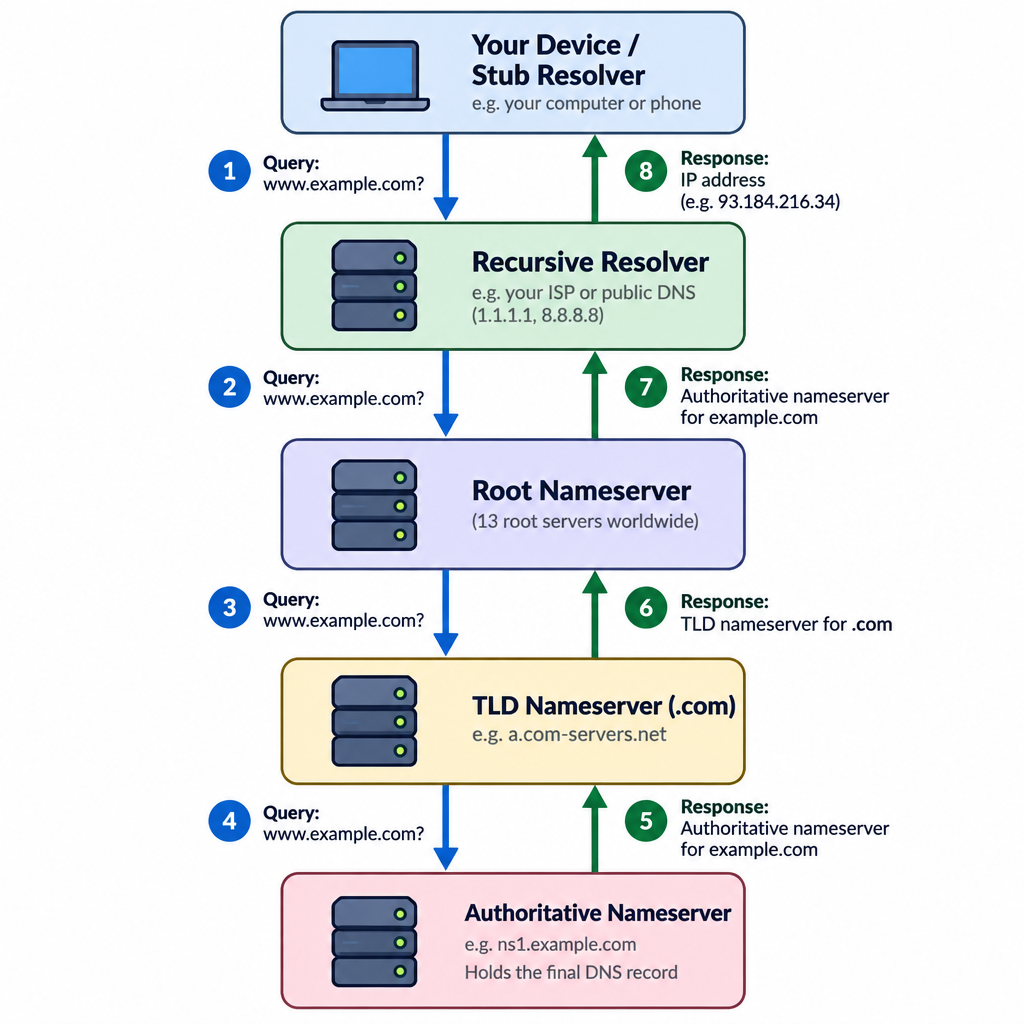
A full lookup involves four kinds of server. Each one knows only part of the answer.
Recursive resolver
This is the server our device asks first. It usually belongs to our internet service provider, though many people switch to a public resolver like Google Public DNS or Cloudflare. The resolver does the legwork. It asks other servers on our behalf and caches what it learns.
Root nameservers
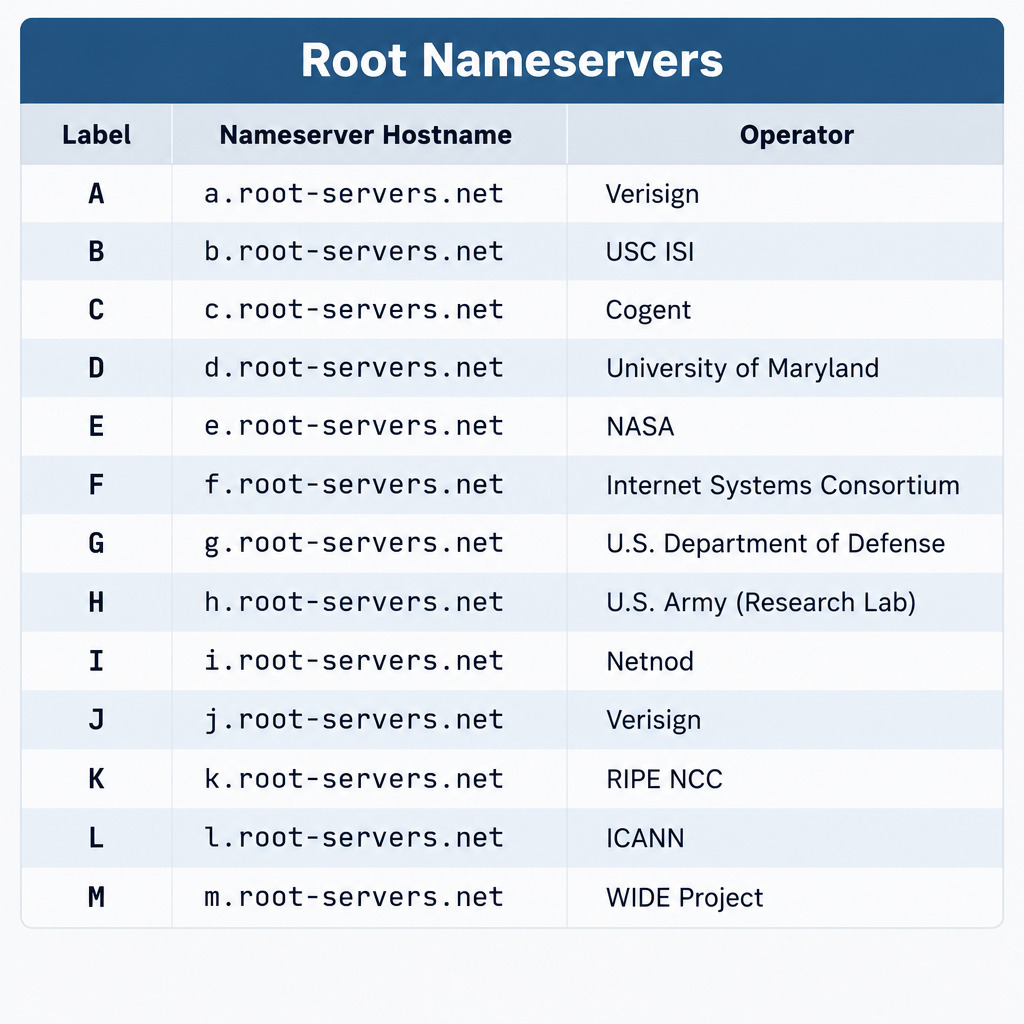
The root servers sit at the top of the hierarchy. They don’t know where example.com lives. They do know who is in charge of .com, .org, .uk and every other top-level domain.
There are 13 named root server identities, labelled A through M. That number dates from early packet size limits. Each identity is served by many physical machines using anycast, a routing method that sends us to the nearest copy. Together they run on well over a thousand instances around the world.
| Root server | Operator |
|---|---|
| A | Verisign |
| B | University of Southern California, ISI |
| C | Cogent Communications |
| D | University of Maryland |
| E | NASA Ames Research Center |
| F | Internet Systems Consortium |
| G | US Department of Defense (DISA) |
| H | US Army Research Lab |
| I | Netnod |
| J | Verisign |
| K | RIPE NCC |
| L | ICANN |
| M | WIDE Project |
Twelve organisations run the 13 identities. Verisign operates both A and J. IANA, a function of ICANN, manages the contents of the root zone itself.
TLD nameservers
Top-level domain servers handle one extension each. Verisign runs .com and .net. Public Interest Registry runs .org. Nominet runs .uk. These servers don’t hold our website’s address either. They store which nameservers are authoritative for each domain under their extension.
Authoritative nameservers
This is where the real answer lives. The authoritative nameserver holds the zone file for a domain: its A records, MX records, TXT records and the rest. When we edit DNS in Cloudflare, our registrar’s dashboard or our host’s control panel, we are editing records on an authoritative server.
How does DNS work? A lookup in 8 steps
So how does a domain name system work in practice? Here is what happens when we type www.example.com into a browser and nothing is cached yet.
The DNS lookup, step by step
- The browser checks its own cache for the name.
- The operating system checks its cache and hosts file.
- The device sends the query to a recursive resolver.
- The resolver asks a root server where .com lives.
- The resolver asks a .com TLD server for example.com’s nameservers.
- The resolver asks example.com’s authoritative nameserver for the record.
- The resolver returns the IP address and caches it.
- The browser connects to that IP and requests the page.
A few details make this work smoothly.
Steps 1 and 2 stop most lookups early. Browsers and operating systems keep recent answers. If we visited the site a minute ago, the request never leaves our computer.
Step 3 uses a stub resolver. Our device runs a small piece of software that sends one question and waits for one answer. It does not walk the hierarchy itself.
Steps 4 to 6 are iterative. Each server replies with a referral, essentially saying “I don’t know, but ask them.” The resolver follows each referral until it reaches an authoritative answer.
Step 7 is where caching pays off. The resolver stores every answer it collected along the way. The next user asking for any .com domain skips the root. The next user asking for example.com skips almost everything.
The whole chain usually finishes in tens of milliseconds. A fully cached answer from a nearby resolver can arrive in a few milliseconds.
Caching and TTL: why DNS is fast and why changes take time
Every DNS record carries a TTL, or time to live. It is measured in seconds. The TTL tells resolvers how long they may keep an answer before asking again.
Short TTLs mean changes spread quickly. Long TTLs mean fewer queries and faster average performance. Choosing between them is a trade-off.
| TTL value | Time | Typical use |
|---|---|---|
| 60 | 1 minute | Failover setups, active migrations |
| 300 | 5 minutes | Records we expect to change soon |
| 3600 | 1 hour | A sensible default for most sites |
| 14400 | 4 hours | Stable records on established sites |
| 86400 | 24 hours | MX and NS records that rarely change |
| 172800 | 48 hours | Nameserver delegations at many TLDs |
That last row explains a long-standing myth. People talk about DNS “propagation” as if changes ripple slowly across the internet. They don’t. Old answers simply expire from caches when their TTL runs out.
When we change nameservers for a .com domain, the delegation at the TLD level typically carries a 48-hour TTL. That is where the familiar “allow 24 to 48 hours” advice comes from. Changing an A record on nameservers we already use is usually far quicker. It is limited only by that record’s TTL.
There is also negative caching. If a resolver asks for a record that doesn’t exist, it caches the “not found” response too. The duration comes from the domain’s SOA record. This catches people out when they query a new subdomain before creating it.
Builder tip
Lower the TTL on any record you plan to change to 300 seconds at least a day before the switch. Raise it back once the move is confirmed.
DNS record types site owners actually use
A domain’s zone file can hold dozens of record types. In client work, we touch the same ten again and again.
| Record | What it does | Example value |
|---|---|---|
| A | Points a name to an IPv4 address | 203.0.113.10 |
| AAAA | Points a name to an IPv6 address | 2001:db8::10 |
| CNAME | Makes one name an alias of another | shops.myshopify.com |
| MX | Names the mail servers for the domain | 10 mail.example.com |
| TXT | Holds free text, used for SPF, DKIM, DMARC and verification | v=spf1 include:_spf.google.com ~all |
| NS | Lists the authoritative nameservers | ns1.example-dns.com |
| SOA | Stores zone admin data and negative-cache timing | Serial, refresh, retry values |
| CAA | Limits which certificate authorities may issue SSL for the domain | 0 issue "letsencrypt.org" |
| SRV | Points a service, like VoIP or chat, to a host and port | _sip._tcp records |
| PTR | Maps an IP back to a name (reverse DNS) | Set by the IP owner, not the domain owner |
A few rules trip people up:
- No CNAME at the root. The DNS standard forbids a CNAME on the bare domain (example.com) when other records exist there, which they always do. Many DNS hosts offer workarounds called ALIAS, ANAME or CNAME flattening.
- Only one SPF record. Two
v=spf1TXT records on the same name invalidate both. Merge them into one. - MX records point to names, never IPs. And that name must not be a CNAME.
- CAA records are enforced. Certificate authorities have been required to check them since September 2017. A strict CAA record can block a host’s automatic SSL renewal.
Email records deserve special care. Since February 2024, Google and Yahoo require bulk senders to authenticate mail. Anyone sending more than 5,000 messages a day to Gmail addresses needs SPF, DKIM and DMARC in place. Smaller senders still need SPF or DKIM. All three live in DNS as TXT records, sometimes with CNAMEs for DKIM keys.
Domain name services: three jobs people often confuse
When clients search for domain name services, they usually mean one of three different things. Mixing them up causes most of the DNS problems we see.
| Role | What it does | Common examples |
|---|---|---|
| Registrar | Leases us the domain and records who owns it | Namecheap, GoDaddy, Porkbun, Cloudflare Registrar |
| DNS host | Runs the authoritative nameservers and stores our records | Cloudflare, Amazon Route 53, the registrar’s free DNS |
| Web host | Runs the server that actually delivers the website | WordPress hosts, Shopify, Squarespace, Netlify |
One company can do all three. Many beginners buy a domain, use the registrar’s free DNS and point an A record to their host. That works fine.
Trouble starts when the jobs split without anyone noticing. A typical case: a client moves nameservers to Cloudflare for speed. Months later, someone edits records at the registrar and nothing changes. The registrar’s DNS is no longer authoritative, so those edits do nothing.
The rule is easy. Whoever the NS records point to is where DNS gets edited. The registrar’s job is to hold the domain and publish those NS records to the TLD. If you still need a domain, our guide on how to register a domain name walks through choosing a registrar.
What platforms ask for
Hosted platforms tell us exactly which records to add. Connecting a custom domain to the Shopify ecommerce platform, for instance, has long meant an A record on the root pointing to Shopify’s IP and a CNAME on www pointing to shops.myshopify.com. Squarespace, Wix and most builders follow a similar pattern with their own values.
Always copy the values from the platform’s current help page rather than an old tutorial. Platforms do change IPs. Even an AI website builder that creates the whole site for us still depends on these same records to put it on our domain.
For a static site, say one built with the Astro framework and deployed to Netlify, Vercel or Cloudflare Pages, the host usually provides a CNAME target. Some ask us to move nameservers entirely so they can manage the apex.
Public DNS resolvers compared
Our device uses whatever resolver the network hands it. On home connections, that is usually the ISP’s. We can change it in our router or operating system.
| Provider | IPv4 | IPv6 | Notable for |
|---|---|---|---|
| Google Public DNS | 8.8.8.8, 8.8.4.4 | 2001:4860:4860::8888, 2001:4860:4860::8844 | Launched 2009, huge global footprint |
| Cloudflare | 1.1.1.1, 1.0.0.1 | 2606:4700:4700::1111, 2606:4700:4700::1001 | Launched 2018, privacy-focused, very fast |
| Quad9 | 9.9.9.9, 149.112.112.112 | 2620:fe::fe, 2620:fe::9 | Blocks known malicious domains, Swiss nonprofit |
| Cisco OpenDNS | 208.67.222.222, 208.67.220.220 | 2620:119:35::35, 2620:119:53::53 | Content filtering options for homes and offices |
Which is best depends on location and priorities. Cloudflare and Google are generally among the fastest in independent benchmarks. Quad9 adds threat blocking at no cost. OpenDNS suits families and offices that want category filtering.
Switching resolvers does not make websites themselves faster. It only speeds up the lookup step. It can, however, fix sites that fail to load because an ISP’s resolver is slow, broken or filtering.
DNS and website performance
DNS rarely gets credit for speed, but it is the first thing that happens on every visit. A slow authoritative nameserver adds delay before a single byte of HTML loads.
For site owners, a few choices make a measurable difference:
- Use an anycast DNS host. Providers like Cloudflare, Route 53 and most premium DNS services answer from many locations. Cheap or bundled DNS sometimes runs from a single data centre.
- Avoid long CNAME chains. Each alias can trigger another lookup. One hop is normal. Three or four starts to add up.
- Keep third-party domains in check. Every external script, font or analytics tag on a page needs its own DNS lookup. A WordPress site with fifteen plugins calling fifteen different domains pays for each one.
- Use resource hints. A
dns-prefetchorpreconnecthint tells the browser to resolve important domains early.
<link rel="preconnect" href="https://fonts.gstatic.com" crossorigin>
<link rel="dns-prefetch" href="https://www.googletagmanager.com">
DNS also powers content delivery networks. A CDN often uses DNS to send each visitor to the nearest edge server. That is how the same domain can serve a visitor in Sydney from Australia and a visitor in Berlin from Germany. If you’re new to how sites are assembled and served, our piece with the CMS explained covers the layer that sits on top of all this.
DNS security: what goes wrong and how to fix it
The original DNS had no security built in. Responses were trusted because they arrived. That design has been patched and extended for decades.
Cache poisoning
An attacker tricks a resolver into caching a fake answer. Every user of that resolver is then sent to the wrong IP. In 2008, security researcher Dan Kaminsky showed this was far easier than anyone thought. The flaw, tracked as CVE-2008-1447, triggered a coordinated patch across major DNS software vendors. The fix randomised source ports, making forged replies much harder to land.
DNSSEC
DNSSEC adds cryptographic signatures to DNS records. A validating resolver can check that an answer really came from the domain’s owner and wasn’t altered. The root zone has been signed since 2010.
Most registrars and DNS hosts now offer DNSSEC with a toggle. Adoption among ordinary domains remains patchy. We recommend turning it on when the registrar and DNS host both support it cleanly. Disable it before moving DNS providers, or the domain can fail to resolve entirely during the switch.
DNSSEC brought its own bugs. In February 2024, researchers disclosed KeyTrap (CVE-2023-50387). A single crafted DNSSEC response could tie up a validating resolver’s CPU for long periods. Fixes shipped across the major resolvers that month, including BIND 9.18.24 and Unbound 1.19.1. Resolver operators should be on those versions or later.
Encrypted DNS
Classic DNS travels in plain text. Anyone on the network path can see which domains we look up. Two standards fix this:
| Protocol | Port | Transport | Standard |
|---|---|---|---|
| Classic DNS | 53 | UDP, falls back to TCP | RFC 1035 |
| DNS over TLS (DoT) | 853 | TLS over TCP | RFC 7858 |
| DNS over HTTPS (DoH) | 443 | HTTPS | RFC 8484 |
| DNS over QUIC (DoQ) | 853 | QUIC over UDP | RFC 9250 |
Firefox, Chrome, Edge and Safari all support encrypted DNS. Android supports DoT through its Private DNS setting. Encrypted DNS hides queries from the local network. It does not hide them from the resolver we choose.
DDoS attacks on DNS providers
Take down a DNS provider and every domain using it disappears. On October 21, 2016, the Mirai botnet flooded the DNS provider Dyn. Twitter, Netflix, Reddit and GitHub became unreachable for many users across much of the day.
A different failure hit Facebook on October 4, 2021. A configuration change withdrew the network routes to its own DNS servers. Facebook, Instagram and WhatsApp were offline for around six hours. Nothing attacked them. The DNS servers simply became unreachable.
Domain and DNS hijacking
The most common real-world threat to small sites is simpler. Someone gets into the registrar or DNS account and changes the records. Traffic and email then flow to the attacker.
Security note
A stolen registrar login lets an attacker redirect your site and intercept email. Turn on two-factor authentication and registrar lock, and use a dedicated email address for the account.
A related risk is the dangling DNS record. A CNAME still points to a cloud service we stopped using. An attacker claims that resource name and serves content on our subdomain. Audit old records whenever a service is cancelled.
How to check a domain’s DNS yourself
We don’t need special software to see what DNS returns. Every major operating system has a lookup tool built in.
On macOS or Linux, dig gives the clearest output:
# A record for a domain
dig example.com A +short

# Mail servers
dig example.com MX +short

# Ask a specific resolver, such as Cloudflare
dig @1.1.1.1 example.com A

# Follow the full chain from the root
dig example.com +trace
On Windows, nslookup does the same job:
nslookup example.com
nslookup -type=MX example.com
nslookup example.com 8.8.8.8
The +trace option is the best teaching tool there is. It shows each referral from the root to the TLD to the authoritative server. It is the 8-step process above, printed on screen.
To compare answers across the world, web-based DNS checkers query resolvers in many countries at once. They help confirm a change has taken hold everywhere.
Troubleshooting common DNS issues
Most DNS issues fall into a handful of patterns. Here is what we check first.
The site works for some people but not others. Different resolvers are serving cached answers of different ages. Wait out the old TTL, or flush local caches to test.
Changes made but nothing happens. Check the NS records with dig example.com NS. We are probably editing records at a provider that is no longer authoritative.
“DNS_PROBE_FINISHED_NXDOMAIN” in Chrome. The name doesn’t resolve at all. Look for a typo in the record, an expired domain or a missing record on the subdomain.
Email stopped after a website move. The new DNS zone was created without the old MX, SPF and DKIM records. Copy every record across before changing nameservers.
SSL certificate won’t issue. A CAA record may be blocking the host’s certificate authority. Or the A record doesn’t point to the host yet, so validation fails.
To clear cached answers on our own machine:
# Windows
ipconfig /flushdns

# macOS (recent versions)
sudo dscacheutil -flushcache; sudo killall -HUP mDNSResponder

# Linux with systemd-resolved
sudo resolvectl flush-caches
Chrome keeps a separate cache. Visiting chrome://net-internals/#dns and clicking “Clear host cache” resets it.
Moving a site without DNS downtime
DNS is where most migrations go wrong. That holds for moving WordPress to a new host, launching a store or switching builders. The fix is planning, not speed.
Zero-downtime DNS switch
- Back up the site and export the full DNS zone.
- Lower TTLs on records you will change to 300 seconds.
- Wait at least as long as the old TTL.
- Build and test the new site using a hosts file entry.
- Recreate every record, including MX and TXT, at the new DNS host if moving.
- Update the A or CNAME records to the new server.
- Confirm with dig against several public resolvers.
- Keep the old server running for 48 hours, then raise TTLs.
Step 1 is not optional. A zone export takes seconds and saves hours if someone deletes the wrong record. Most DNS hosts offer a BIND-format export or at least a screenshot-friendly table.
Step 8 matters too. Some resolvers ignore TTLs and hold answers longer than they should. Leaving the old server online catches those stragglers. That matters even more for a shop, where a missed order is lost revenue. Our explainer on how ecommerce works covers why checkout uptime is so sensitive.
If the move also changes nameservers, add the TLD delegation delay on top. Plan for up to 48 hours of mixed traffic and avoid making content changes in that window.
FAQ
What does DNS stand for?
DNS stands for Domain Name System. Some people also say Domain Name Service or Domain Name Server when referring to the servers that run it. The system itself is the Domain Name System.
How does DNS work in simple terms?
Our device asks a resolver for a domain’s address. The resolver asks a root server, then a TLD server, then the domain’s own nameserver. It returns the IP address to our device and remembers it for next time.
Is DNS the same as a domain name?
No. The domain name is the address we register, like example.com. DNS is the system that tells the internet what that name points to. We can own a domain with no DNS records at all, but it won’t load anything.
How long does DNS take to update?
Record changes on the same nameservers update once the old TTL expires. That is often five minutes to an hour. Nameserver changes can take up to 48 hours because of how long TLD delegations are cached.
Should I change my DNS server to 8.8.8.8 or 1.1.1.1?
It is worth trying if your ISP’s resolver is slow or unreliable. Both are free and widely used. Cloudflare’s 1.1.1.1 is generally a little faster in independent tests, and Google’s 8.8.8.8 is extremely stable. Neither will make websites themselves load faster once the lookup is done.
Does DNS affect SEO?
Indirectly, yes. Slow or failing DNS hurts page load times and can make search crawlers see a site as down. DNS records are also how we verify ownership in search tools like Google Search Console and Bing Webmaster Tools.
Is my DNS traffic private?
Not by default. Classic DNS is sent in plain text on port 53. Turning on DNS over HTTPS in a browser, or Private DNS on Android, encrypts the queries between our device and the resolver.