A 400 Bad Request means the server cannot or will not process your request because of something it perceives as a client error, such as a mangled URL or a malformed API body. Oversized headers have their own 431 status and oversized bodies are commonly reported as 413, though some servers still answer both with a plain 400. Sending the same request again gets the same error, so the fix is to change the request. For most visitors that means clearing one site’s cookies. For site owners and developers it means finding which header, body or parameter the server rejected.
In short
- A 400 is a client-side error under RFC 9110. It repeats until the request changes.
- Try an incognito window first. If the page loads there, your cookies or an extension are a likely cause, though that alone does not prove it.
- “Request Header Or Cookie Too Large” usually means a header went over a server limit. nginx’s default
client_header_buffer_sizeis 1 KB, with larger headers handled bylarge_client_header_buffers. Apache’s defaultLimitRequestFieldSizeis 8190 bytes. - Cloudflare documents a 128 KB total request-header limit for HTTP/2 and HTTP/3, while HTTP/1.1 is limited to 32 KB. If you still get a cookie-size 400 behind Cloudflare, it probably came from your origin.
- On WordPress, an admin-ajax.php 400 almost always means a missing or unregistered
actionparameter.
Fact-checked
We checked these key facts against the sources named, on November 26, 2026:
- A 503 or 504 can clear up on its own when a server recovers (source: developer.mozilla.org)
- The current standard is RFC 9110 (HTTP Semantics), section 15.5.1, which replaced RFC 7231 in 2022 (source: rfc-editor.org)
- 5xx codes, such as 500, 502 and 503, mean the server failed to handle a request that may have been valid (source: developer.mozilla.org)
- 401 means it doesn’t know who you are, 403 means it knows and says no, and 404 means the address points to nothing (source: freecodecamp.org)
- According to http.dev, nginx records oversized request headers internally as status 494 Request Header Too Large, but sends the visitor a plain 400 (source: http.dev)
400 Bad Request: what it means (short answer)
MDN Web Docs defines 400 Bad Request as the server not processing a request “due to something that is perceived to be a client error”. The examples it gives are malformed request syntax, invalid request message framing and deceptive request routing. The current standard is RFC 9110 (HTTP Semantics), section 15.5.1, which replaced RFC 7231 in 2022. Older guides still cite RFC 7231, but the meaning has not changed.
400 is the general-purpose client error. Servers use it when no more specific 4xx code fits, or when the software that rejects the request (nginx, a CDN, a firewall) chooses not to be more specific. So “Bad Request” tells you the server didn’t like what it received. It doesn’t always tell you which part.
Is a 400 error temporary?
No. MDN states that repeating the request unmodified will fail with the same error. A 503 or 504 can clear up on its own when a server recovers. A 400 stays until something in the request changes: the URL, the cookies, the file size or the request body.
There is one exception. A bad deploy, a broken plugin or a misconfigured proxy on the site’s side can make valid requests look invalid. Then the error goes away when the site owner fixes it, even though you changed nothing.
Is it my fault or the website’s?
It depends on whether the error follows you or follows the site. If the page fails in your normal browser but loads in incognito or on your phone, the cause is on your side: cookies, cache or an extension. If it fails everywhere, for everyone, the site owner has to fix it.
| Who you are | First thing to try | Section to read |
|---|---|---|
| Visitor | Incognito window, then delete that site’s cookies | Fix it as a visitor |
| Site owner (WordPress, WooCommerce, Shopify) | Check server logs and recent plugin, theme or app changes | Server/CDN and CMS sections |
| Developer testing an API | Validate the JSON and the Content-Type header | Fix it as a developer |
The five things that actually cause a 400

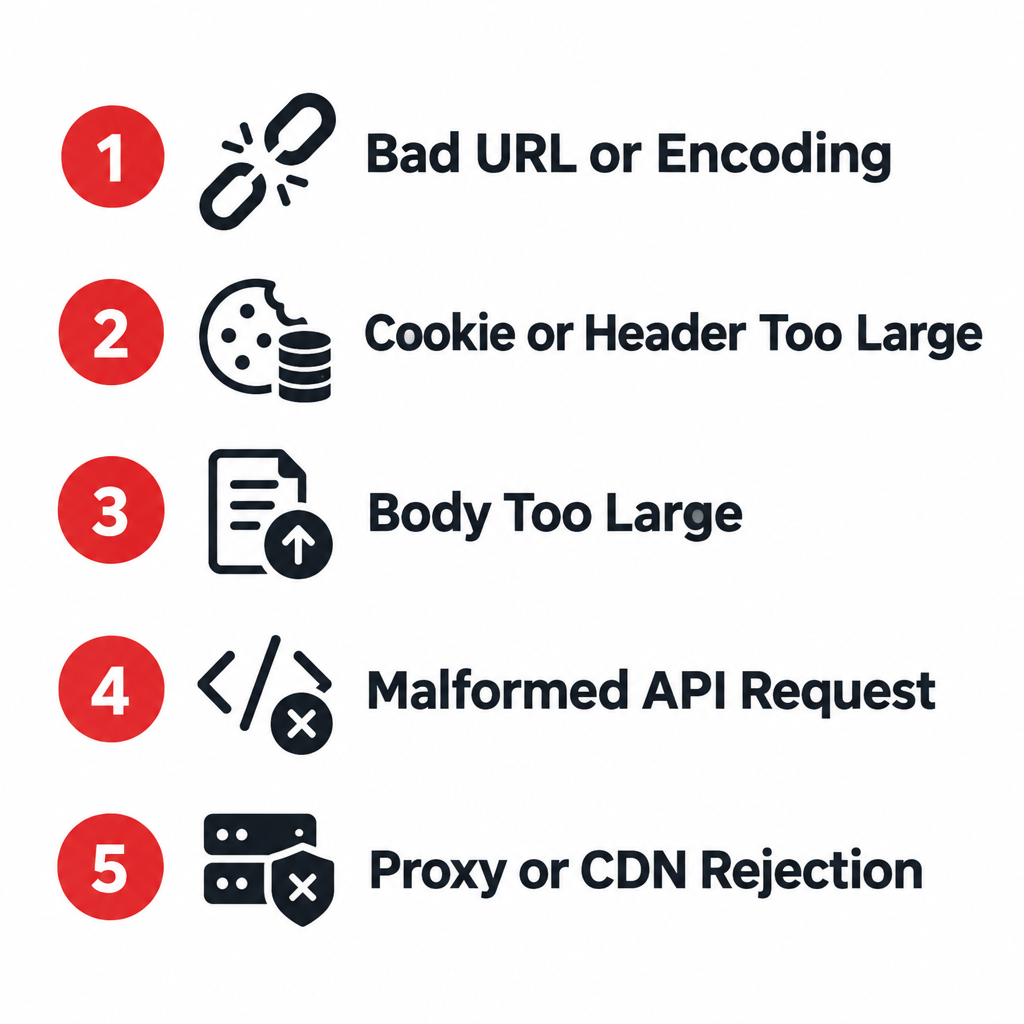
Nearly every 400 comes from one of five problems: a bad URL, headers or cookies that are too large, a body that is too large or badly framed, a malformed API request, or a proxy or CDN rejecting something it considers unsafe. Each one shows up in its own way, so the symptom usually points to the cause.
Bad URL or encoding
A URL with illegal characters, broken percent-encoding or a stray space can fail to parse. Common examples are a % not followed by two hex digits, unescaped curly braces pasted from a template, or a link cut off halfway through a query string in an email client. You usually see a 400 on a single link while the rest of the site works.
Very long URLs are a related case. nginx and Apache both answer an oversized request line with 414 URI Too Long, but some applications and proxies just return a generic 400.
Cookie or header too large
This is the variant people search for most: “400 Bad Request: Request Header Or Cookie Too Large”. Your browser sends every cookie for a domain in one Cookie header on each request. Once that header goes over the server’s per-header buffer, the server refuses the request. It happens on one site only, often after weeks of normal use. It also tends to come back after you clear cookies, because the site keeps writing new ones.
Two related messages mean the same thing. “Bad Request: Size of a request header field exceeds server limit” is Apache’s wording. “HTTP Error 400. The size of the request headers is too long” comes from Microsoft’s IIS and HTTP.sys stack.
File or body too large
Uploads can trigger a 400, though the more correct code is 413 Content Too Large. nginx returns 413 when the body exceeds client_max_body_size, which defaults to 1 MB. Some applications, upload plugins and API gateways answer with a plain 400 instead. If the error shows up only when you attach a large image, video or PDF, the size limit is the likely cause.
Malformed API request
For developers, the usual causes are invalid JSON (a trailing comma, single quotes, an unescaped character) and a Content-Type header that doesn’t match the body. Missing required parameters and wrong data types cause it too. Well-built APIs return a JSON body that explains what was wrong. Many don’t, and you just get the status.
Proxy, CDN or WAF rejection
CDNs, load balancers and web application firewalls (WAFs) sit in front of the real server, and each has its own limits. Cloudflare’s documentation says it follows the RFC and returns HTTP 400 for certain ambiguous request-body framing that could enable request smuggling. One example is a request that carries conflicting Content-Length and Transfer-Encoding headers. Loadbalancer.org has described its WAF stack rejecting a cookie header larger than its default 8 kB limit with a 400. In these cases the error can come from a layer the site owner rarely looks at.
Did you know?
Cloudflare’s documentation says it deliberately returns 400 for ambiguous request-body framing, because a proxy and an origin that read the same request differently can be used for HTTP request smuggling.
| What you see | Likely cause | Who fixes it | Fix |
|---|---|---|---|
| 400 on one link only, rest of site fine | Malformed or truncated URL | Visitor or link owner | Retype the URL or fix the link |
| “Request Header Or Cookie Too Large” | Cookie header over the server buffer | Visitor short term, site owner long term | Delete site cookies; reduce cookies or raise buffers |
| Works in incognito, fails in normal window | Corrupt or bloated cookies, or an extension | Visitor | Clear that site’s cookies, disable extensions |
| 400 only when uploading | Body or file over a limit | Visitor or site owner | Shrink the file or raise the upload limit |
| 400 in Postman or the console with a JSON error body | Invalid JSON, wrong Content-Type, missing field | Developer | Validate payload and headers |
admin-ajax.php 400 in the browser console |
Missing or unregistered action |
WordPress developer or plugin author | Register the handler, send form-encoded data |
| Cloudflare-branded 400 page | Request rejected at Cloudflare’s edge | Site owner | Check request framing and headers |
Fix it as a visitor (Chrome, Safari, Firefox, Edge)
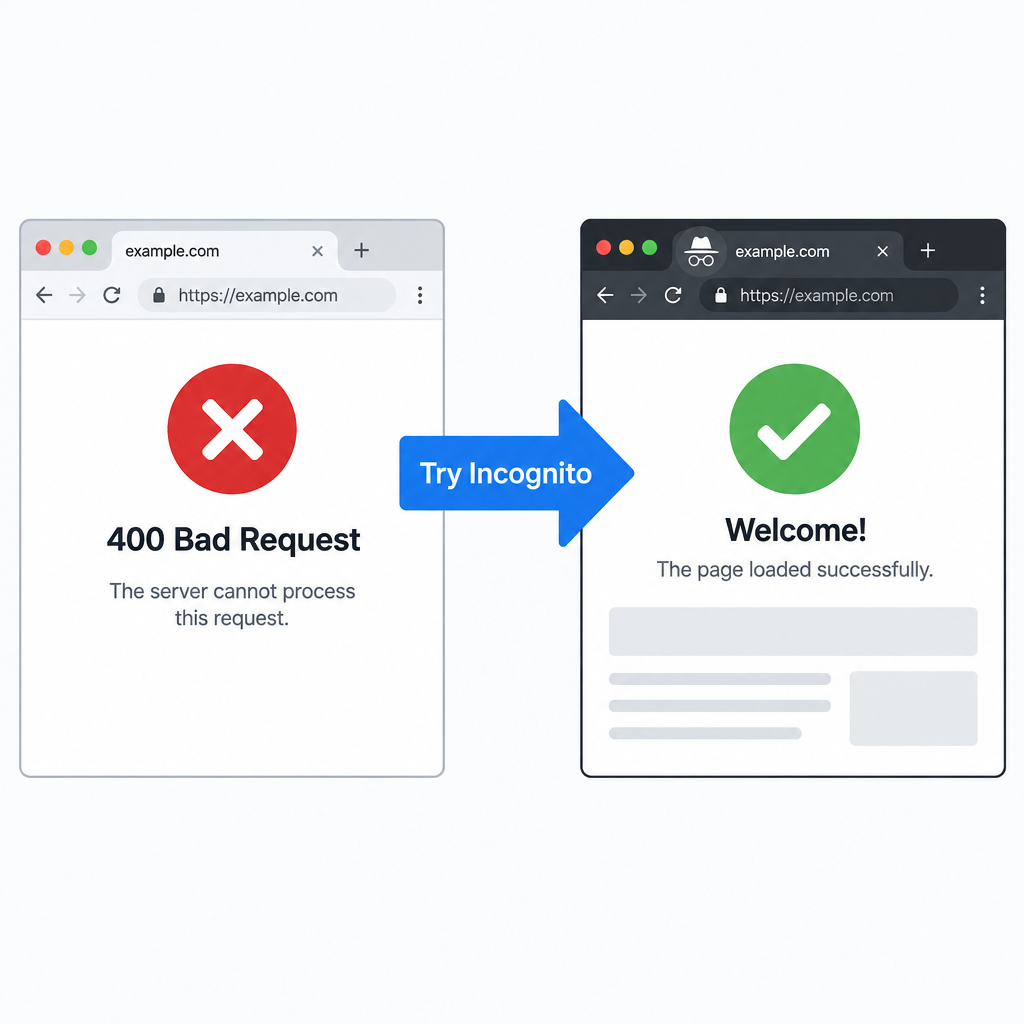
Most visitor-side 400s are fixed in under two minutes. Try an incognito window first, then delete cookies for that one site. Work through the steps in this order, because each one rules out a cause.
Visitor fix order
- Retype the URL, or go to the site’s homepage and navigate to the page again.
- Open the same URL in an incognito or private window.
- If incognito works, delete cookies and site data for that domain only.
- Disable browser extensions, especially ad blockers, VPN and coupon add-ons.
- Try another browser or your phone on mobile data.
- Flush your DNS cache if the site recently moved servers.
- If you are uploading, compress or resize the file and try again.
The 30-second incognito test
An incognito window in Google Chrome or Edge, or a private window in Firefox or Safari, starts without your stored cookies and usually without extensions. If the page loads there, the website is fine and the cause is in your normal browser profile. If it fails in incognito too, try another device on a different network. If that fails as well, the problem is on the site’s side.
Builder tip
Open the failing URL in an incognito window before you change anything. If it loads, the cause is your cookies or an extension, not the website.
Clear cookies for just one site
You don’t need to wipe every cookie and get signed out of every account. Google’s Chrome Help describes how to remove one site’s data:
- Open the three-dot menu and choose Settings.
- Go to Privacy and security > Third-party cookies.
- Select See all site data and permissions.
- Search for the site’s name at the top right.
- Select the delete icon next to the site, then confirm with Delete.
In Firefox, go to Settings > Privacy & Security > Cookies and Site Data > Manage Data, search for the domain and remove it. In Safari on a Mac, go to Settings > Privacy > Manage Website Data, search, then remove the entry. Google warns that deleting cookies may sign you out of that site. That’s expected, and it is part of the fix.
Check subdomains too. A cookie set with Domain=example.com is also sent to shop.example.com, while a host-only cookie set on example.com without a Domain attribute is not. If the error continues after clearing a subdomain’s data, check the root domain’s entries as well.
Flush DNS and check extensions
DNS rarely causes a true 400. It can matter after a site moves to a new web host and your computer still resolves the old server, which may reject requests for a site it no longer hosts. If you want the background, our guide to how the domain name system works covers why old records linger. On Windows, run ipconfig /flushdns in Command Prompt. On macOS, run sudo dscacheutil -flushcache; sudo killall -HUP mDNSResponder in Terminal.
Extensions that rewrite headers, inject scripts or route traffic through a proxy can produce requests a server refuses. Turn them all off, reload, then turn them back on one at a time.
When it keeps coming back
If “Cookie Too Large” returns days after you cleared cookies, the website keeps adding cookies until it hits the limit again. Clearing cookies only resets the clock. You can’t fix that from your side. Report it to the site and include the exact error text, your browser and version, and the page where it happens.
‘Request Header Or Cookie Too Large’: the most common variant

This message means one request header, almost always Cookie, or the whole header block was bigger than the server allows. The browser has no say in it. The server sets the limit, and each server and CDN uses a different number. Knowing the number tells you how much cookie data a site can carry before it breaks.
Limits on nginx, Apache and Cloudflare
nginx reads request headers into buffers set by large_client_header_buffers, which defaults to 4 buffers of 8 KB. A single header line bigger than one buffer gets a 400. A request line bigger than one buffer gets a 414. Apache HTTP Server sets LimitRequestFieldSize and LimitRequestLine to 8190 bytes each by default. Cloudflare’s connection-limits reference lists a 128 KB total for request headers.
| Server / service | Directive or limit | Default | What the visitor sees | How to change it |
|---|---|---|---|---|
| nginx | large_client_header_buffers |
4 × 8 KB (one header must fit in one buffer) | 400 “Request Header Or Cookie Too Large” | Edit http or server block, reload nginx |
| nginx | client_max_body_size |
1 MB | 413 Request Entity Too Large | Edit http, server or location block |
| Apache HTTP Server | LimitRequestFieldSize |
8190 bytes per header | 400 “Size of a request header field exceeds server limit” | Server config or virtual host, restart Apache |
| Apache HTTP Server | LimitRequestLine |
8190 bytes | 414 URI Too Long | Server config or virtual host |
| Cloudflare | Request header total | 128 KB (since October 16, 2025) | Request fails at the edge | Not configurable; reduce headers |
| Heroku router | Header line limit | 8192 bytes per line | 400 Bad Request | Not configurable; shrink cookies |
Before October 16, 2025, Cloudflare allowed only 32 KB of headers in total, with a maximum of 16 KB per header. Its changelog notes that larger headers could make requests fail. Since the change, a typical cookie problem is far more likely to hit your origin’s nginx or Apache limit than Cloudflare’s.
Did you know?
According to http.dev, nginx records oversized request headers internally as status 494 Request Header Too Large, but sends the visitor a plain 400. So your access logs and the browser can show different codes for the same failure.
Finding the real reason in nginx logs
nginx logs the exact cause, but you may not see it by default. Dash0 explains that the messages “client sent too large request”, “client sent too long header line” and “client sent too many header lines” are written at the info level, and the default error_log level drops them. Raise the level for a short time to confirm the cause:
error_log /var/log/nginx/error.log info;
Reload with sudo nginx -t && sudo systemctl reload nginx, reproduce the error, then read the log. Set the level back to warn or error afterwards, because info is noisy.
Builder tip
Set nginx’s error_log to info for a few minutes before you change any buffer. “Too long header line” and “too large request” need different fixes, and the log tells you which one you have.
Raising the buffer safely (and the DDoS trade-off)
A common nginx fix, as Linuxize documents, is to double the buffer size:
http {
    large_client_header_buffers 4 16k;
}
That gives each header line 16 KB. Plesk’s knowledge base recommends raising client request header buffers to fix these 400s, and it warns that the larger the buffer, the greater the impact of a DDoS attack. Every open connection can hold that much memory, so an attacker who opens thousands of connections gets more out of each one. Raise the limit in small steps. A jump straight to 4 64k or more puts every connection on your server at risk to save one oversized cookie.
There’s also a fair counter-argument: raising the buffer treats the symptom. If one site’s cookies keep growing, a bigger buffer only buys time. In most cases the lasting fix is to cut cookie bloat, and the buffer bump is a stopgap until that is done.
Cutting cookie bloat at the source
Cookies grow from three main sources: analytics and ad tags, session or token cookies that are never cleaned up, and cookies set on the root domain that every subdomain then inherits. To audit them, open Chrome DevTools, go to Application > Cookies, select your domain, and sort by size.
Practical reductions:
- Remove marketing tags you no longer use. Each one can set several cookies.
- Scope cookies to the subdomain that needs them (
shop.example.com) instead of.example.com. - Store session data on the server and keep only a short session ID in the cookie.
- Give token cookies a sensible expiry so old ones drop off.
- Rotate cookies by overwriting the same name, not by creating a new uniquely named cookie each time.
Builder tip
If “Cookie Too Large” comes back days after visitors clear cookies, open DevTools > Application > Cookies and check the count and size for your domain. A list that grows with each visit or order points to the script that keeps writing them.
Fix it as a site owner: server and CDN
If the error shows up for many visitors or on every device, start with the server. Find out which layer produced the 400, read that layer’s logs, and only then change limits. Back up your configuration before you edit anything, so you can roll back a typo that takes the whole site down.
nginx
The two directives that matter are large_client_header_buffers for headers and client_max_body_size for uploads. Linuxize and others note a trap: a client_max_body_size set in a server or location block overrides the value in http. So a 50 MB limit in nginx.conf can be cancelled by a 1 MB line in a site file.
http {
    large_client_header_buffers 4 16k;
    client_max_body_size 64m;

    server {
        server_name example.com;
        # A smaller value here would override the http block
    }
}
Test with sudo nginx -t before you reload. If an upload still fails and nginx’s error log shows no “client intended to send too large body” line, something else rejected it: PHP, the application or a proxy in front.
Apache / LiteSpeed / cPanel / Plesk
On Apache HTTP Server, raise the header limits in the main config or the virtual host:
LimitRequestFieldSize 16380
LimitRequestLine 16380
Restart Apache afterwards. On shared hosting you usually can’t change these, and they don’t work in .htaccess. Ask your host, or use the host’s control panel where one exists. Plesk documents its own route for raising header buffers for 400 errors, with the same DDoS warning noted above. On cPanel servers, Apache and PHP upload limits are normally changed through the panel’s server or PHP settings rather than raw config files.
For uploads on PHP sites such as WordPress, upload_max_filesize and post_max_size matter as well as the web server limits. Out of the box, PHP sets them to 2 MB and 8 MB. The upload only works if every layer allows it.
Cloudflare or origin? How to tell
Cloudflare’s documentation says its error headers appear only on Cloudflare-generated error pages, not on errors passed through from your origin server. A cf-ray header shows up on every proxied response, so on its own it proves nothing. Look at the page and the headers together:
- A Cloudflare-branded error page with a Ray ID and Cloudflare error headers came from Cloudflare.
- A plain white page with “nginx” or “Apache” in the footer came from that server, wherever it runs.
To be certain, send the same request straight to the origin and skip Cloudflare:
curl -sv -o /dev/null https://example.com/page

# Directly to the origin IP, keeping the hostname
curl -sv -o /dev/null https://example.com/page --resolve example.com:443:203.0.113.10

# Reproduce a large-cookie failure (about 9 KB of cookie data)
curl -s -o /dev/null -w "%{http_code}\n" \
  -H "Cookie: test=$(head -c 9000 /dev/zero | tr '\0' 'a')" \
  https://example.com/
If the direct request returns 400 too, the origin is the source. That helps with a question that comes up a lot, “Request header or cookie too large on DigitalOcean App Platform: is it Cloudflare or nginx?” An nginx-branded error page alone does not establish which nginx instance or intermediary rejected the request. DigitalOcean routes App Platform traffic through its ingress, but that does not prove a particular error page originated there, so compare the proxied and direct responses before drawing conclusions. For gateway problems that appear during the same checks, see our guides to the 502 Bad Gateway and the 504 gateway time-out.
Security note
Raising header and body limits enlarges what each connection can consume. Change one value at a time, keep a copy of the old config, and set the smallest value that fixes real traffic.
Fix it on your CMS: WordPress, WooCommerce, Shopify

CMS-specific 400s cluster around a few predictable spots. On WordPress it’s AJAX and REST calls. On WooCommerce it’s cart and session cookies. On Shopify it’s checkout cookies and admin logins. Work on a staging copy where you can, and take a full backup before you change plugins, themes or .htaccess.
| Platform | Common 400 trigger | Where to look | Fix |
|---|---|---|---|
| WordPress | admin-ajax.php with missing or unregistered action |
Browser DevTools > Network, request payload | Register wp_ajax_ hooks, send form data, use admin_url() |
| WordPress | Broken rewrite rules after a migration | .htaccess, Settings > Permalinks |
Re-save permalinks, restore a known-good .htaccess |
| WordPress REST API | Invalid or missing parameters | Response body code and message |
Match the endpoint’s argument schema |
| WooCommerce | Cart and checkout AJAX, cookie growth | Network tab on cart and checkout pages | Audit cookies, roll back recent plugins |
| Shopify (headless) | checkout_session_token__cn__* cookies building up |
DevTools > Application > Cookies | Limit cookie creation, raise with Shopify |
| Shopify admin | Corrupt login cookies | Incognito login test | Clear Shopify cookies, contact Shopify Support |
| Headless CMS APIs | Bad query syntax or JSON body | API response body | Validate against the API reference |
WordPress admin-ajax.php and REST API
If you see “admin-ajax.php returns 400 Bad Request in console”, the request almost certainly reached WordPress without an action it recognised. Current versions of admin-ajax.php answer with status 400 and a body of 0 when action is missing or no handler is registered for it. WordPress Core Trac ticket #41269 records that this case used to return 200, and argued 400 fit better.
The usual culprits:
- JSON body instead of form data. PHP fills
$_POSTonly from form-encoded or multipart bodies, sofetch()withContent-Type: application/jsonarrives with noaction. - Handler not registered for logged-out users.
wp_ajax_{action}runs only for logged-in users. Visitors needwp_ajax_nopriv_{action}. - Hardcoded AJAX URL. A path like
/wp-admin/admin-ajax.phpbreaks on subdirectory installs and after migrations. Passadmin_url( 'admin-ajax.php' )to your script instead.
// functions.php or plugin
add_action( 'wp_ajax_my_action', 'my_action_handler' );
add_action( 'wp_ajax_nopriv_my_action', 'my_action_handler' );

function my_action_handler() {
    check_ajax_referer( 'my_nonce', 'nonce' );
    wp_send_json_success( array( 'ok' => true ) );
}

wp_localize_script( 'my-script', 'MyAjax', array(
    'url'   => admin_url( 'admin-ajax.php' ),
    'nonce' => wp_create_nonce( 'my_nonce' ),
) );
const body = new URLSearchParams({ action: 'my_action', nonce: MyAjax.nonce });
fetch(MyAjax.url, { method: 'POST', body }); // form-encoded, so $_POST['action'] exists
WPBeginner notes that admin-ajax 400s often come from malformed URLs. Its fixes include re-saving permalinks (Settings > Permalinks > Save Changes) and restoring a previous .htaccess. If you can’t reach the dashboard, upload a known-good .htaccess over SFTP or file transfer protocol. If the 400 started right after a plugin or theme update, roll that one component back on staging and confirm before you touch production.
The WordPress REST API returns 400 with a JSON body such as rest_invalid_param when arguments fail validation. Read that body before anything else. Trac ticket #64032 moves many “invalid params” cases in core from 500 to 400 responses. So you can expect more REST and AJAX failures to show up as 400 in logs and monitoring. That’s a more accurate label, not a new bug.
WooCommerce checkout and cart
WooCommerce runs cart updates and checkout through AJAX endpoints and stores cart state in session cookies. A 400 at checkout usually comes from one of three things. A plugin may be sending malformed AJAX data. A caching or security plugin may be stripping parameters. Or the cookie header may have grown past the server limit because analytics, consent, chat and payment scripts each add their own cookies.
Check the failing request in DevTools > Network and look at the payload. Then check the cookie total for the domain. If the error appeared after an update, disable recently changed plugins one at a time on staging. Exclude cart, checkout and my-account pages from full-page caching, as WooCommerce-aware caching plugins do by default.
Shopify storefront and admin
On Shopify you can’t change server buffers, so the fixes are cookie hygiene and support. Shopify Community merchants using the Shopify Storefront API report that each purchase adds a checkout_session_token__cn__* cookie. The build-up eventually causes “Cookie Too Large”, and clearing cookies only delays it. If you see “400 Bad Request Request Header Or Cookie Too Large nginx” on your Shopify store, check whether the cookie list grows with each order. If it does, raise it with Shopify, ideally with screenshots of the cookie list.
On a headless storefront, you control your own domain’s cookies. Make sure your code isn’t adding a cookie on every cart action, and scope cookies tightly.
For “Why can’t I log into my Shopify admin account due to a 400 bad request error?”, start with the visitor routine. Try incognito, delete cookies for shopify.com and its account subdomains, and disable extensions. If you still can’t log in on a clean browser and a second device, contact Shopify Support. Admin login runs on Shopify’s servers, so only Shopify can fix it there.
Did you know?
In a Shopify Community thread, merchants using the Storefront API describe a new checkout_session_token__cn__ cookie appearing after each purchase. Repeat customers are the ones who hit “Cookie Too Large” first.
Headless CMS and APIs
Headless platforms deliver content through REST or GraphQL APIs. A 400 there means the query or body is malformed, an ID is invalid, or a required field is missing. Many of them return a JSON body that names the problem field, so log that body in your frontend instead of only the status. Watch out for preview tokens and auth cookies stored on a shared root domain. They can push the cookie header past the limit on your marketing site too.
Fix it as a developer (Postman, curl, fetch)

For API work, a 400 usually means the payload, headers or parameters don’t match what the server expects. Read the response body first. Then compare your failing request, field by field, with one that works, such as the example in the API docs.
Debugging a 400 in Postman
If you’re asking “Why do I get 400 Bad Request in Postman?”, check these in order:
- JSON validity. In the Body tab, choose raw and JSON so Postman highlights syntax errors. Trailing commas and single quotes are the usual offenders.
- Content-Type. It must match the body:
application/jsonfor JSON,application/x-www-form-urlencodedfor form fields, andmultipart/form-datafor files. Let Postman set the multipart boundary itself. - Required parameters. Compare your query string and body with the API reference. Check the case of field names.
- Encoding. Encode spaces,
&,#and non-ASCII characters in query values. - Stale headers. Disable inherited headers or cookies in the request’s Headers and Cookies tabs, then add them back one at a time.
- The Console. Open Postman’s Console to see the exact raw request that went out, including headers added automatically.
To compare, replay the request from the command line with curl:
curl -i -X POST https://api.example.com/v1/items \
  -H "Content-Type: application/json" \
  -d '{"name":"Widget","qty":2}'
The -i flag prints response headers, so you can see which server or gateway answered. For fetch(), remember to stringify the body:
await fetch('/api/items', {
  method: 'POST',
  headers: { 'Content-Type': 'application/json' },
  body: JSON.stringify({ name: 'Widget', qty: 2 }) // not the raw object
});
Returning good 400s from your own API
If you build APIs, make your 400s easy to act on. Return a JSON body with a machine-readable error code, a plain message and the field that failed. RFC 9457 (Problem Details for HTTP APIs) defines a standard format for this. Use more specific codes where they fit: 401 when credentials are missing, 413 for oversized bodies, 415 for an unsupported media type, and 422 when the syntax is fine but the content fails validation. Clear codes cut support tickets.
{
  "type": "https://api.example.com/errors/invalid-field",
  "title": "Invalid field",
  "status": 400,
  "detail": "qty must be a positive integer",
  "field": "qty"
}
400 vs 401, 403, 404, 413, 414, 431 and 5xx
A 400 means the server couldn’t make sense of the request. 401 means it doesn’t know who you are, 403 means it knows and says no, and 404 means the address points to nothing. 5xx codes mean the server failed with a request that may have been fine. Use the table to confirm you’re looking at the right error.
| Code | Meaning | Typical trigger | Usual fix |
|---|---|---|---|
| 400 Bad Request | Server can’t or won’t process a malformed request | Bad URL, oversized cookie, invalid JSON | Change the request; clear cookies; validate body |
| 401 Unauthorized | Authentication missing or failed | Expired token, no login | Sign in again or send valid credentials |
| 403 Forbidden | Server understood and refuses | Permissions, WAF rule, IP block | Fix permissions or firewall rules |
| 404 Not Found | No resource at that URL | Deleted page, typo, broken rewrite | Fix the link or add a redirect |
| 413 Content Too Large | Request body over the limit | Large upload past client_max_body_size |
Shrink file or raise the limit |
| 414 URI Too Long | Request line over the limit | Huge query string | Move data into a POST body |
| 415 Unsupported Media Type | Body format not accepted | Wrong Content-Type | Send the format the API expects |
| 431 Request Header Fields Too Large | Headers over the limit | Cookie bloat on servers that use 431 | Reduce cookies or headers |
| 494 (nginx internal) | Request header too large | Logged by nginx, shown to visitor as 400 | Same as “Cookie Too Large” |
| 500 Internal Server Error | Server-side failure | Code bug, fatal PHP error | Check application logs |
| 502 / 503 / 504 | Gateway or availability failure | Upstream down, overloaded, slow | Fix the upstream; often temporary |
If you got a permissions refusal rather than a malformed-request error, see our 403 Forbidden guide. For outages and maintenance windows, our article on the 503 Service Unavailable error covers what to check.
How to prevent 400 errors on your site
Most 400s on a live site come from a slow build-up of cookies or from code changes that ship without testing. Prevention means keeping requests small and checking key endpoints for the status code they return, not only for uptime.
- Keep cookies small and few. Audit DevTools > Application > Cookies every quarter, and after adding any marketing tool.
- Limit third-party scripts. Each tag manager container, chat widget and ad pixel can add cookies on your domain.
- Size upload limits for real use. Align nginx or Apache, PHP and any proxy so the smallest limit still covers your largest legitimate upload.
- Validate forms on the client. Catch bad email formats, empty required fields and oversized files before they hit the server.
- Monitor the endpoints that matter. Track checkout, login,
admin-ajax.phpand REST routes for 4xx rates. A homepage that returns 200 can hide a checkout that returns 400. - Test on staging first. Plugin, theme and server-config changes cause many sudden 400s. Back up, test on staging, then deploy.
- Plan migrations. When you register a domain name or move to a new host, carry over rewrite rules and server limits, and re-save permalinks afterwards.
If you only do one thing this week, open DevTools on your checkout or login page and add up the cookie sizes. A total already near 8 KB will cause 400s on default nginx and Apache limits.
FAQ
How do I fix a 400 bad request?
Retype the URL, then open it in an incognito window. If it works there, delete that site’s cookies and disable extensions. If it fails everywhere, the site owner needs to check server logs, header and upload limits, and recent plugin or code changes.
What is 400 Bad Request used for?
Servers use it to reject requests they consider client errors: malformed syntax, invalid message framing or deceptive routing, as defined in RFC 9110. It’s also the general 4xx code when no more specific one applies.
Is a 400 error temporary?
No. The same request fails every time until something changes: the URL, cookies, body or headers. It clears without you doing anything only when the site fixes a server-side misconfiguration.
What are HTTP 400 and 500 errors?
4xx codes, including 400, mean the request was at fault. 5xx codes, such as 500, 502 and 503, mean the server failed to handle a request that may have been valid. A 400 needs a changed request. A 5xx needs a server fix and is often temporary.
What does 400 Bad Request Request Header Or Cookie Too Large mean?
Your browser sent a header, usually Cookie, bigger than the server allows. On default nginx, a single header must fit in an 8 KB buffer. Delete that site’s cookies to fix it short term. The site owner has to reduce cookies or raise the limit for a lasting fix.
How do I fix 400 Bad Request on Google Chrome?
Go to Settings > Privacy and security > Third-party cookies > See all site data and permissions. Search for the site, then delete its data. Also test in an Incognito window and with extensions turned off.
Why do I get 400 Bad Request in Postman?
Usually it’s invalid JSON, a Content-Type that doesn’t match the body, missing required fields or bad URL encoding. Read the response body, check the Postman Console for the raw request, and compare it with a working example.
Why does AliExpress show 400 Bad Request?
On large shopping sites like AliExpress, the usual cause is a cookie build-up in your browser. Delete cookies for the AliExpress domain, try an incognito window, or use the app until it’s cleared.
What is HTTP Status 400 Bad Request on ADP?
“HTTP Status 400 – Bad Request” is the style of error page used by Apache Tomcat, a Java server. On a portal like ADP it usually means stale cookies or an expired session link. Clear cookies for the ADP domains, go back to the login page directly, and contact your employer’s payroll or HR administrator if it continues.
Is 400 Bad Request my fault or the website’s?
Test it. If the page works in incognito or on another device, your browser data is the cause and you can fix it. If it fails everywhere, or “Cookie Too Large” keeps coming back after you clear cookies, the website has to fix it.
About this article
- Fact-checked by Moira Hensley against the sources listed below before publication.
- Published
Sources (8)
- 400 Bad Request - HTTP | MDN Web Docs (developer.mozilla.org)
- RFC 9110: HTTP Semantics (rfc-editor.org)
- Fix Nginx Request Header or Cookie Too Large (linuxize.com)
- Nginx 413 Request Entity Too Large: client_max_body_size Fix (linuxize.com)
- Default Nginx client_max_body_size (betterstack.com)
- 494 Request Header Too Large (http.dev)
- 400 Bad Request: Request Header or Cookie Too Large (nginx) (dash0.com)
- Apache: The Definitive Guide - LimitRequestFieldSize (oreilly.com)